
The form editor gets a makeover
The registration form editor has been completely redesigned. Your existing forms open as they are: there is nothing to migrate.
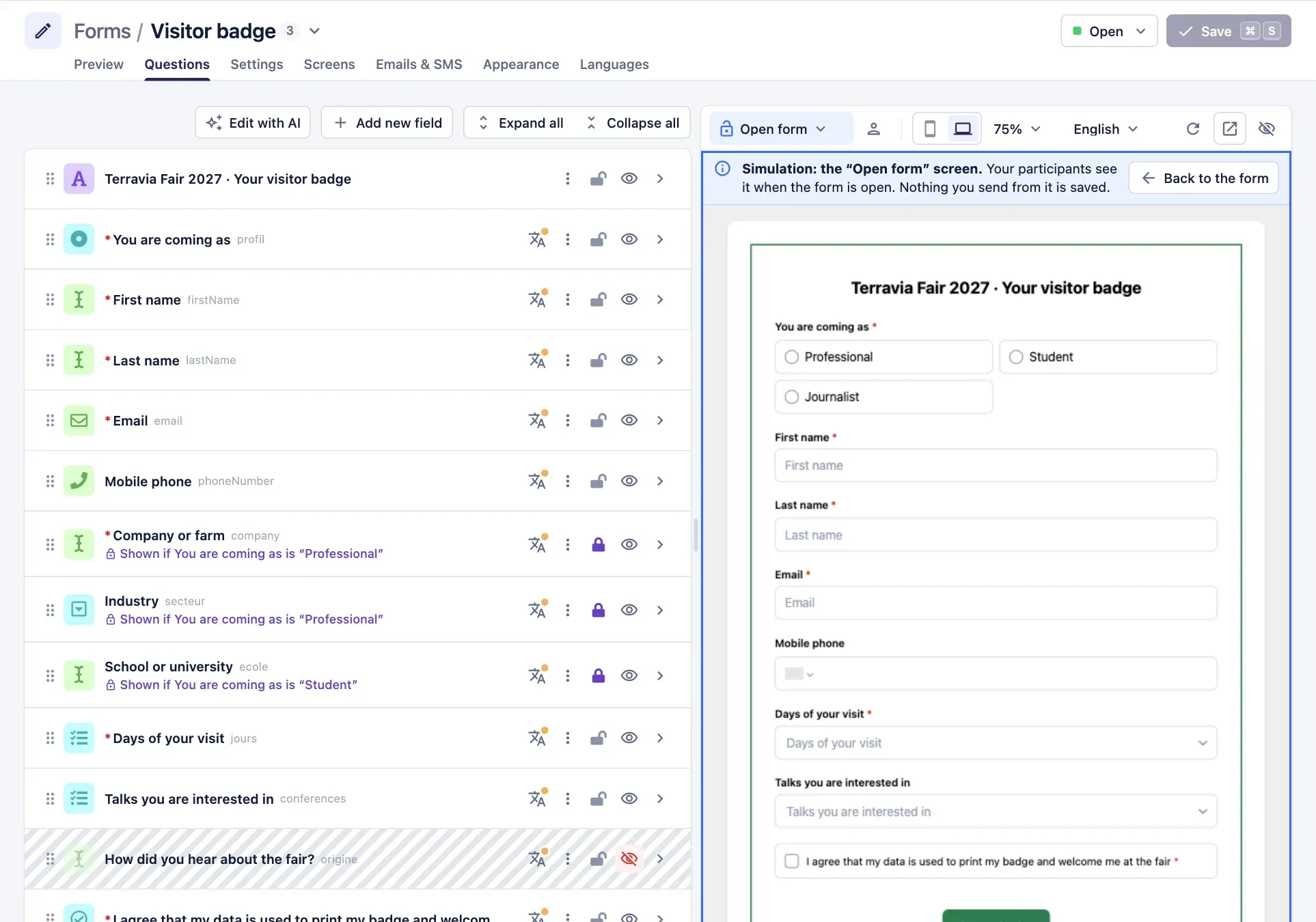
Seven tabs, one question each
Section titled “Seven tabs, one question each”Settings are organized around the question you are asking yourself: Preview, Questions, Settings, Screens, Emails & SMS, Appearance, and Languages.
- The form status (open, closed, or between dates, with its exceptions) is set at the top of the editor and applies right away.
- A single Save button for everything else, with the shortcut ⌘ S / Ctrl S.
- Old addresses lead to the right tab.
Questions that are easier to build
Section titled “Questions that are easier to build”- An add-field panel with a search that tolerates typos: type “date” or “hotel”, and Enter adds the first result.
- Clearer field cards: the display condition is written out in full, a hidden field stands out at a glance, and rarely used settings sit under More options.
- Redesigned drag and drop, which also works with the keyboard.
- The Tabs field looks like a real tab bar.
A preview that simulates every screen
Section titled “A preview that simulates every screen”The preview follows your settings before you even save, and shows the screen of the card you are editing: confirmation, closed form, full, invited guests only… In simulation, nothing you send is saved.
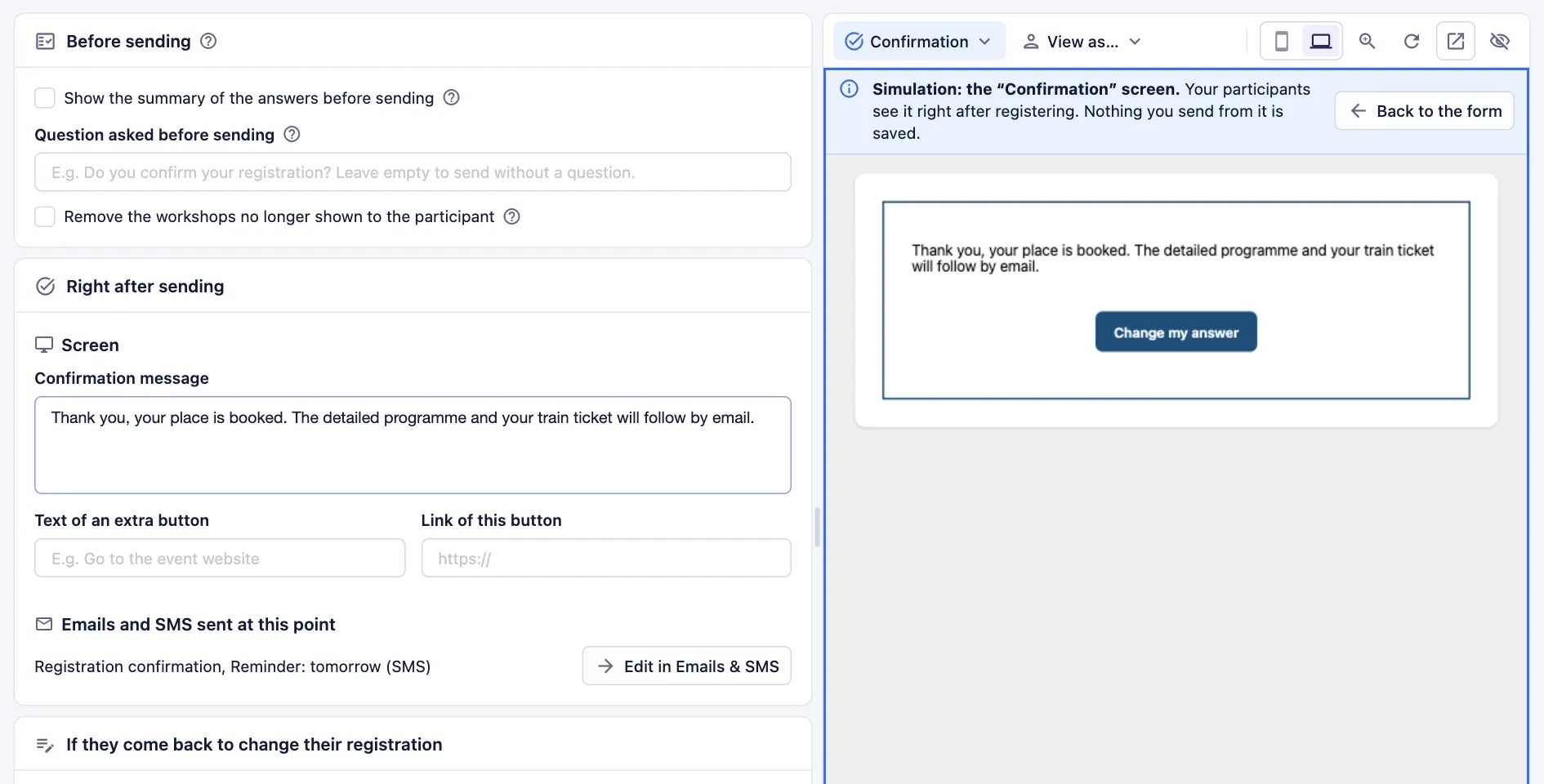
A Modern field style
Section titled “A Modern field style”The Appearance tab brings together colors, font, images, layout, and custom CSS. The new Modern field style gives every field the same frame, height, and width, and is easy to customize with CSS; new forms use it by default.
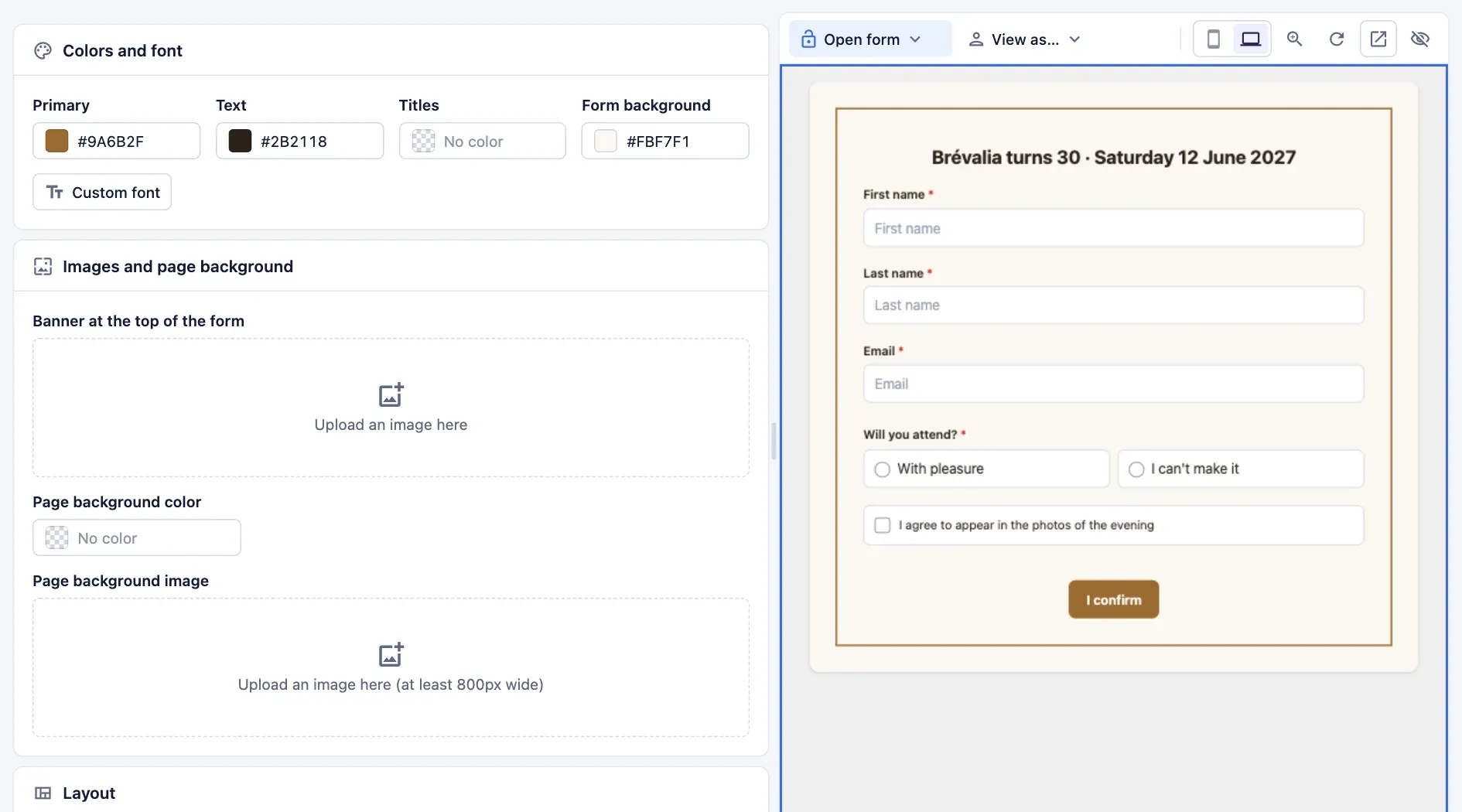
AI to create, edit, and translate
Section titled “AI to create, edit, and translate”- Create with AI: describe the form you want from the forms list, and AI suggests the questions.
- Edit with AI: ask for a change in one sentence (“add the accommodation with the number of nights”). Each change is labeled, and you keep the ones you want before applying them.
- Translate with AI from the Languages tab, with missing translations flagged throughout the editor.
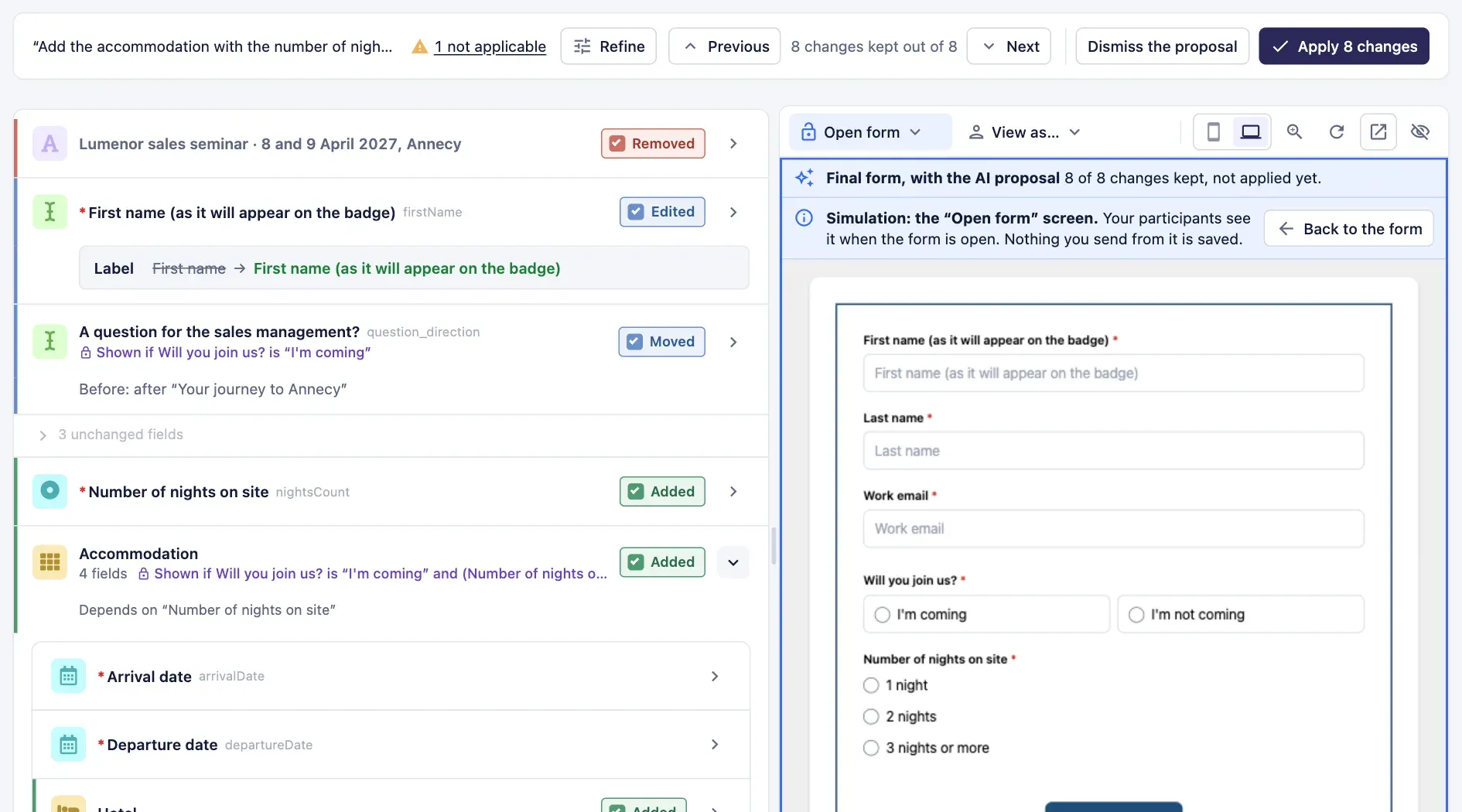
AI is optional: a consent window explains the services used before the first use, your participants’ data is never sent, and you can turn it off for an event.
To learn more, read Create a registration form and Create and edit a form with AI.