
Site and formArticle 8 of 30
Create and edit a form with AI
The AI helps you build the form: describe what you want in one sentence, it suggests the questions, and you review each change before applying it. Nothing changes in the form without your approval.
Before you begin
Section titled “Before you begin”- AI must be enabled on the event. The first time, a Content generation window explains which services are used: click Enable AI to accept.
- If your organization isn’t entitled to AI, these aids don’t appear.
Create a form with AI
Section titled “Create a form with AI”- In the menu, click Forms.
- In the Create with AI panel, to the right of the list, describe the form you want. For example: “Registration for the Annecy seminar, with dietary requirements, one hotel night, and a choice of workshop”. The microphone lets you dictate the instruction.
- Click Create the form (or ⌘ Enter on Mac, Ctrl Enter on Windows).
The form is created and opens on the Questions tab, where the AI has already suggested the questions. It takes the beginning of your instruction as its name: rename it from the menu of its name, at the top of the editor.
Edit the questions with AI
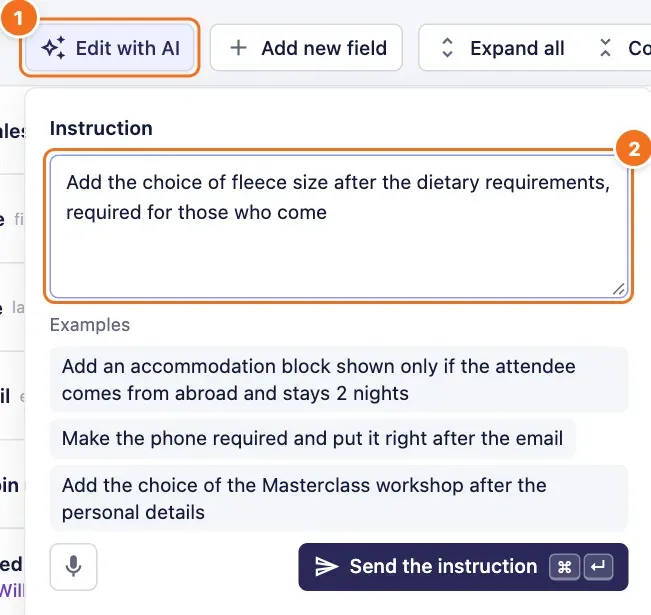
Section titled “Edit the questions with AI”- Open the form, Questions tab, then click Edit with AI.
- Write your Instruction, or choose one of the examples, then click Send the instruction.
A few seconds later, the AI shows its proposal. Each field it touched carries a label: Added, Edited, Moved, or Removed, and the preview shows the final form.
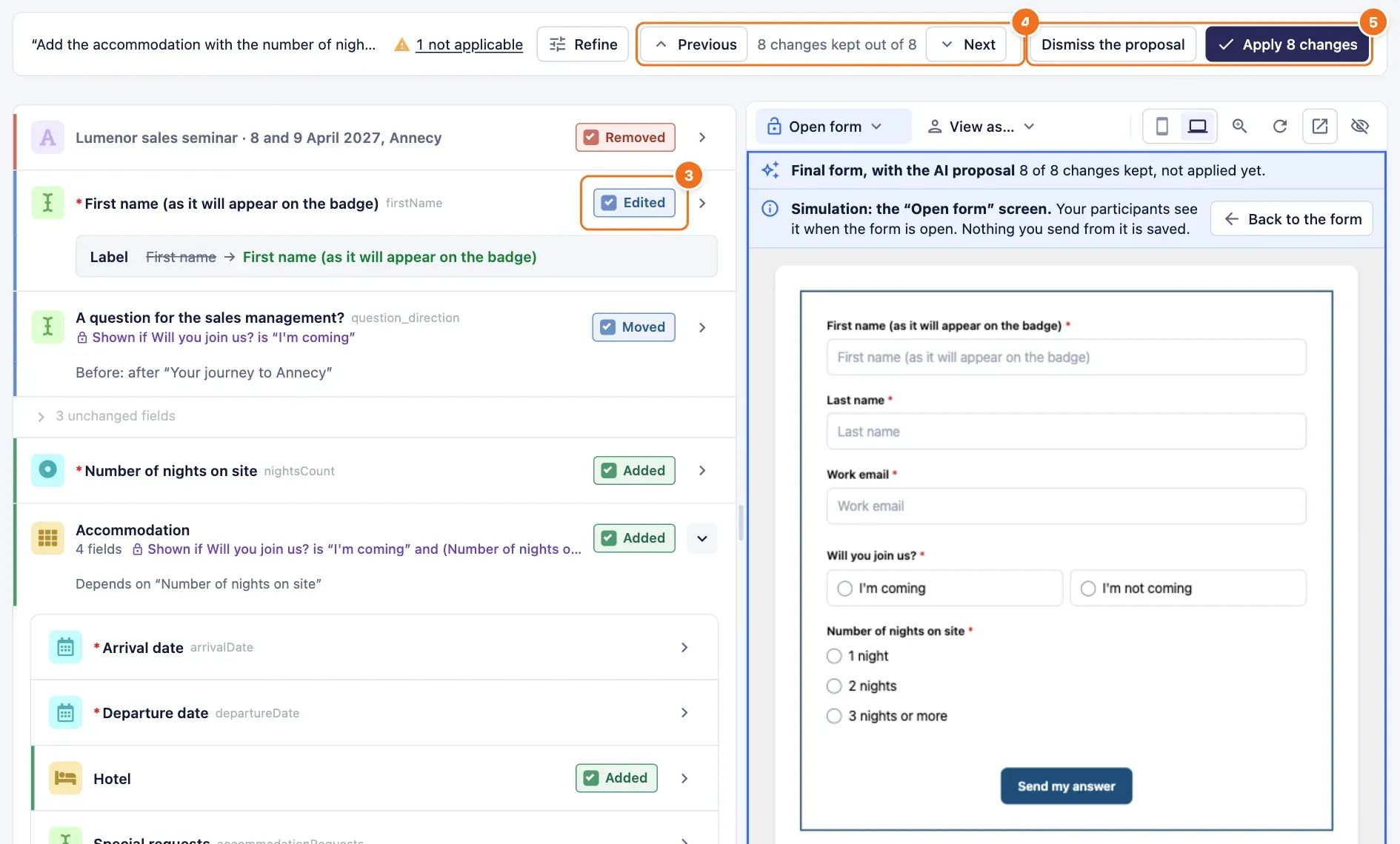
- Review each change. Uncheck the label of any change you don’t want to keep.
- Previous and Next move from one change to the next. Refine sends the AI a clarification without losing the proposal.
- Click Apply to keep the checked changes, or Dismiss the proposal.
- Click Save at the top of the editor. Until you save, Undo the proposal puts the form back as it was.
When the AI can’t apply part of the instruction, it says so in the review bar (“1 not applicable”): click it to see why.
Translate with AI
Section titled “Translate with AI”The Languages tab offers Translate with AI for multilingual forms. See Translate the form.
What is sent to the AI
Section titled “What is sent to the AI”Under each instruction, a line shows the model used: Gemini, by Google, for the questions; Mistral, by Mistral AI, for translation. Click it to open the How this help works sheet.
| AI aid for questions | |
|---|---|
| Sent to the provider | Your instruction; the form in progress (questions, texts, conditions); the event’s name, dates, and modules; the labels of the participant fields and their choices |
| Never sent | Participant data: no names, no emails, no answers. Nor the event’s other forms |
| On which servers | In the European Union |
| Training | None: your exchanges are not used to train the models |
Translation only sends the texts to translate and the target language.
Turn off AI on the event
Section titled “Turn off AI on the event”At the bottom of the How this help works sheet, click Turn it off for this event. All of the event’s AI aids are then turned off, and nothing more is sent to them. You can turn them back on later from any aid, with Turn on AI.
Frequently Asked Questions
Section titled “Frequently Asked Questions”Does the AI see my participants’ answers?
Section titled “Does the AI see my participants’ answers?”No. The AI receives the form (questions, conditions, texts) and your instruction, never your participants’ names, emails, or answers. See What is sent to the AI.
The proposal doesn’t suit me. What should I do?
Section titled “The proposal doesn’t suit me. What should I do?”Click Refine and specify what’s wrong, or click Dismiss the proposal to go back to the form as it was.
See also
Section titled “See also”Was this page helpful?
Thanks for your feedback!
Can’t find your answer? Contact support
© AppCraft EventsAppCraft Events websiteLog inContact support