
Getting startedArticle 2 of 7
Explore the back office
AppCraft Events combines a back office to organize your entire event with tools to engage your participants before, during, and after: website, forms, emails, platform, and mobile app. This page will help you navigate the back office.
Your organization’s dashboard
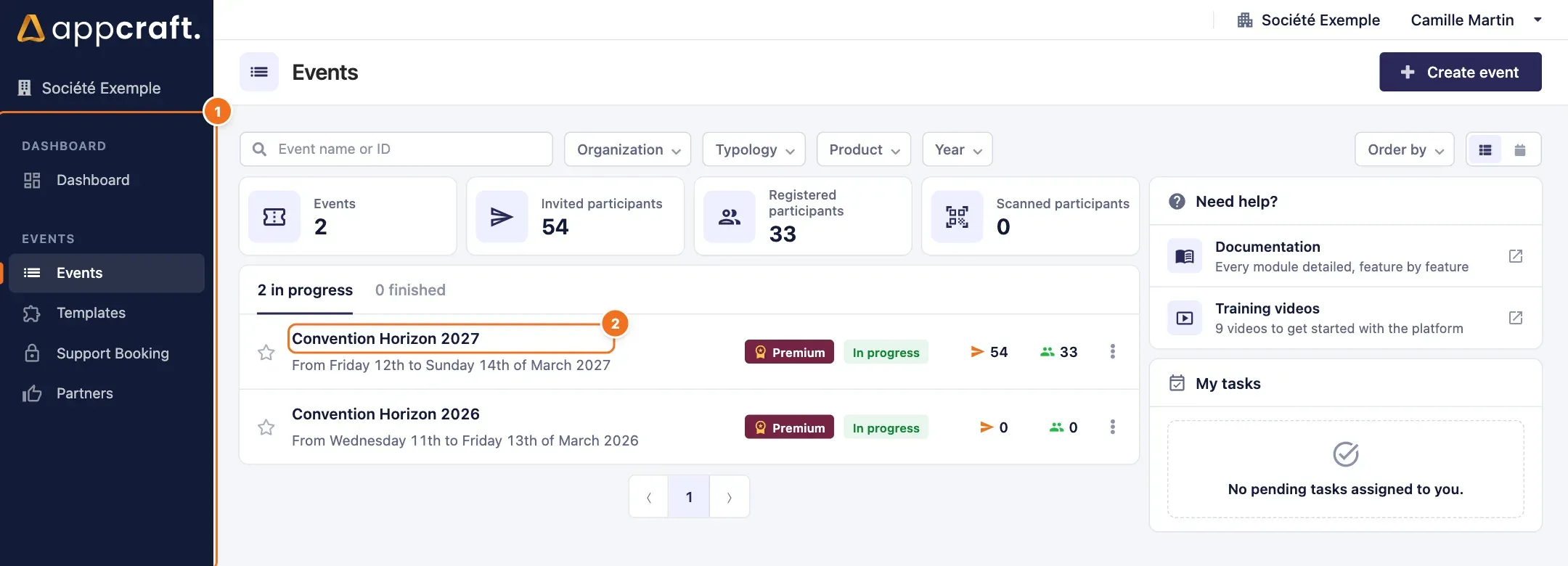
Section titled “Your organization’s dashboard”After logging in, you’ll be taken to your organization’s dashboard. Its menu includes:
- Dashboard: your favorite and recent events, plus a getting-started guide to help you get started;
- Events: a list of your events, with the Create event button;
- Templates: the templates you use to create your events;
- Support booking: Appointment booking with the AppCraft team, if your contract includes this service;
- Partners: AppCraft’s partner services.
Click on an event’s name to access its page.
The event space
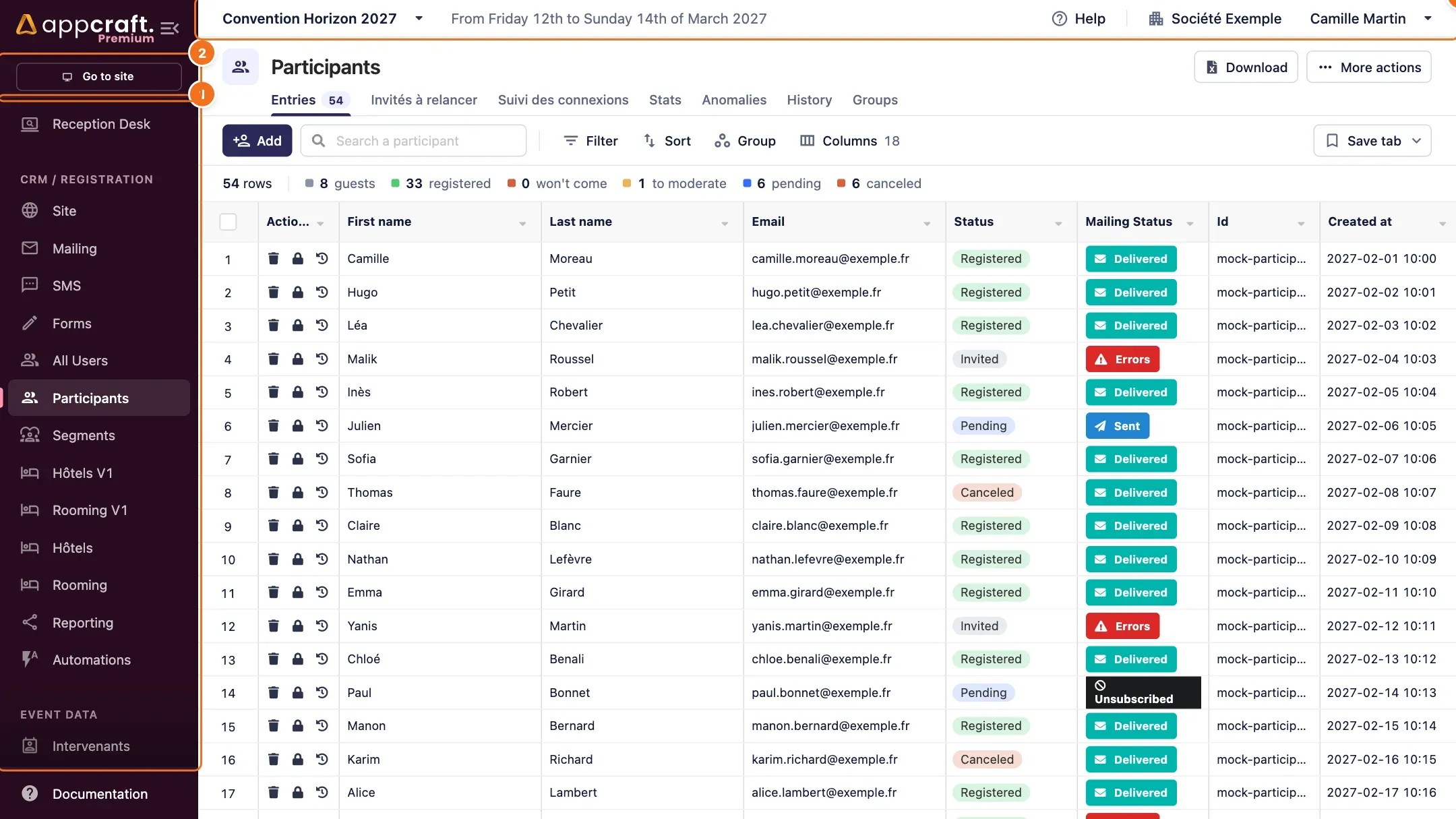
Section titled “The event space”The left-hand menu lists the modules enabled for the event, organized by category. You’ll only see the modules included in your plan and configuration.
| Menu Category | Examples of entries | What it’s for |
|---|---|---|
| Top of menu, untitled | Smart Hub, To-Do List, Reception desk | Track your key metrics, tasks, and on-site hospitality |
| CRM / Registration | Website, Email Campaigns, Text Messages, Forms, Attendees, Segments, Automations | Invite, register, and track your participants |
| Event data | Program, Speakers, Exhibitors | Content shown on the website and the platform |
| Platform | Preview, Pages, Settings, Maps, Live management, Statistics | The online platform, its maps, live streams, and statistics |
| Web App | Preview, Pages, Settings, Statistics | The mobile app (PWA) |
| Contributor Areas | Preview | The area where your exhibitors and speakers can complete their information |
| Checkin | Badges, Check-in, Lead Generation | On-site registration on the day of the event and contact scanning by exhibitors |
| Interaction | Notifications, Quizzes, Q&A, Social Wall, Gamification, Feedback | Engagement During the Event |
| Statistics | Carbon footprint | Carbon footprint |
| Settings | Documents, Technical Settings | Custom documents, files, SSO login, and event data |
AppCraft Events-specific terms (collection, segment, condition, template, etc.) are explained in the glossary.
At the top of the menu, Go to site opens the event website in a new tab. At the bottom, Documentation opens this help guide.
The top bar
Section titled “The top bar”- Event’s name: Click on it to switch to other event.
- Help: Opens the documentation page for the currently shown screen, if available.
- What’s new: The latest updates to the back office.
- Your organization’s name: returns to the organization’s dashboard.
- Your name: opens your personal menu.
Change the back office language
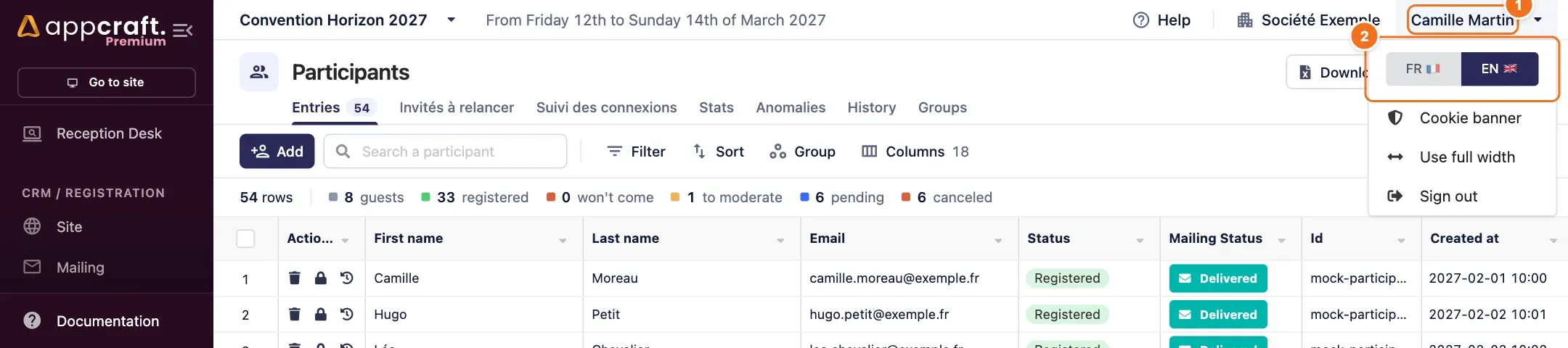
Section titled “Change the back office language”- In the top right corner, click on your name.
- Click on FR or EN. The back office will switch languages immediately.
The same menu offers Use full width to expand the content on a large screen, and Sign out.
See also
Section titled “See also”Was this page helpful?
Thanks for your feedback!
Can’t find your answer? Contact support
© AppCraft EventsAppCraft Events websiteLog inContact support