
Getting startedArticle 1 of 7
Log in to the back office
The AppCraft Events back office is located at app.appcraft.events. Depending on your organization, you can log in with a password or with your company account (SSO).
Log in
Section titled “Log in”-
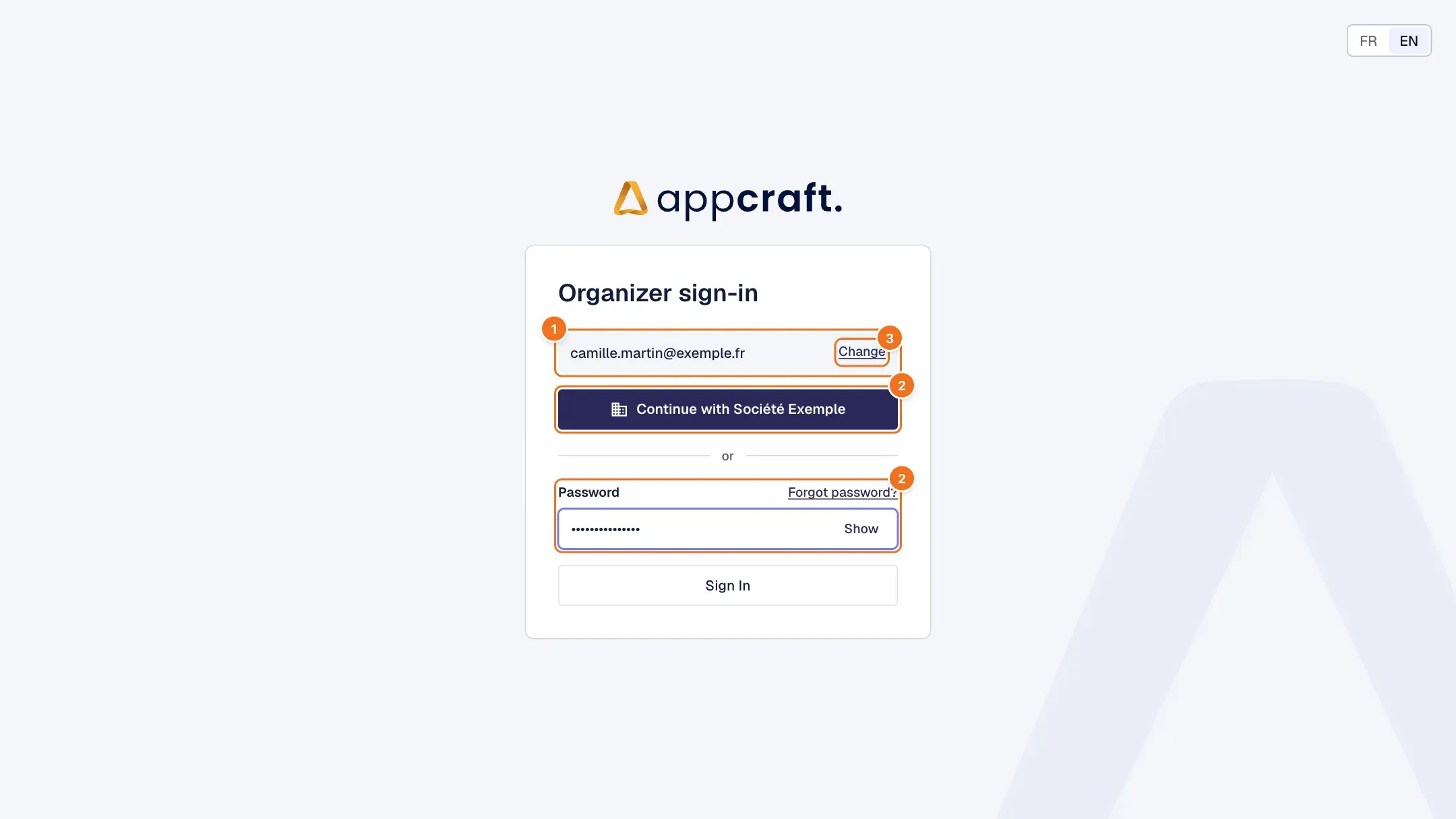
Enter your Email, then click Continue.
-
The back office shows the login methods available for your account:
- a Continue with button followed by your company name: click it to log in with your company account (SSO);
- a Password field: enter your password, then click Sign In.
If your company requires SSO, the page takes you there directly.
-
To correct the address you entered, click Change, next to the address.
First Login
Section titled “First Login”AppCraft will send you your username (your email address) and a temporary password.
- Log in using this temporary password.
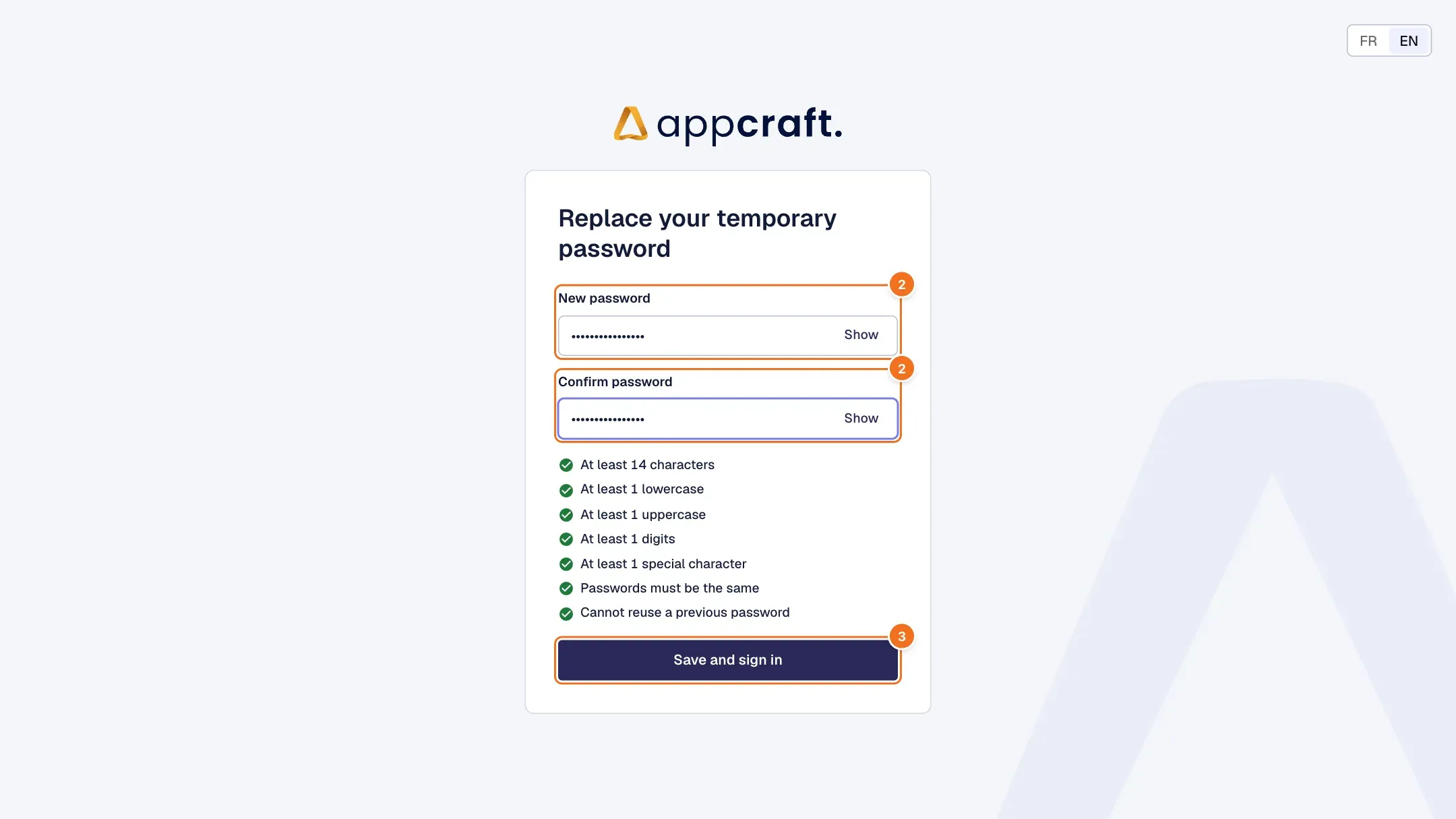
- The Replace your temporary password page appears. Enter a new password that is at least 14 characters long and includes at least one lowercase letter, one uppercase letter, one number, and one special character, then confirm it.
- Click Save and sign in. The rules turn green as you meet them; the missing ones turn red if you save too early.
Log in using your company’s SSO
Section titled “Log in using your company’s SSO”AppCraft recommends SSO (single sign-on): your teams can log in using their corporate credentials, without having to remember an AppCraft password. The same mechanism can be used by participants to access the event platform.
To set this up, schedule a 30-minute meeting between your IT director and AppCraft. Prepare the following:
- Protocol: SAML v2 is preferred;
- the login address (“entry point”) provided by your identity provider;
- the list of email domains allowed to log in via SSO;
- a time slot to test the live connection.
Frequently Asked Questions
Section titled “Frequently Asked Questions”I forgot my password
Section titled “I forgot my password”- On the login page, enter your email address, click Continue, then click Forgot password?.
- Check your address, then click Get a link.
- Open the email you received and click the link. It’s valid for 1 hour.
- Enter your new password, confirm it, click Save password, and then log in again.
If your company manages your sign-in with SSO, your password is changed there: the page tells you so.
Didn’t receive an email? Check your spam folder and make sure you entered the correct email address. If your email account is shared or inactive, contact your IT department.
How do I change my password?
Section titled “How do I change my password?”The back office does not have a password reset screen. Log out, then use the “Forgotten Password” option.
The message “Too many login attempts” is shown
Section titled “The message “Too many login attempts” is shown”After several errors, the login will be blocked for a few moments. Wait until the countdown shown on the screen ends, then try again.
The message “This account has no access to the back-office” is shown
Section titled “The message “This account has no access to the back-office” is shown”Your identity is recognized, but your account is deactivated or has no rights left on the back office. Contact your event’s project manager.
The message “The sign-in service isn’t responding” is shown
Section titled “The message “The sign-in service isn’t responding” is shown”The back office did not answer in time. Click Retry, or try again in a moment.
I still can’t log in
Section titled “I still can’t log in”If you’re already a customer, email support@appcraft.fr; otherwise, contact your sales representative or email hello@appcraft.fr. Please include your last name, first name, phone number, company name, and the event’s name.
See also
Section titled “See also”Was this page helpful?
Thanks for your feedback!
Can’t find your answer? Contact support
© AppCraft EventsAppCraft Events websiteLog inContact support