
Accommodation and travelArticle 8 of 11
Add hotels and their room quotas
The List tab in the Hotels module lists the hotels offered to your participants. For each hotel, you define the room categories and the number of rooms available each night.
Before you begin
Section titled “Before you begin”The nights (date columns) are created and edited by your project manager. Ask them to add them before you enter your room quotas.
Add an hotel
Section titled “Add an hotel”- In the menu, click the entry for your Hotels module (for example, Hotels V1), then select the List tab.
- Click + to the right of the search bar.
- In the Add Row window, enter the hotel name. Your participants will see it on the form.
- In the “Levels” section, enter the room category (for example, “Double with Saône View”), then the number of rooms available by date. Indicate
0the nights without rooms. - To add another category at the same hotel, click Add below the table.
- Click Add at the bottom of the window.
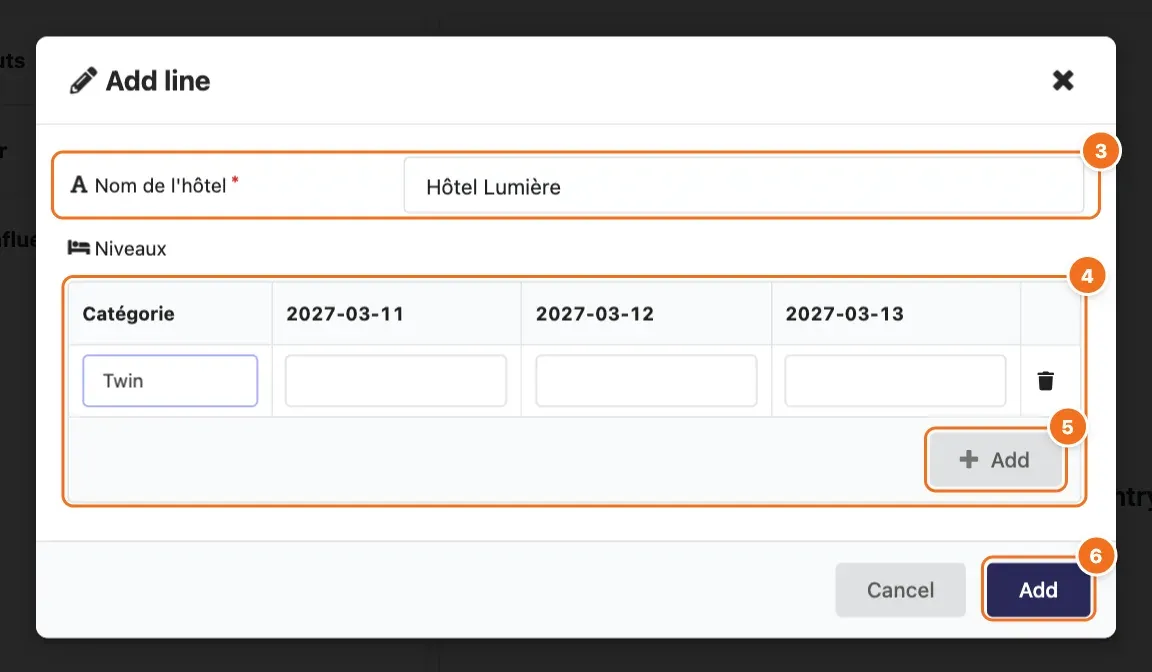
The category is visible to the participant when they make their selection: give it a clear name.
Edit a hotel or its room quotas
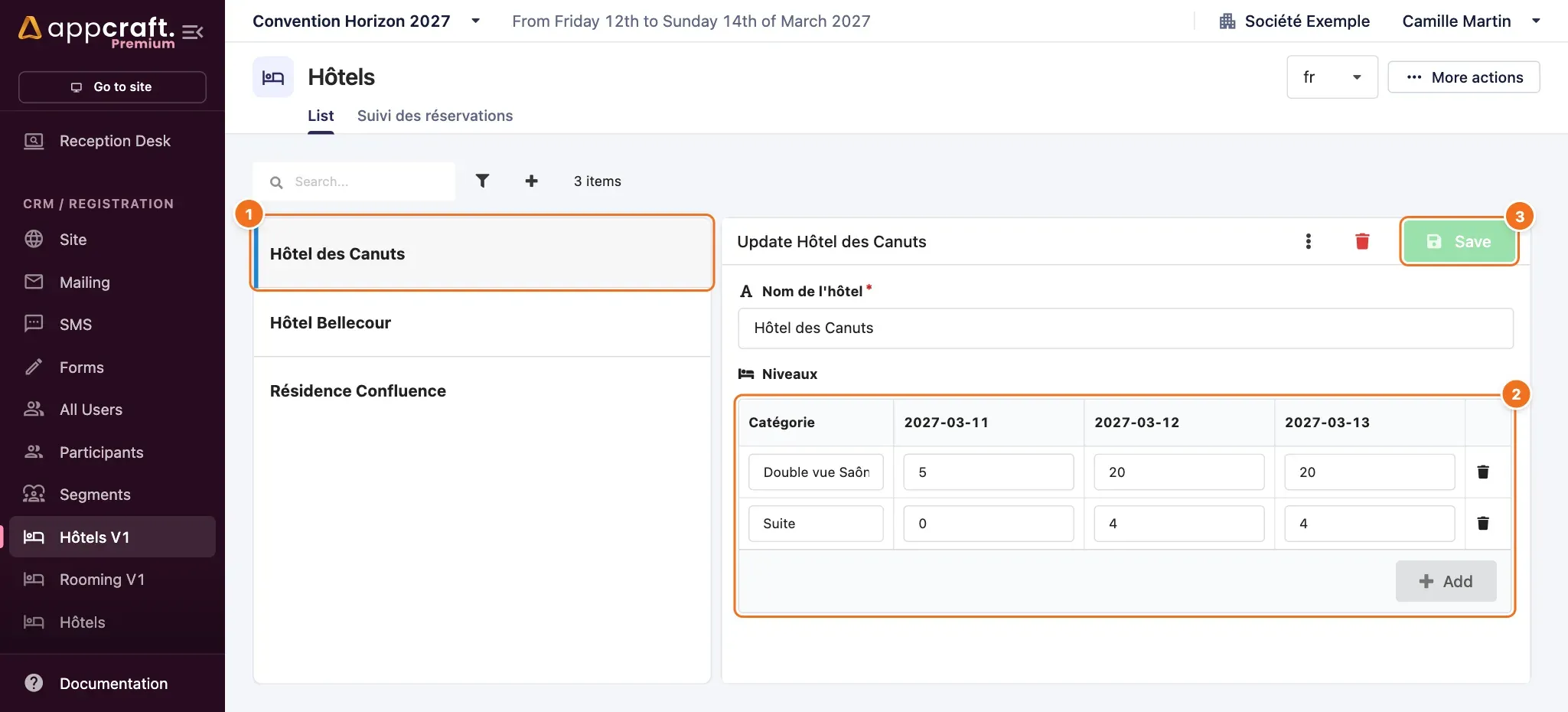
Section titled “Edit a hotel or its room quotas”- On the List tab, click the hotel name. The Edit… panel opens on the right.
- Edit the name, a category, or a quota. Add a category using Add, or delete one by clicking the trash can icon on its row.
- Click Save.
See also
Section titled “See also”Was this page helpful?
Thanks for your feedback!
Can’t find your answer? Contact support
© AppCraft EventsAppCraft Events websiteLog inContact support