
CommunicationArticle 7 of 13
Track SMS messages
The Sent tab in the SMS module shows the status of each SMS sent: delivered, opened, failed, etc. Use it to review a campaign or find contacts to follow up with.
View messages sent from a template
Section titled “View messages sent from a template”- In the SMS module, open the Sent tab.
- In the left column, click on a template. Each card shows the number of messages sent using that template.
- On the right, view the graph showing messages sent by date. The colors correspond to the statuses.
- Below the graph, each bulk message campaign has its own card: date, time, number of people targeted, number of SMS messages billed, and a breakdown by status.
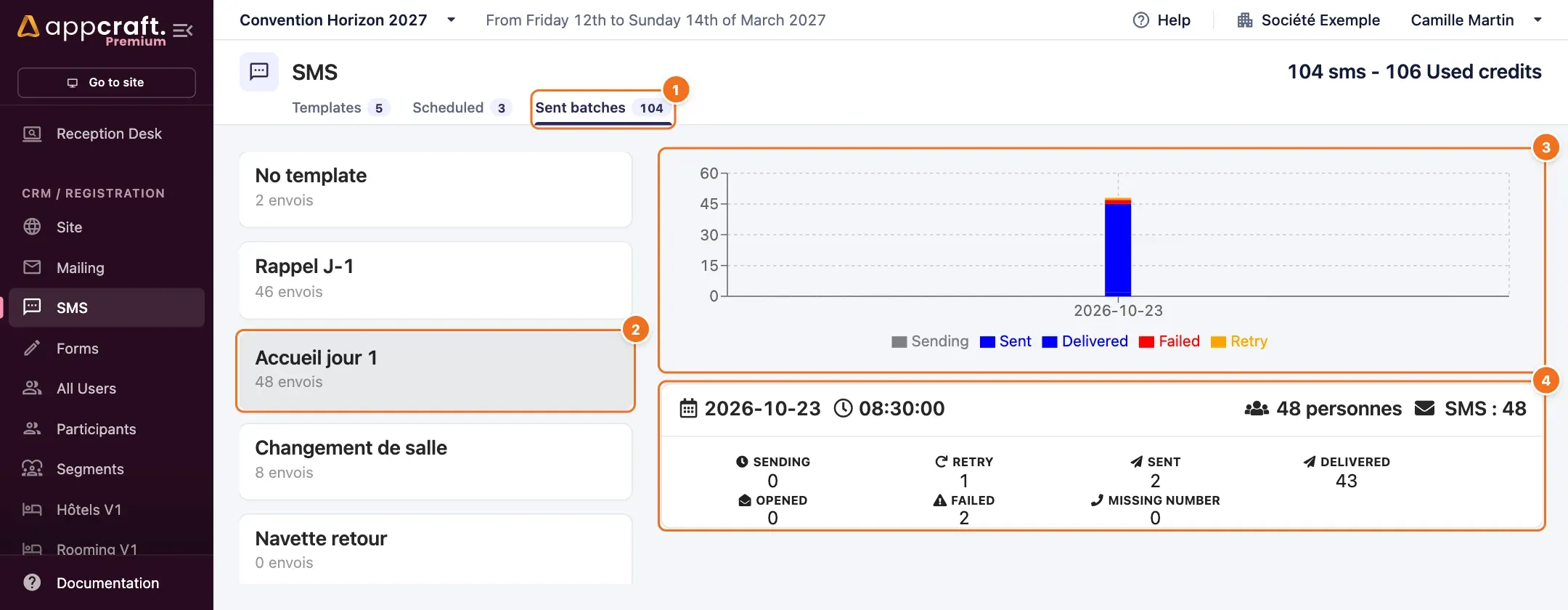
In the top right corner of the screen, a counter displays the totals: the number of SMS messages sent and the used credits for the event.
Understanding the statuses
Section titled “Understanding the statuses”| Status | Definition |
|---|---|
| Sending | The SMS is currently being processed. |
| Retry | The first attempt failed; a new attempt is in progress. |
| Sent | The SMS has been sent from our servers. |
| Delivered | The recipient’s carrier confirms receipt. |
| Opened | The text message was received and read. |
| Failed | The SMS could not be delivered (invalid number, phone turned off for too long, etc.). |
| Missing number | The contact does not have a phone number: none of the text messages were sent. |
Download the contact list with a specific status
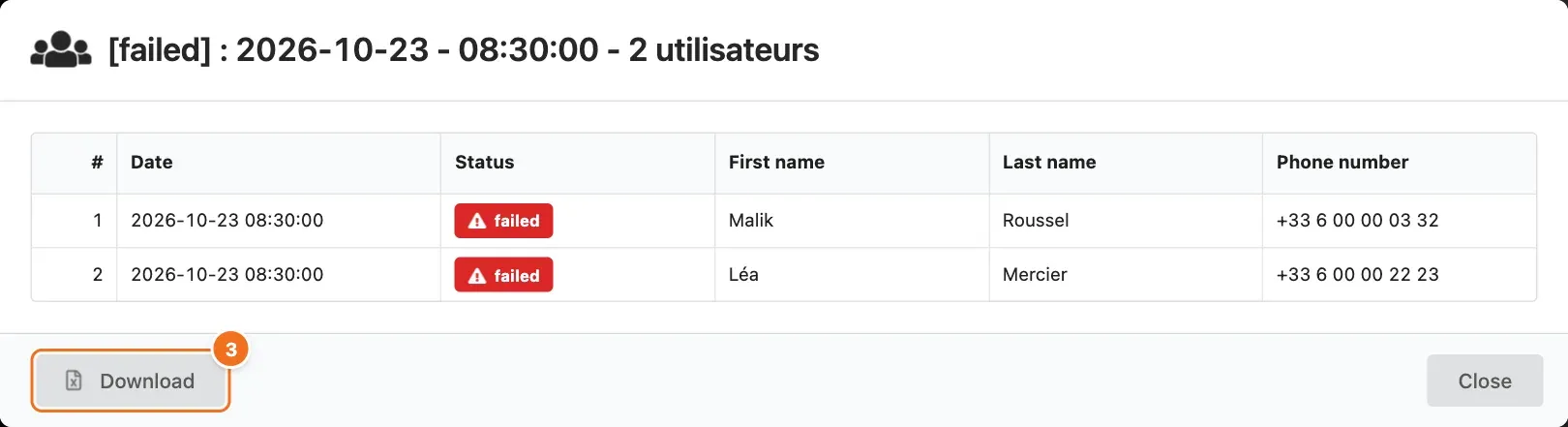
Section titled “Download the contact list with a specific status”- On a message’s card, click a status (for example, Failed).
- The window lists the relevant contacts: date, status, first name, last name, and phone number. In this window, the status is shown using its technical name in English (for example, failed for Echec).
- Click Download to get the list in Excel format.
See also
Section titled “See also”Was this page helpful?
Thanks for your feedback!
Can’t find your answer? Contact support
© AppCraft EventsAppCraft Events websiteLog inContact support