
Site and formArticle 10 of 30
Customize the form screens
The Screens tab controls what the participant sees at each moment: before sending, right after, when they come back to change their registration, and when they cannot register. Each moment has its own card, and the preview on the right shows the screen for the card you are working on.
Write the confirmation message
Section titled “Write the confirmation message”- Open the form, Screens tab.
- In the Right after sending card, write the Confirmation message. You can add a button (Text of an extra button and Link of this button), for example to the event program.
- The preview shows the confirmation screen, as a simulation: check how it looks, then click Save.
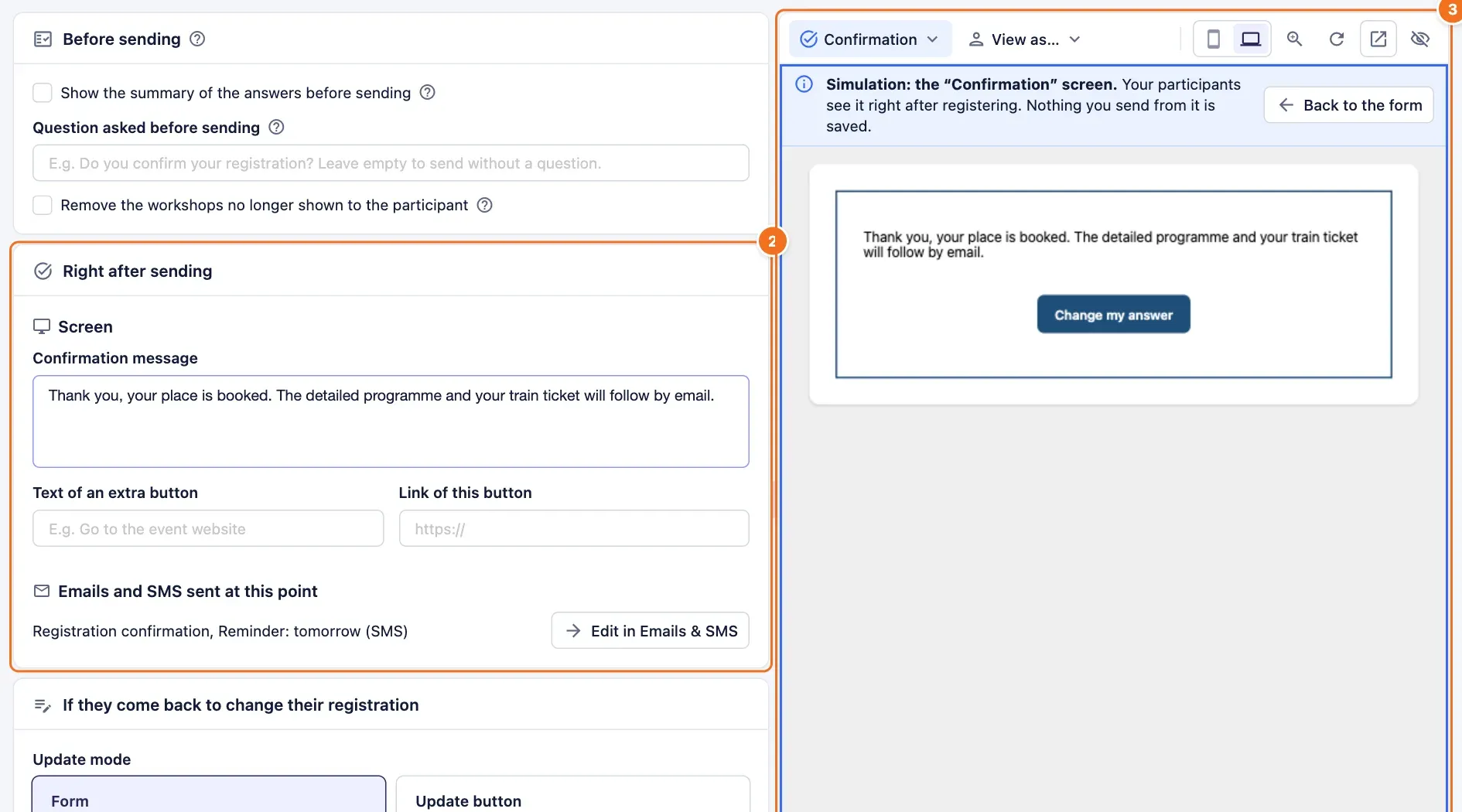
Below the message, Emails and SMS sent at this point lists the automatic sendings; Edit in Emails & SMS takes you straight there.
The cards in the tab
Section titled “The cards in the tab”| Card | What you set there |
|---|---|
| Before sending | Show the summary of the answers before sending: the participant reviews their answers and must confirm the summary for their registration to be saved. Question asked before sending: a confirmation window (empty: no window). Remove the workshops no longer shown to the participant |
| Right after sending | The Confirmation message and its button |
| If they come back to change their registration | The Update mode and its texts (see below) |
| If they decline the invitation | The Message when a guest declines the invitation, seen by the participant who answers “I’m not coming” |
| When the form is closed | The Message shown when the form is closed. The status and dates are set at the top of the editor |
| If they are not invited | The message seen by someone who is not on your list, when the form is restricted to invited guests |
| When it is full | The Message shown when full or closed, once the maximum number of registrants is reached |
| If they are already registered | The message seen by someone who is already registered (form open to everyone), with a button and its link, for example to your website |
Allow or disallow changes
Section titled “Allow or disallow changes”In the If they come back to change their registration card, choose the Update mode, that is, what a participant sees when they come back to their form.
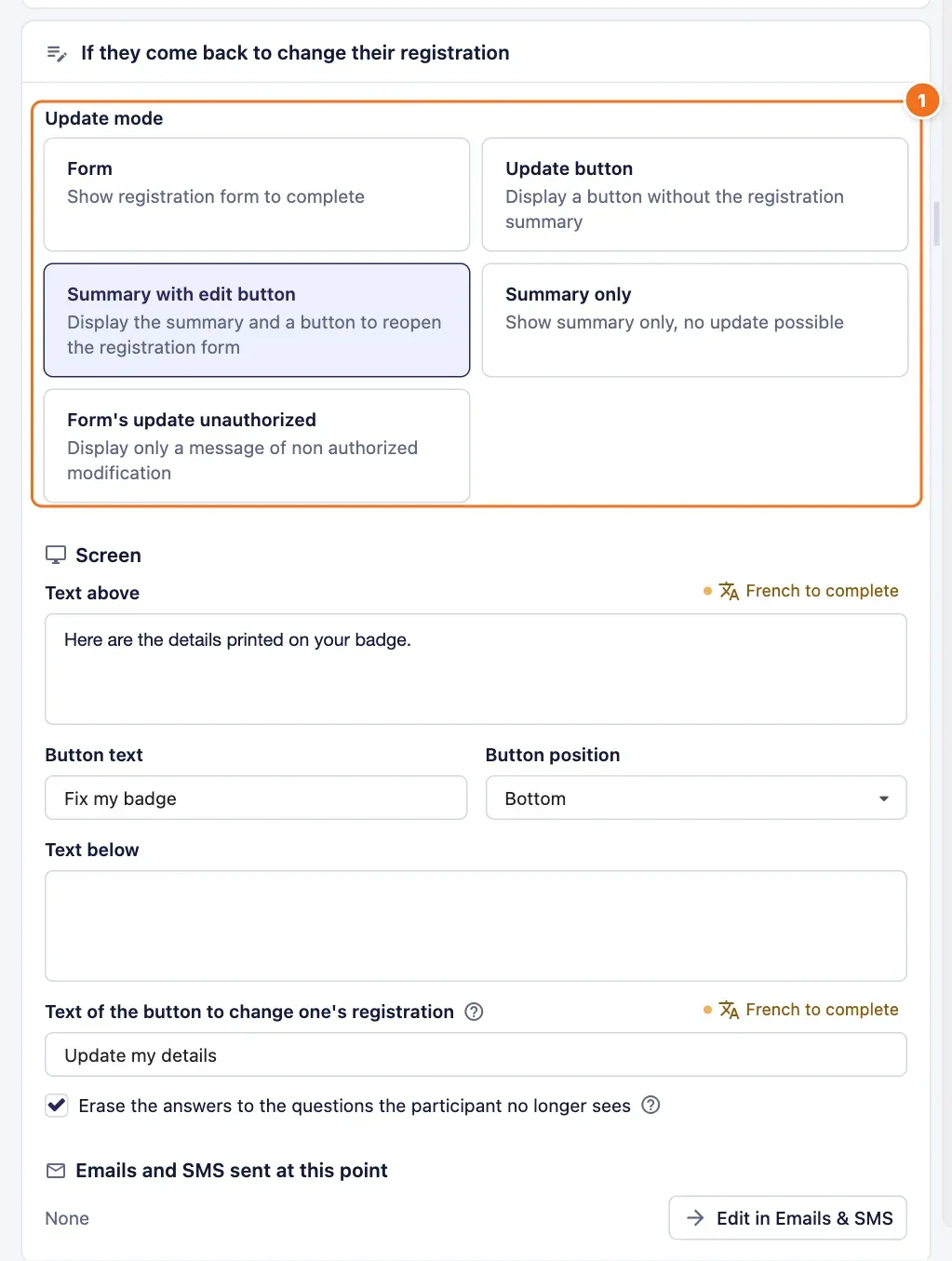
- Choose the mode:
| Mode | What the participant sees |
|---|---|
| Form | The form to complete, editable |
| Update button | A button, with no summary of the registration |
| Summary with edit button | The summary and a button to reopen the form |
| Summary only | The summary only |
| Form’s update unauthorized | A message only |
Depending on the mode, write the Text above, the Button text, its Button position, and the Text below. In Form’s update unauthorized mode, write the message shown instead.
Erase the answers to the questions the participant no longer sees: if a participant changes their registration and a conditional question is no longer shown to them, their old answer is erased from their record. Without this box checked, it stays there.
This setting only applies when a participant changes their registration, not at their first registration. It is checked by default on forms created from a template, duplicated, or carried over by cloning an event: that is almost all of them. Check it if your form was created another way.
For workshops, the setting is separate: Remove the workshops no longer shown to the participant, in the Before sending card.
Translate the texts
Section titled “Translate the texts”On a multilingual form, each text has a Translate link, or a link such as “French to complete” (the name of the language) when a translation is missing. It takes you to the right line of the Languages tab. See Translate the form.
See also
Section titled “See also”Was this page helpful?
Thanks for your feedback!
Can’t find your answer? Contact support
© AppCraft EventsAppCraft Events websiteLog inContact support