
InteractionArticle 13 of 17
Track gamification statistics
The Gamification module shows you who is playing, which badges have been unlocked, and who is at the top of the ranking. You can export each view to Excel.
Before you begin
Section titled “Before you begin”The Gamification module appears in the menu under the Interaction section. It has three tabs: Achievement, Stats, and Ranking. Badges are created in the Achievement tab: see Creating Gamification Badges.
See who has unlocked a badge
Section titled “See who has unlocked a badge”- On the Achievement tab, click the “N badge unlocks” button.
- The Users List Has Achievement window lists the participants who have earned it, along with the date they earned it.
- To remove a badge from a participant, click the trash can icon in their row.
The Download button on the Achievement tab generates a .zip file containing an Excel file listing all unlocked badges, followed by an Excel file for each Category.
Track overall activity
Section titled “Track overall activity”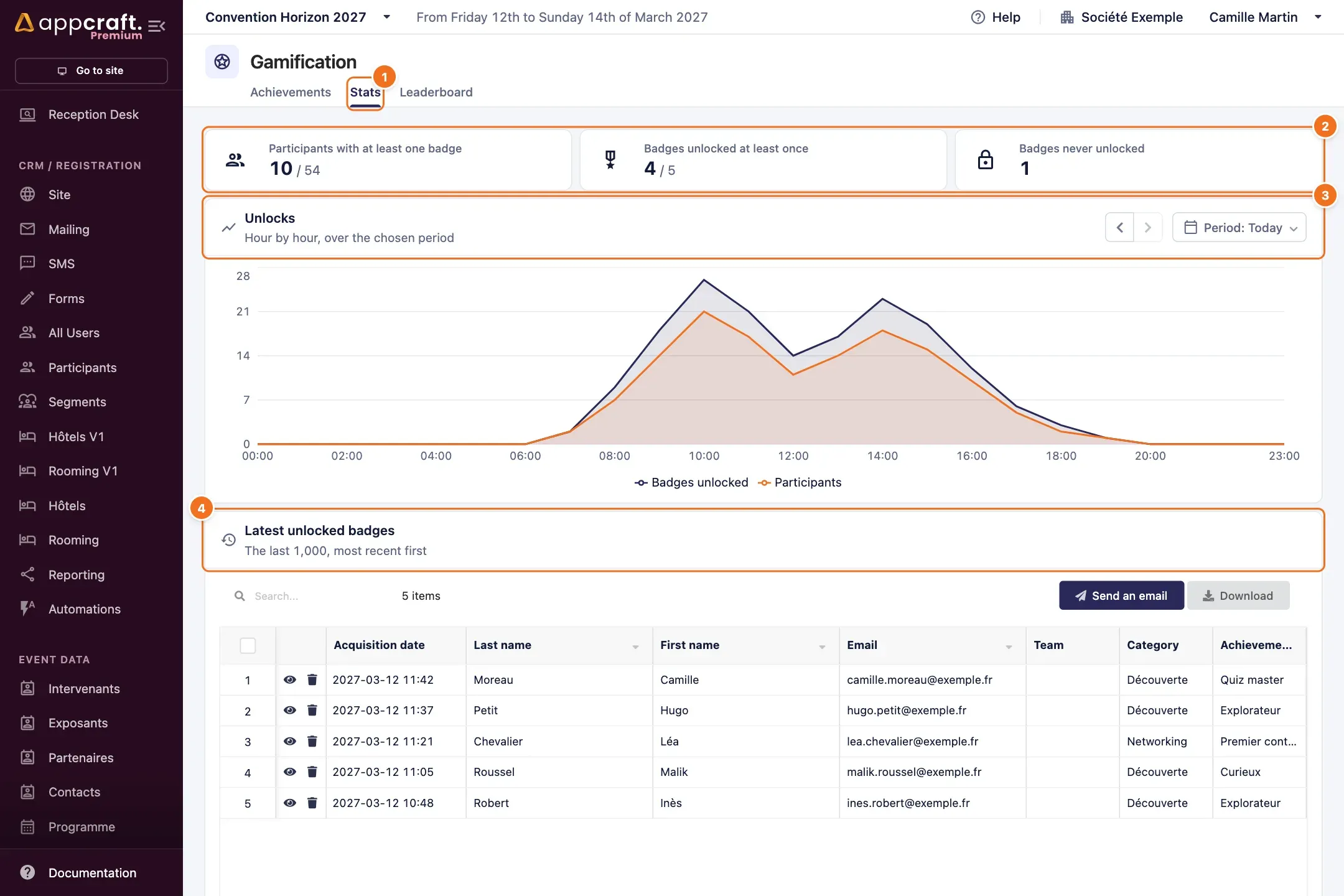
- Open the Stats tab.
- Review the metrics: Participants with at least one badge (out of the total number of participants), Badges unlocked at least once (out of the number of badges), and Badges never unlocked.
- The Unlocks chart shows the number of badges unlocked and the number of participants involved, for the time period chosen in the top right corner: hour by hour for a single day, or day by day for a longer period.
- The “Recently Unlocked Badges” list lists the last 1,000 unlocks, with the most recent at the top. Clicking the trash can icon next to a row removes the badge from the participant. The “Send an email” and “Download” buttons apply to the list.
View the ranking
Section titled “View the ranking”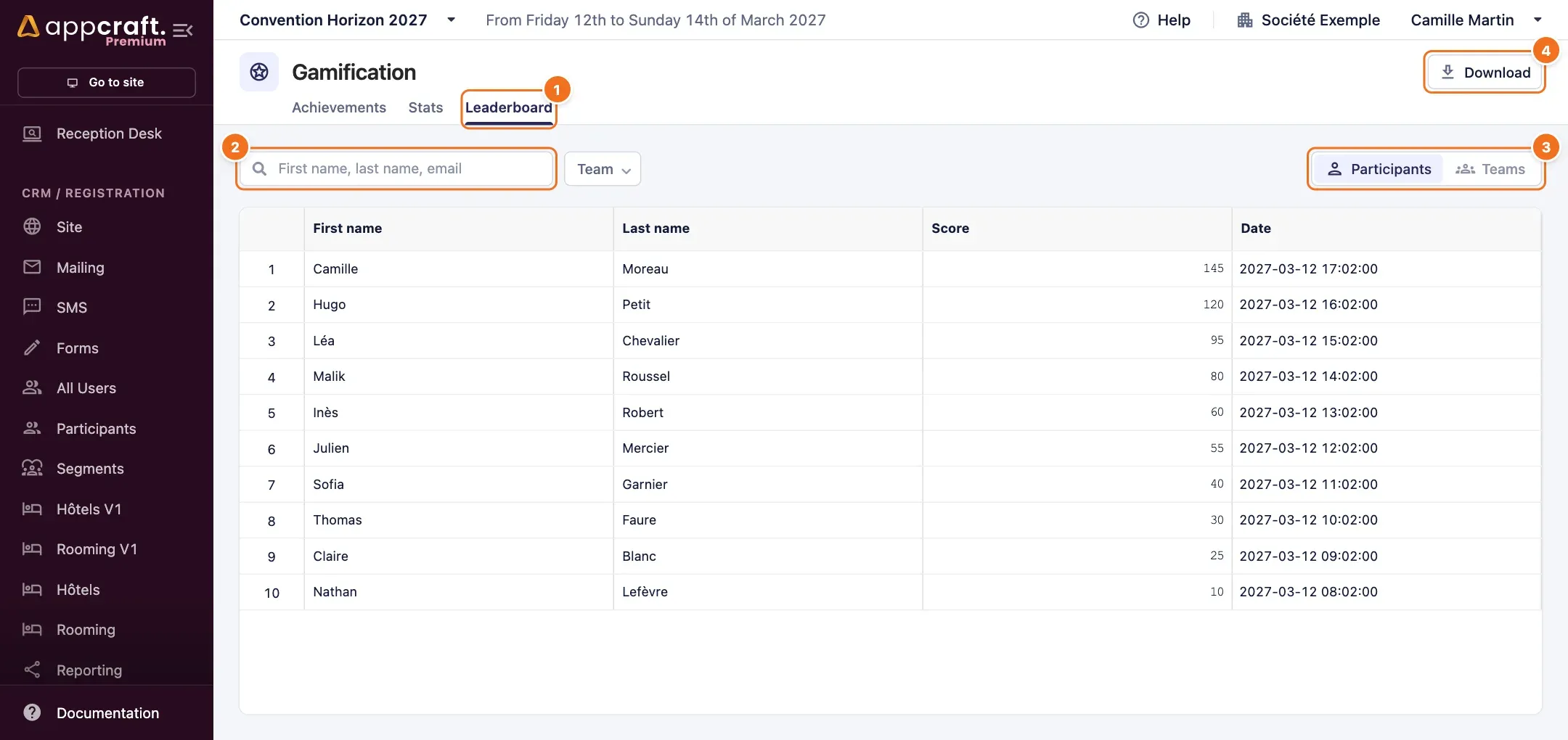
- Open the Ranking tab. The General Ranking shows each participant along with their score.
- Search for a participant by name, first name, or email address.
- If your participants are divided into teams, choose Teams to view the team ranking, or filter the participant ranking by team.
- Click Download to export the shown ranking.
The ranking updates as participants earn points by unlocking badges. To show this to participants, see Show the Gamification Ranking.
Show the participants’ badges
Section titled “Show the participants’ badges”- In the list of participants, look for the Gamification stats column: it shows the number of badges earned.
- Click on this number to show the participant’s list of badges and the dates they were unlocked.
See also
Section titled “See also”Was this page helpful?
Thanks for your feedback!
Can’t find your answer? Contact support
© AppCraft EventsAppCraft Events websiteLog inContact support