
Platform and web appArticle 7 of 22
Set up the speakers pages
To showcase your speakers on the platform, you need two pages: Speakers, which lists all speakers, and Speaker, the profile page that opens when you click on a speaker.
Before you begin
Section titled “Before you begin”Enter your speakers in their respective module, under Event data: see Manage Speakers and Contacts.
Create the two pages
Section titled “Create the two pages”- Open Web App > Pages (or Platform > Pages) and click Add.
- Choose the Speakers type, enter the Title and the Path (for example,
/intervenants), and click Save. - Repeat the process with the Speaker type for the detailed profile.
Set up the list of speakers
Section titled “Set up the list of speakers”- Open the Speakers page and go to the Page content tab.
- Under Sort by firstname, choose the order of the speakers: a Field and an Order (
ascordesc). Default: the order defined in the module, followed by name, then first name. - Under Group by, choose a field as needed to group speakers (for example, by role). Under Groups, associate the “Display Label” with each Value.
- In Card properties, check Search enabled and choose the fields to show as tags in the Tag list.
- Click Save.
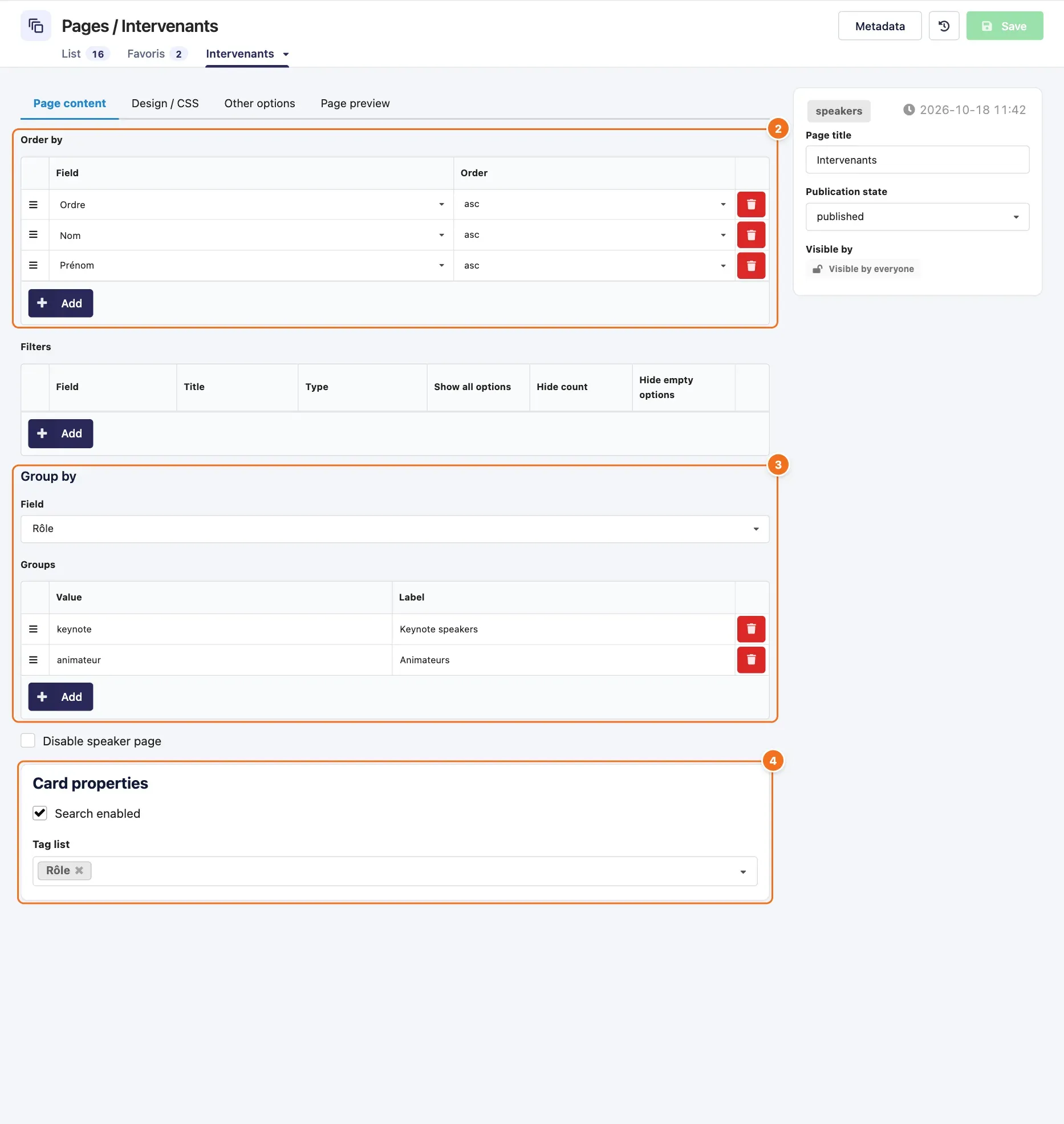
Check the box next to Disable speaker page if you do not want a details page: clicking on a speaker will then not open anything.
Add filters
Section titled “Add filters”- Under the Filters table, click Add, then click Filter or Search bar.
- To set up a filter, choose the speaker’s field on which the filter applies.
- Enter their Title, which will be visible to participants.
- Choose the Type: Value list (most common), Dropdown, Dropdown (multiple choice), Buttons (multiple choice), Entity picker, Date, or Date and time.
If necessary, check Show all options, Hide count, and Hide empty options. Details about these options are provided in Showing the Participant Organization Chart.
Configure the speaker profile
Section titled “Configure the speaker profile”- Open the Speaker page and go to the “Page content” tab.
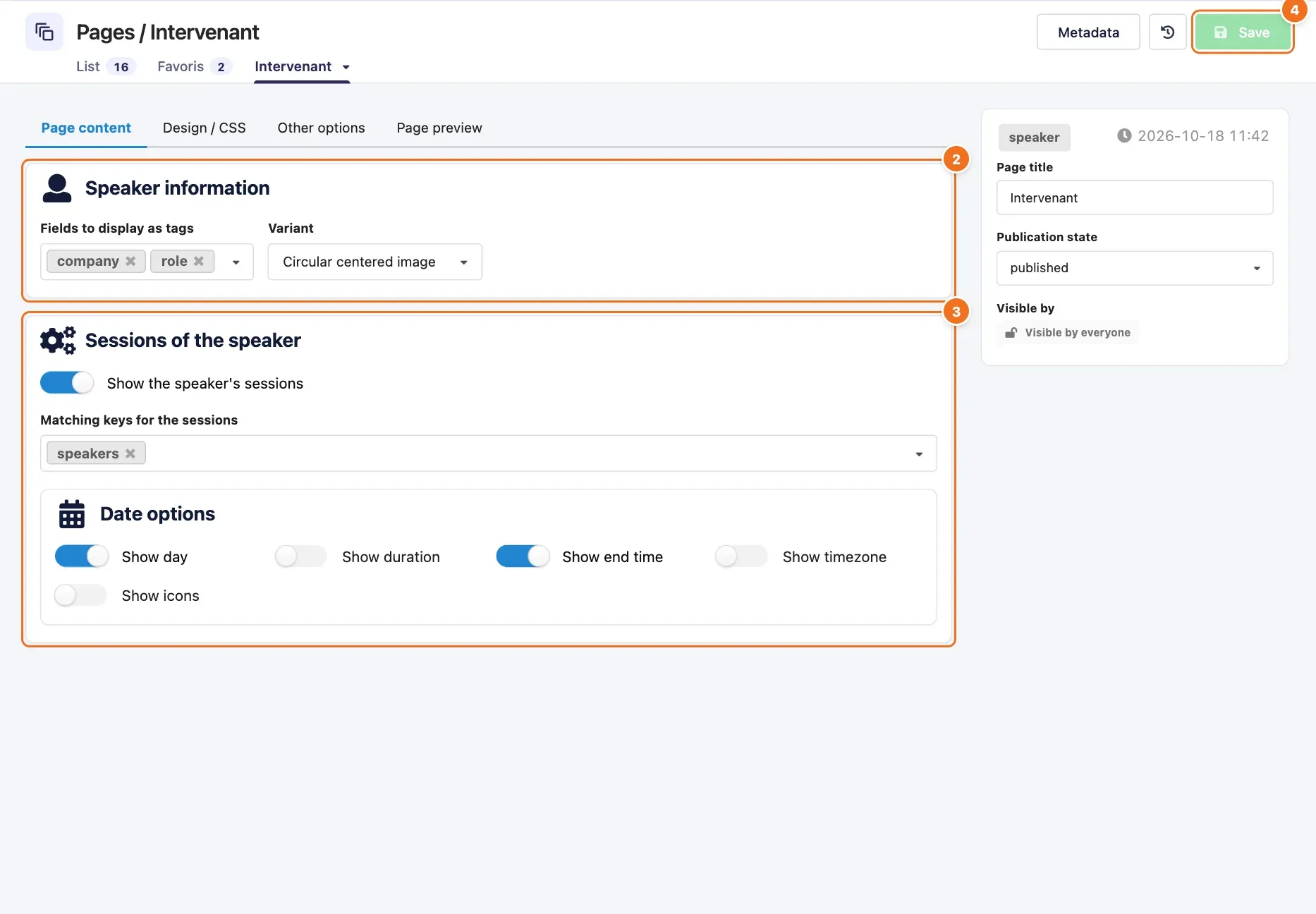
- In Speaker information, choose the fields to display as tags and the layout: Circular centered image or Square image on the left.
- Under Speaker’s Sessions, keep Show the speaker’s sessions enabled to list the speaker’s workshops. Matching keys for the sessions specifies the workshop field that links to the speaker (
speakersby default). Then configure the “Date options” for the sessions. - Click Save.
See also
Section titled “See also”Was this page helpful?
Thanks for your feedback!
Can’t find your answer? Contact support
© AppCraft EventsAppCraft Events websiteLog inContact support