
Site and formArticle 22 of 30
Offer the form in multiple languages
A multilingual form is set up in three places: the link (one per language, with ?lang= at the end), the confirmation email (one template per language), and the banner (one image per language). The form doesn’t guess the browser language: without ?lang= in the link, participants see the main language.
Before you begin
Section titled “Before you begin”- The form must already have its languages. AppCraft adds them: see If that’s not enough. You then translate the texts in the Languages tab: see Translate the form.
- In Mailing, create one confirmation email template per language: see Create and edit an email template.
Send one link per language
Section titled “Send one link per language”
- In Forms, find the form’s address, under its title.
- Click the Open in a new tab icon (a square with an arrow) on the right of the form’s row (its tooltip reads “Opens the saved version of the public form, in a new tab”): the form appears in its main language.
- Add
?lang=followed by the language code at the end of the address:https://inscription.cardiolis.exemple.fr?lang=enfor English. The code is the one the Languages tab shows in parentheses: English (en). - Use this link in your emails, your posts, and the buttons on your website. Keep the address without
?lang=for the main language.
To add other parameters to the same link, separate them with &: ?lang=en&utm_source=linkedin. See Track the source of registrations with UTM links.
Choose one email and one banner per language
Section titled “Choose one email and one banner per language”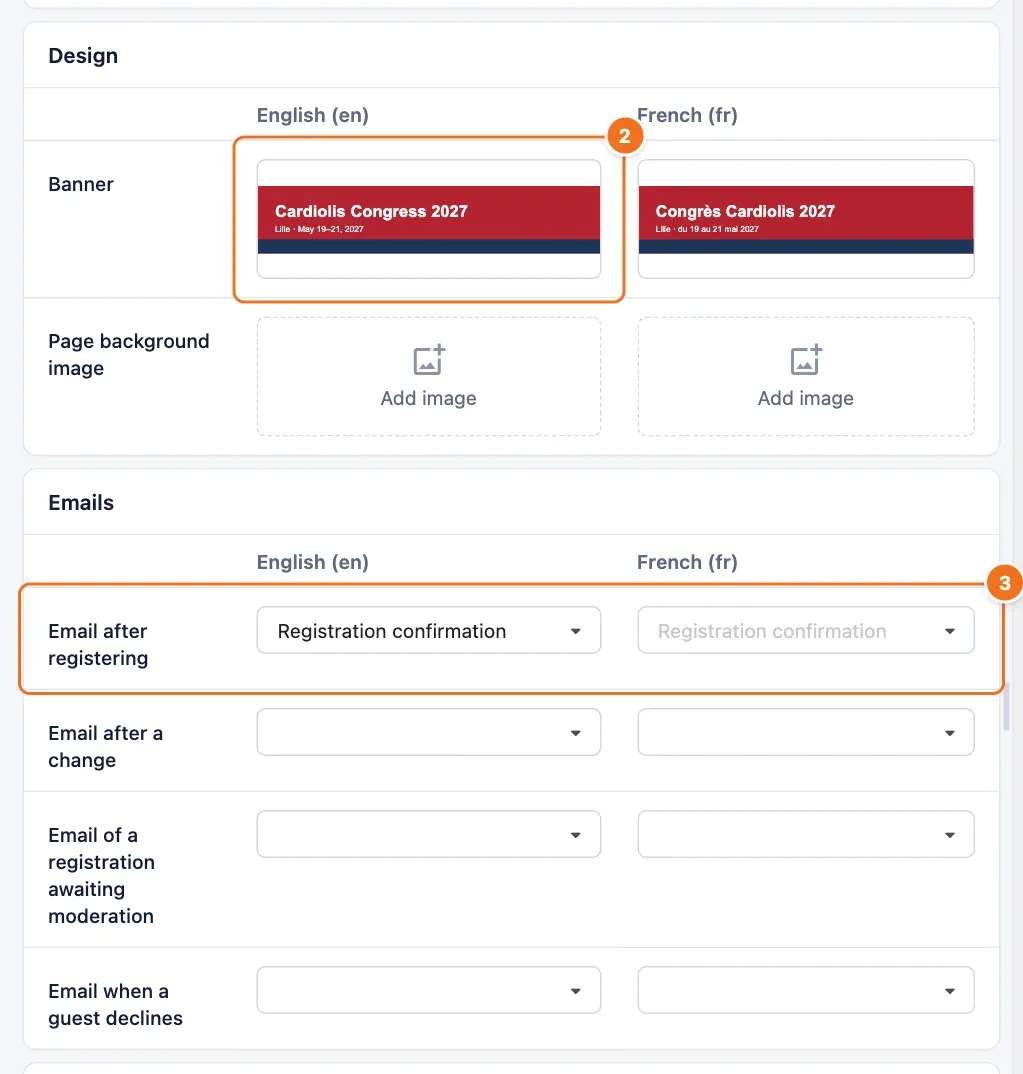
- First choose the email and the banner for the main language: Emails & SMS > Registration confirmation, and Appearance > Images and page background > Banner at the top of the form. Next to each one, the One per language link opens the Languages tab.
- In the Languages tab, Design card, Banner row: drop each language’s image into its column.
- In the Emails card, Email after registering row: choose each language’s template. Do the same for Email after a change and the other rows if needed.
- Click Save.
Participants receive the email in the language of the page where they submitted the form: the one from your link, or the one they chose in the language selector. The personal edit link in the email opens in the main language, unless the address contains ?lang=. In each language’s email template, add ?lang= followed by the language code at the end of the edit link: …/k/{privateKey}?lang=en for English.
Good to know
Section titled “Good to know”- No browser detection. A participant whose browser is set to English sees the main language if your link doesn’t have
?lang=en. - An unknown code isn’t an error. With
?lang=deon a form without German, the form appears in the main language. - An empty cell falls back to the main language. A language without a banner shows the main language’s banner. A language without an email template sends the main language’s template.
- You can’t turn off the email for a single language. Choosing Don’t send an email in one language’s column turns nothing off: the main language’s template is sent.
- Only four emails have a column per language: after registering, after a change, awaiting moderation, and when a guest declines. The email to companions and the SMS have only one version.
- Only two images change by language: the banner and the page background image. Participants load only the images for their language, but keep each banner light (150 to 300 KB): see Image file sizes.
- With a payment, the form’s emails aren’t the ones sent. When the participant has a cart, the emails from the Orders configuration are sent: the per-language template doesn’t apply.
- The language selector reloads the page. A participant who changes language at the top of the form loses the answers already entered. This selector appears only if the form has two or more languages, and it disappears when the form is embedded in a website.
If that’s not enough
Section titled “If that’s not enough”- Add a language. AppCraft makes this setting: ask your project manager.
- Your form is on a page of your website. No selector appears in the page: create one page per language, with
?lang=in the frame’s address. See Embed the form in your website.
See also
Section titled “See also”Was this page helpful?
Thanks for your feedback!
Can’t find your answer? Contact support
© AppCraft EventsAppCraft Events websiteLog inContact support