
Visual assetsArticle 4 of 5
Prepare the visuals for the platform and the web app
The platform (on a computer) and the web app (on a mobile device) share the same visuals: background pages, banners, workshop images, and speaker photos. This page provides the dimensions to use and where to upload each visual.
Before You Begin
Section titled “Before You Begin”- The screens are the same for both the platform and the web app: use the Platform or Web App category in the menu, depending on your event.
- A background image specified for a page replaces the default background image for that page.
Summary of Dimensions
Section titled “Summary of Dimensions”| Page | Visual | Width × height | Maximum weight |
|---|---|---|---|
| All | Background page on a computer | 1,920 × 1,080 px | 1 MB |
| All | Background page on mobile | 1,080 × 1,920 px | 1 MB |
| Login | Login area banner | 420 × 140 px | 100 KB |
| Home | Banner | 1,920 × 480 px | 600 KB |
| Home | Looping background video | 1,920 × 1,080 px (1080p) | 10 MB |
| Program | Workshop visual (16:9 aspect ratio) | 400 × 225 px | 100 KB (to be confirmed) |
| Speakers | Speaker photo | 200 × 200 px | 50 KB |
Background pages
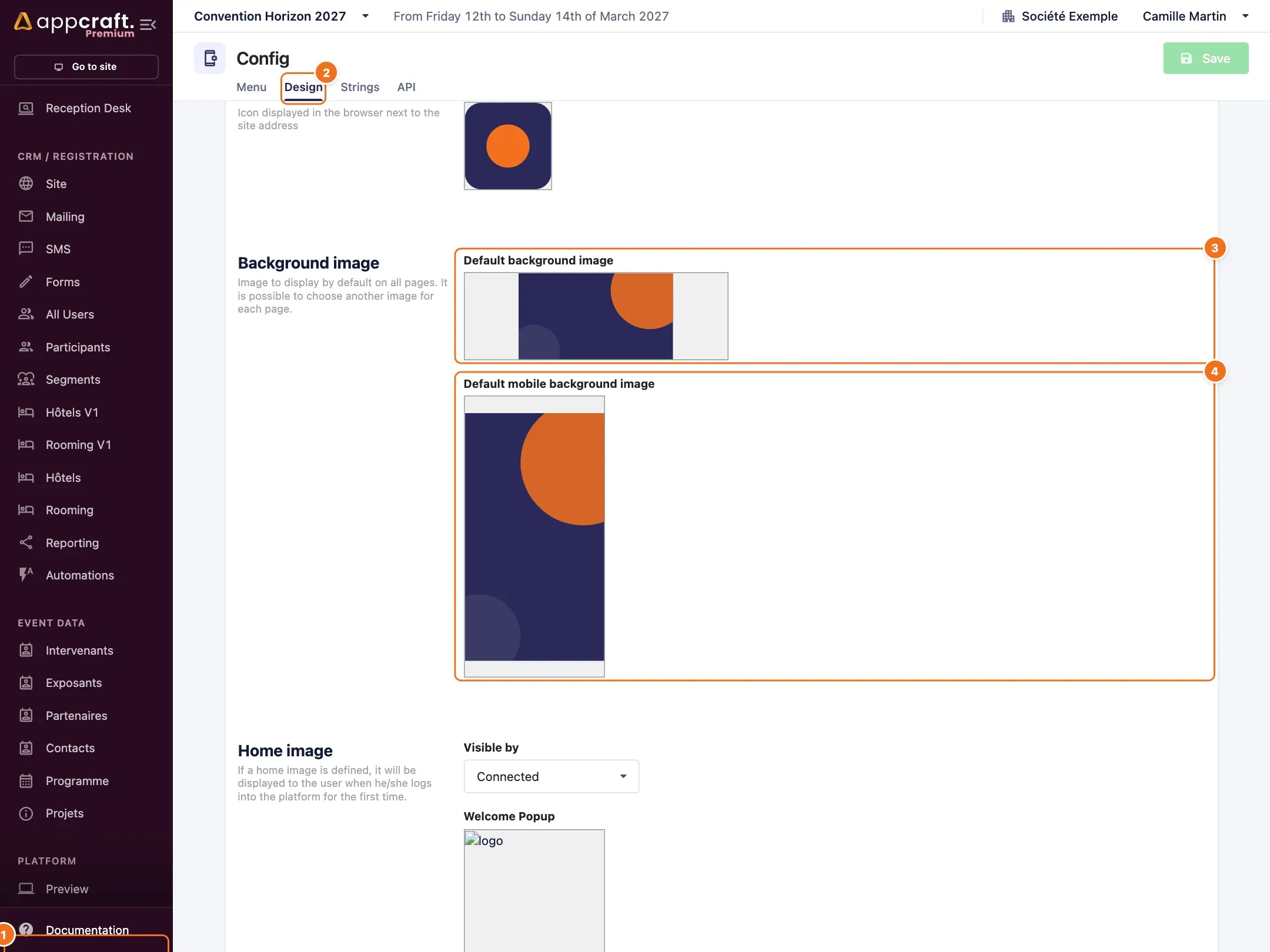
Section titled “Background pages”- In the menu, click on Config (Platform or Web App category).
- Click the Design tab, then click Global.
- In Images & logos, upload the desktop background to Default background image (1,920 × 1,080 px).
- Upload the mobile background to Default mobile background image (1,080 × 1,920 px), then save.
Login page
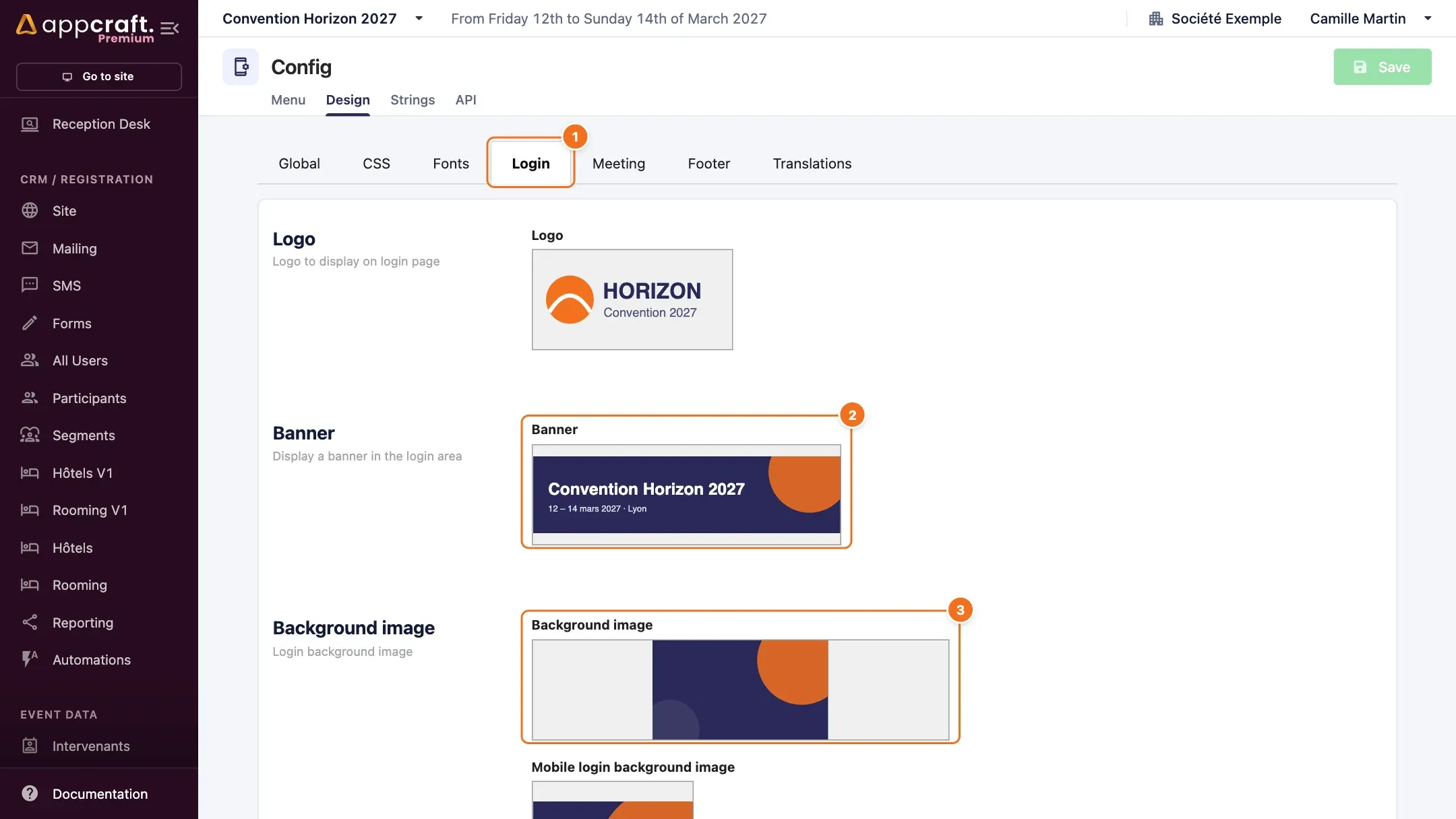
Section titled “Login page”- In Settings > Design, click the Login tab.
- Upload the banner to the Banner section (420 × 140 px, maximum 100 KB). It will show above the login form.
- If needed, add a background image specific to the login page, with the same dimensions as the page backgrounds, or a background video.
Home Page
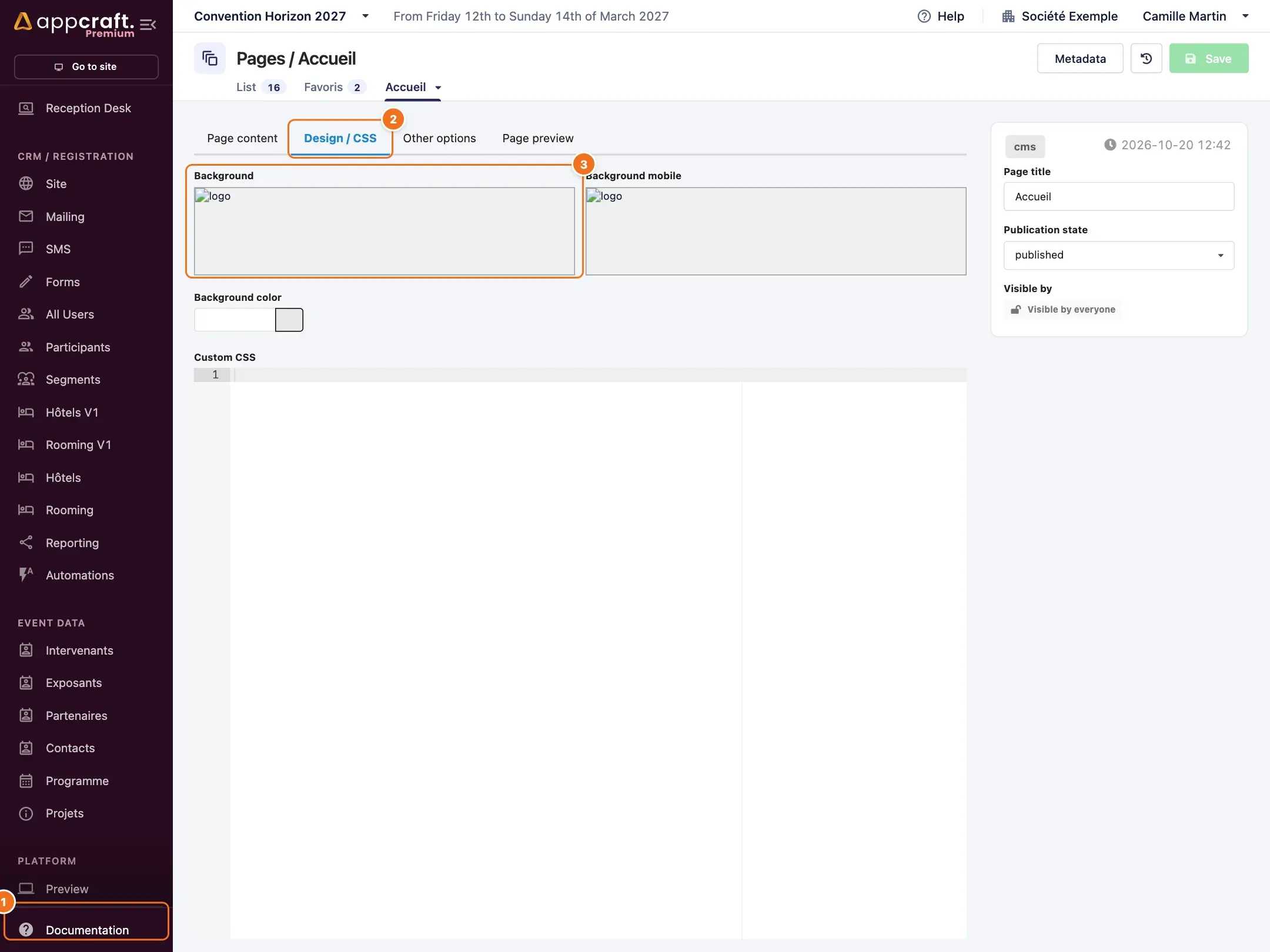
Section titled “Home Page”- In the menu, click on Pages, then open the home page.
- In Page content, add a Banner block (“Full width image”) and drag and drop an image measuring 1,920 × 480 px.
- For a background video, open the Design / CSS tab and drag and drop the MP4 video into the Background field. Include an image in the Mobile Background field for phones.
Prepare a background video
Section titled “Prepare a background video”- MP4 format, H.264 video codec, no audio track—for a background video.
- A few seconds of looping footage, 10 MB maximum.
- Recommended connection speed: 3 Mbit/s, 5 Mbit/s maximum.
- For the iPhone and iPad, use 1,280 × 720 px; 1,920 × 1,080 px is the maximum.
- If possible, ask your video provider for the “faststart” option: the video will start playing faster.
Program and Speakers
Section titled “Program and Speakers”- Workshop image: in the workshop details page, under the Image field. Prepare an image that is 400 × 225 px (16:9 aspect ratio). It will be resized to fit the screen.
- Speaker photo: in the speaker’s profile, under the Speaker Photo field. Prepare a square image measuring 200 × 200 px, with the face centered. The photo will be shown in a circle.
See also
Section titled “See also”Was this page helpful?
Thanks for your feedback!
Can’t find your answer? Contact support
© AppCraft EventsAppCraft Events websiteLog inContact support