
Platform and web appArticle 2 of 22
Create and configure a page on the platform
Pages make up the content of your web platform and mobile app (PWA): home, program, Speakers, profile, etc. This article explains how to add a page, find it in the list, and configure its general options.
Before you begin
Section titled “Before you begin”- Pages on the web platform are managed under Platform > Pages. Pages on the mobile app are managed under Web App > Pages. Both screens work the same way.
- There are two types of pages:
- the CMS Page, a free-form content page that you build using blocks (text, images, buttons, etc.);
- pages linked to a module (Workshops, Speakers, Exhibitors, Participants, Notifications, etc.). These pages show the data entered in the corresponding module: first fill out the module, then create the page.
- Certain page types only appear if the corresponding module is enabled for your event: Map (Maps module), Gamification, and Social Wall, for example. The Exhibitors, Exhibitor, and Networking page types are reserved for the Premium plan. If you’re missing a page type, contact your project manager.
- The Web App works with the platform: the Web App menu is only available if the platform is enabled for your event.
Add a page
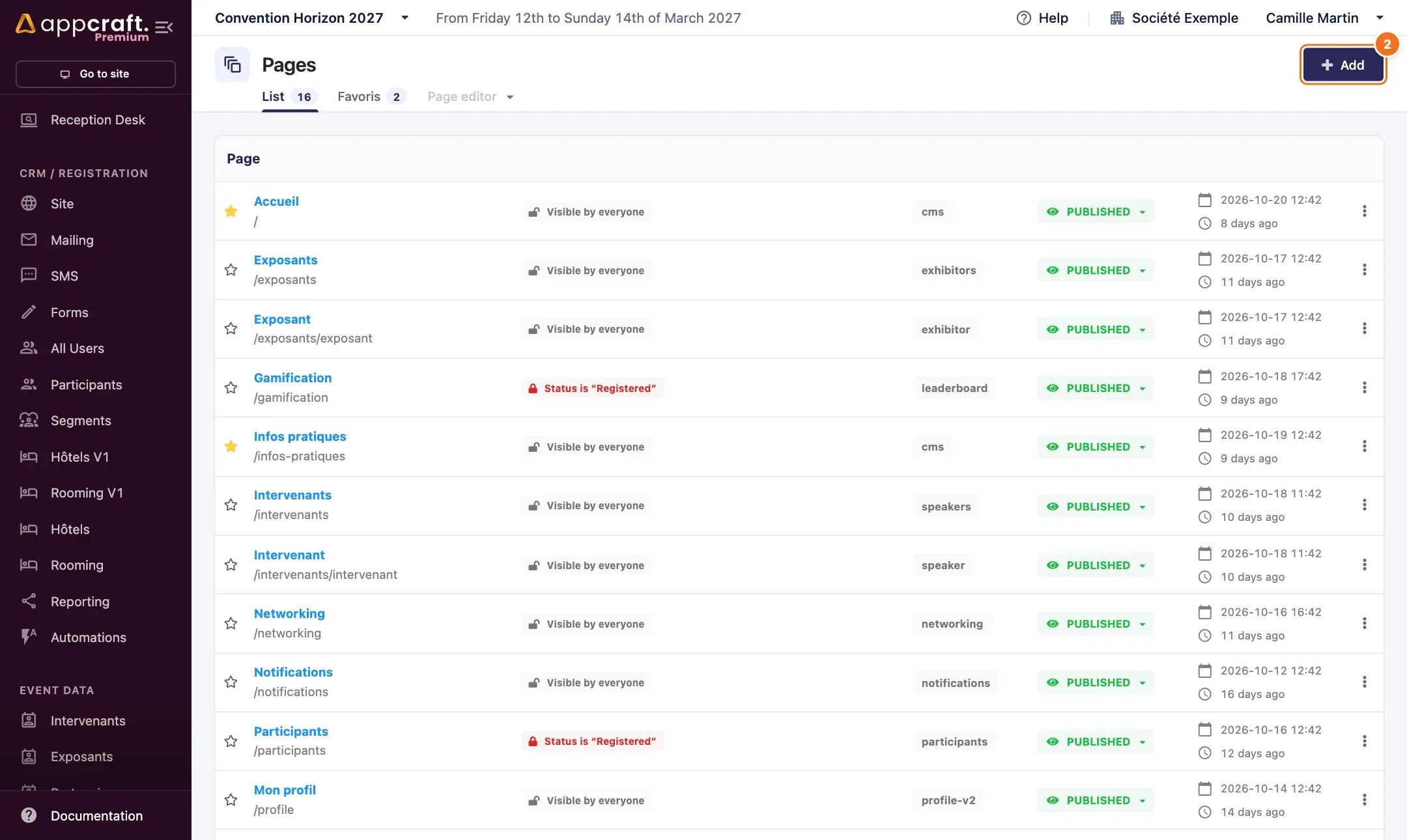
Section titled “Add a page”- Open Web App > Pages (or Platform > Pages).
- Click Add in the top right.
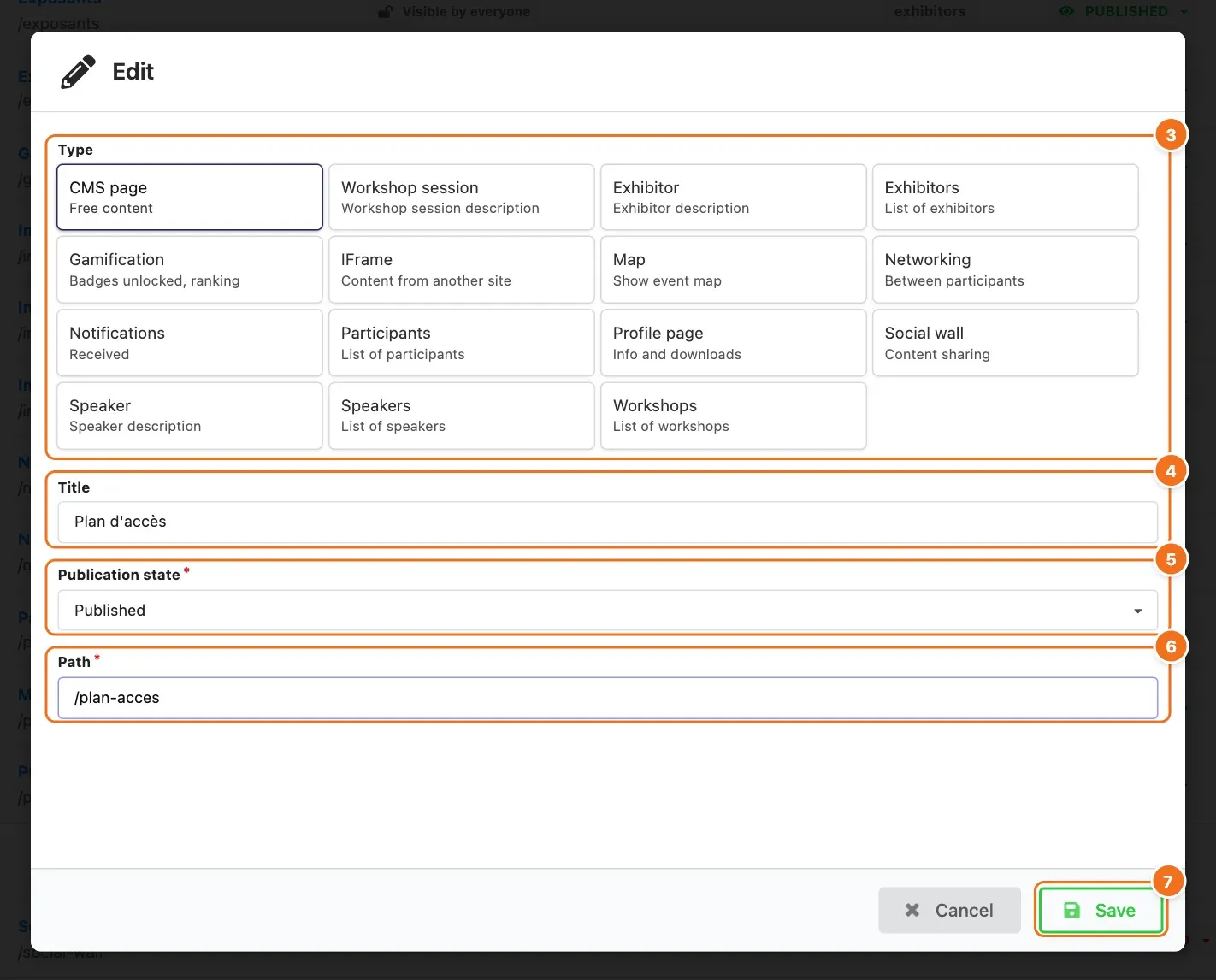
- Choose the page type. The search field helps you find it.
- Enter the Title. This serves as the page’s name in the back office and appears in participants’ browser tabs.
- Choose the Publication state: Published or Unpublished.
- Enter the Path: This is the end of the page’s address, for example
/infos-pratiques. It begins with/, without capital letters, accents, or spaces. No two pages can have the same path. - Click Save.
Find and organize your pages
Section titled “Find and organize your pages”The list shows each page’s title, path, display condition (Visible by), type, and status. The condition is written as a sentence, for example, “Status is ‘Registered’” or “Belongs to the ‘VIP’ segment.”
- Click the star to add a page to the Favorites tab.
- Click on the PUBLISHED or UNPUBLISHED status to change it without opening the page.
- Click the Visible by condition to restrict the page to a subset of participants. In the Condition window, the Segment field appears first: this is the simplest way to target a group of participants. See Conditional display and “Create and use segments.”
- Open the menu … at the end of the line to duplicate or delete the page.
A Page Closed label indicates that a page is temporarily closed (see below).
Edit a page
Section titled “Edit a page”- In the list, click on the page title.
- Choose a tab:
- Page content: blocks or settings specific to the page type;
- Design / CSS: a background (Background and Mobile Background), a background color used when no image is present, and a Custom CSS field. The Background field accepts an image or an MP4 video, which plays in the background of the page on a computer; the Mobile Background field accepts an image;
- Other options: the page path, a page header and page footer specific to this page, and page close;
- Page preview: a preview of the page, available for content pages.
- In the right-hand panel, adjust the Page title, the Publication (
publishedorunpublished), and the Visible by condition as needed. - Click Save. The button turns green as soon as there are changes to save.
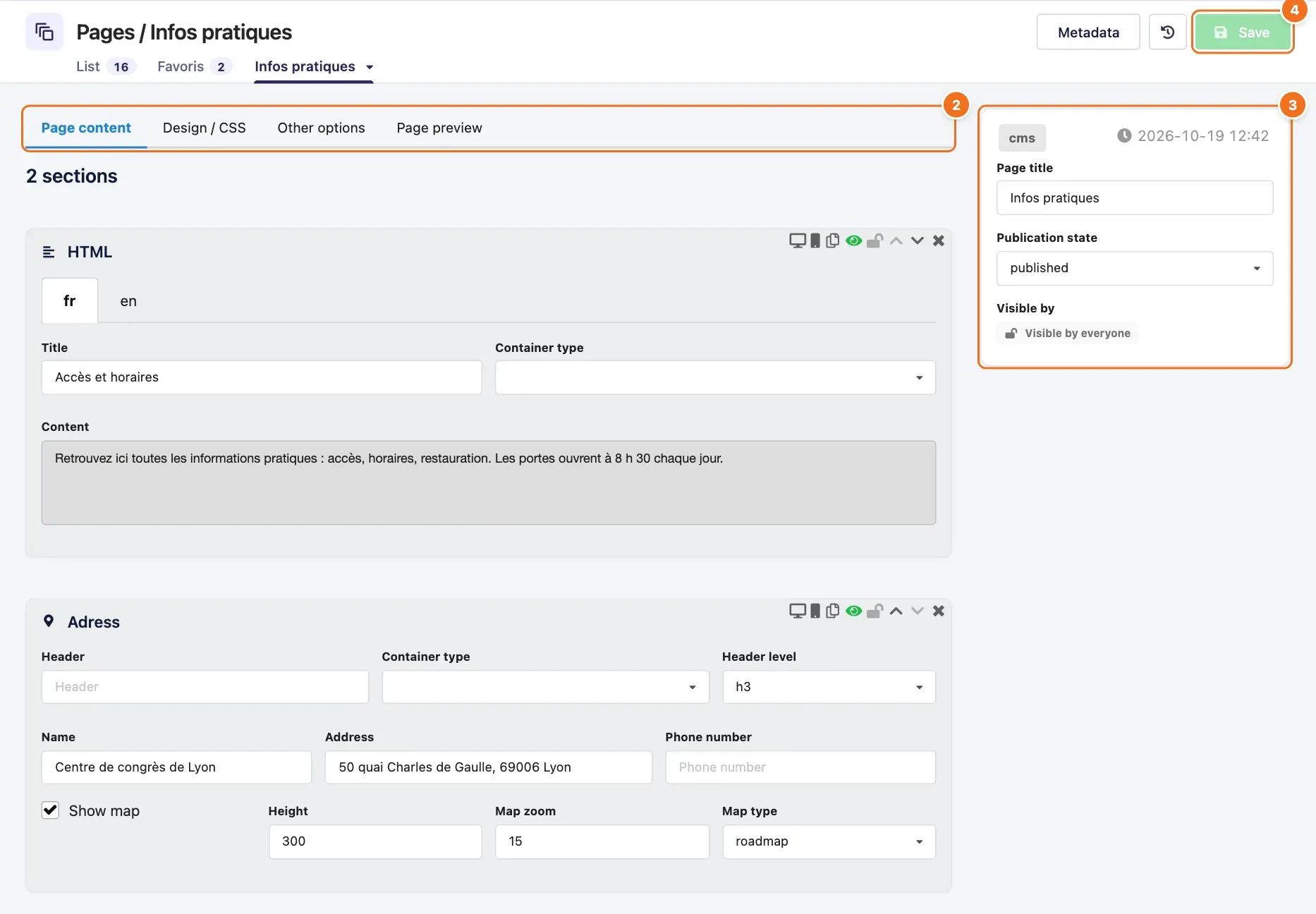
At the top of the editor, the Metadata button is used to enter information that search engines can read, which is useful if your site is public. The clock button opens the page’s change history: who edited what, and when.
Temporarily close a page
Section titled “Temporarily close a page”Closing a page leaves it visible in the menu but replaces its content with a message. This is useful before the event begins or after end.
- Open the page, then the Other options tab.
- Under Page close, enable Close the page.
- Under Page Closed For, keep Page Closed For Everyone or add a condition (see Show an Item Conditionally).
- Add the blocks you want to show in place of the content, such as the text “Opens March 12.”
- Click Save.
Frequently Asked Questions
Section titled “Frequently Asked Questions”Why is my page preview empty?
Section titled “Why is my page preview empty?”Some pages depend on the logged-in participant (profile, schedule, gamification, social wall, etc.). In this case, the Page preview tab will show “Preview not available for this page.” Open Web App > Page preview and log in with a participant account.
My page isn’t showing up in the app menu
Section titled “My page isn’t showing up in the app menu”Verify that its status is Published and that the Visible by setting matches the participant. If the page is closed, a Page Closed label indicates this in the list.
See also
Section titled “See also”Was this page helpful?
Thanks for your feedback!
Can’t find your answer? Contact support
© AppCraft EventsAppCraft Events websiteLog inContact support