
Platform and web appArticle 11 of 22
Customize the footer
The footer appears at the bottom of every page on the platform. It can contain text, links, images, and your social network icons.
Before you begin
Section titled “Before you begin”The footer page appears at the bottom of the list under Web App > Pages or Platform > Pages. If it’s not there, ask your project manager to enable it: it cannot be created using the Add button.
Add your social networks
Section titled “Add your social networks”- Open the footer page and go to the Page content tab.
- Click Add a block, then choose the social media block.
- Choose the icon color.
- Under Social networks, click Add for each network. In the icon column, enter the network’s name in lowercase (for example,
linkedin,instagram,youtube). In the url column, paste the address of your page. - Click Save.
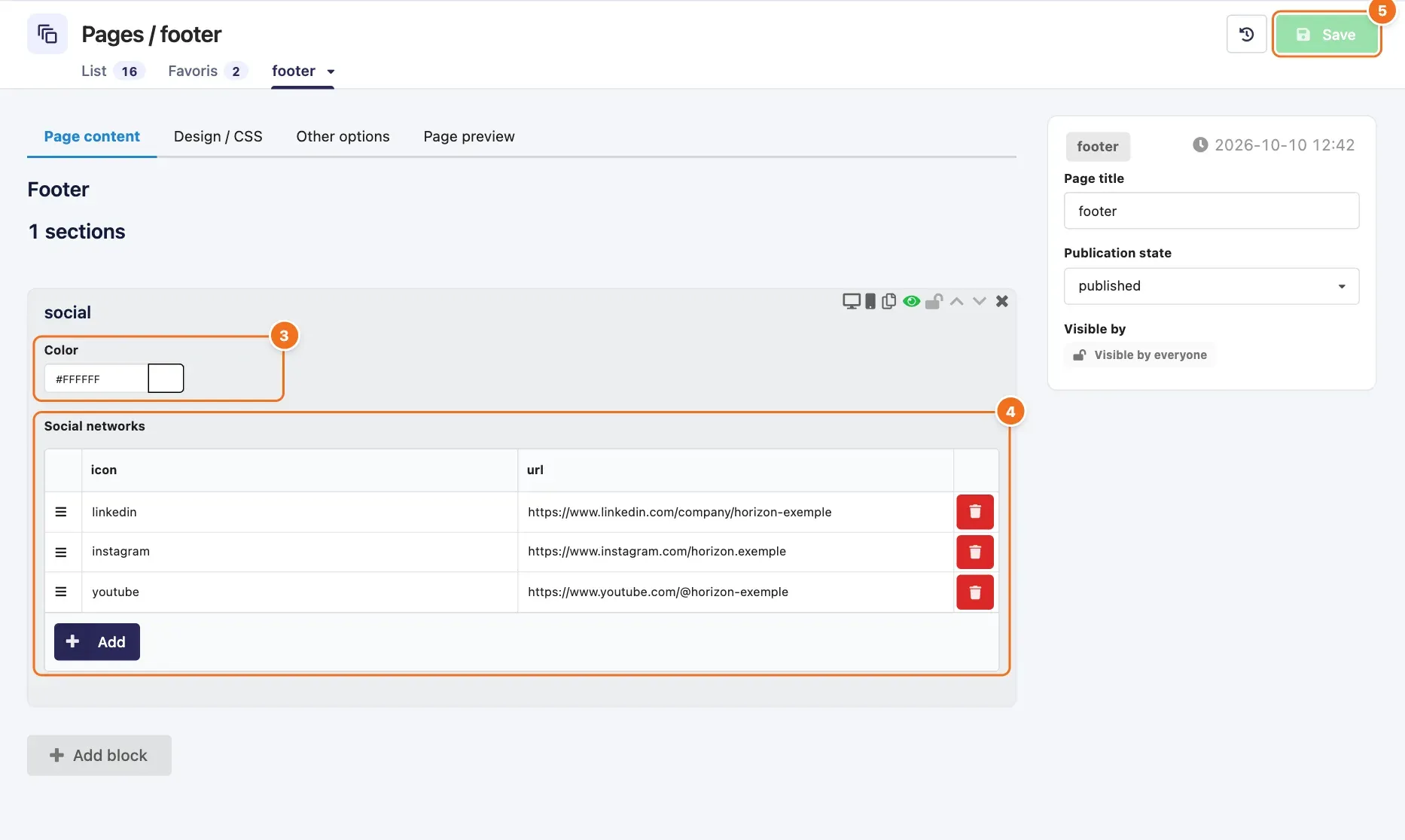
Use the handle at the beginning of a row to change the order of the icons. The red button deletes a row.
Other footer blocks
Section titled “Other footer blocks”| Block | Usage |
|---|---|
| HTML | Formatted text, such as legal notices |
| link | A text link, with its color |
| Image | A logo, with a maximum logo height |
| modal | A link that opens a window with content |
| cookieModal | The cookie management banner |
| cms | A group of standard CMS blocks |
See also
Section titled “See also”Was this page helpful?
Thanks for your feedback!
Can’t find your answer? Contact support
© AppCraft EventsAppCraft Events websiteLog inContact support