
InteractionArticle 3 of 17
Create a word cloud
The word cloud shows the words sent by your participants in live mode. The more a word is sent, the larger it appears. You can project it onto a big screen or embed it on a page on the platform.
Before you begin
Section titled “Before you begin”- The Word cloud module appears in the menu under the Interaction section. If it’s not there, contact your project manager.
- A word cloud can also be a quiz question (Word Cloud type): see Create a Quiz. This article covers the standalone module.
Create the word cloud
Section titled “Create the word cloud”- In the menu, click Word cloud, then click Add.
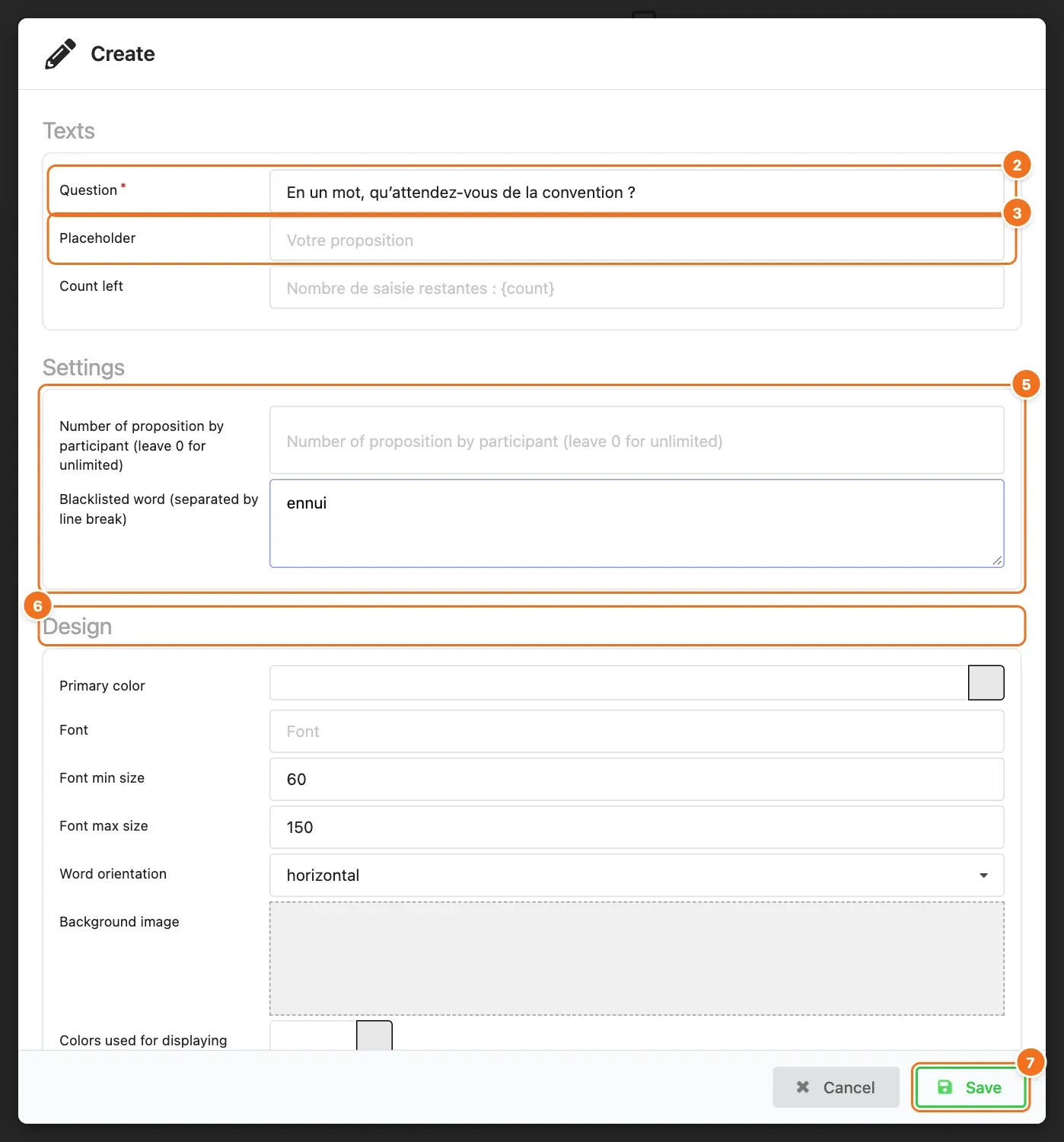
- In the Texts section, enter the question for participants.
- Fill in the placeholder—the text shown in the input field (for example, “Your suggestion”).
- If you limit the number of words, customize the text Count left.
- In the Settings section, specify the Number of entries per participant (leave as 0 for unlimited) and, if necessary, the Blacklisted words (separated by line break).
- In the Design section, choose the Primary color, Font, text sizes, Word orientation, Colors used for displaying words, and, if needed, a Background image.
- Click Save.
Test and prepare for the big day
Section titled “Test and prepare for the big day”Each word cloud appears as a card.
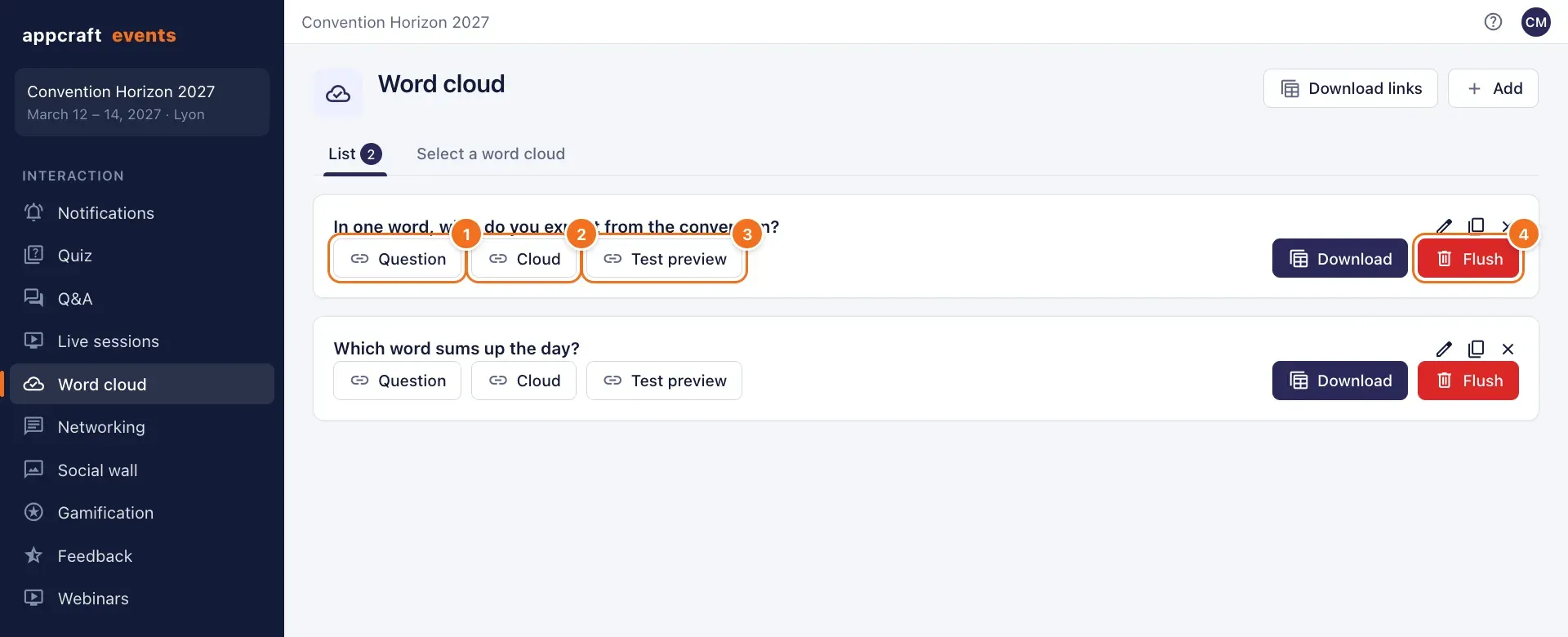
- Question opens the participant page, where participants can enter their words.
- Cloud opens the word cloud as it will appear when projected, with the actual words that have been sent.
- The “Test Preview” shows the word cloud with sample words so you can check the layout.
- Flush clears all answers. Use this after your tests, before the event.
Use the icons on the map to edit, duplicate, or delete the word cloud. Duplicating an existing word cloud copies its entire design—it’s the fastest way to create a new one.
Share the word cloud with participants
Section titled “Share the word cloud with participants”- In the page editor, add an Iframe block.
- In the Iframe Type section, choose Word cloud.
- Select the word cloud you want to show.
View and export the results
Section titled “View and export the results”- Click the word cloud’s title, or choose it from the Select a word cloud tab.
- The page shows a word list with the number of occurrences for each word next to the word cloud.
- Click Download to export the sent words to Excel.
At the top of the list, Download links exports the links for all your word clouds.
See also
Section titled “See also”Was this page helpful?
Thanks for your feedback!
Can’t find your answer? Contact support
© AppCraft EventsAppCraft Events websiteLog inContact support