
Accommodation and travelArticle 6 of 11
Add room selection to the registration form
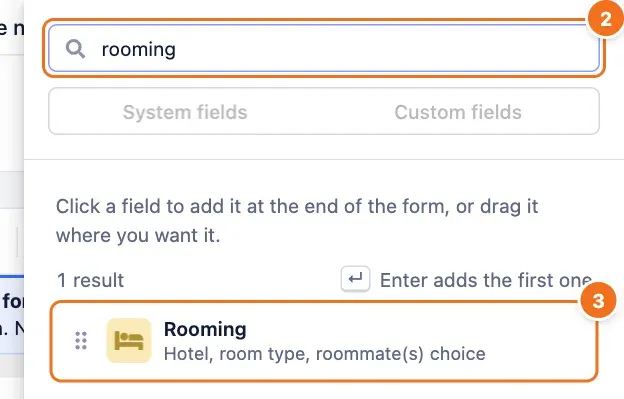
The Rooming field lets participants choose their hotel, room type, and roommates directly in the registration form.
Before you begin
Section titled “Before you begin”- Your room types, hotels, and rooming session must be ready. See Configure room types and rooming sessions.
- The Rooming field only appears if the rooming module is enabled on your event.
We recommend doing rooming in two stages:
- A first registration to collect information and confirm attendance.
- A second step, later, for choosing the hotel and roommates.
Add the Rooming field
Section titled “Add the Rooming field”- In Forms, open your form, then click Add new field.
- In the panel, open the Custom fields tab.
- In the Advanced fields category (or by searching for “Rooming”), drag the Rooming field to the desired spot in the form. A click adds it at the bottom of the form.
Configure the field
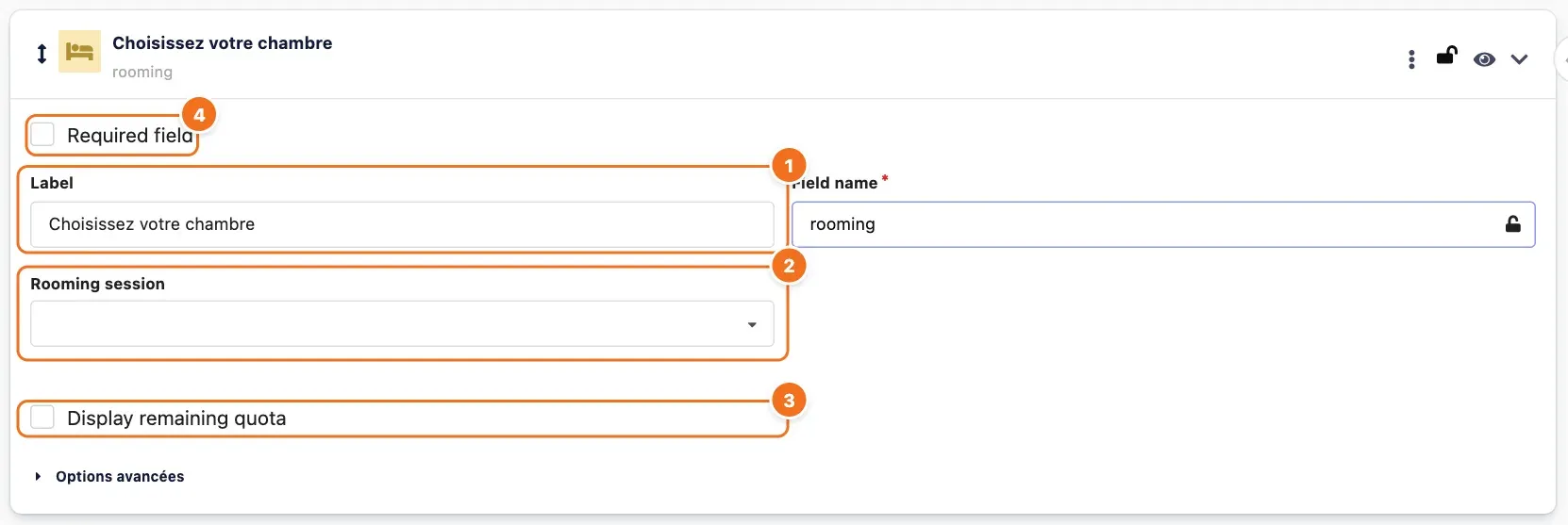
Section titled “Configure the field”- Fill in the Label: the text displayed above the room choice (e.g. “Choose your room”).
- Choose the Rooming session to display. All its configurations (Single, Twin…) are taken into account.
- Check Show the number of rooms left if you want participants to see availability.
- Turn on Required field if participants must not be able to submit their form without choosing a room.
See also
Section titled “See also”Was this page helpful?
Thanks for your feedback!
Can’t find your answer? Contact support
© AppCraft EventsAppCraft Events websiteLog inContact support