
ParticipantsArticle 8 of 12
View all event users
The All Users screen brings together everyone associated with your event—including attendees, exhibitors, speakers, and collaborators—in a single table. It allows you to search for someone without knowing which collection they’re in, or to export your entire database at once.
Before you begin
Section titled “Before you begin”The All Users entry appears in the CRM / Registration section of the menu when the module is enabled for your event.
Find and organize your users
Section titled “Find and organize your users”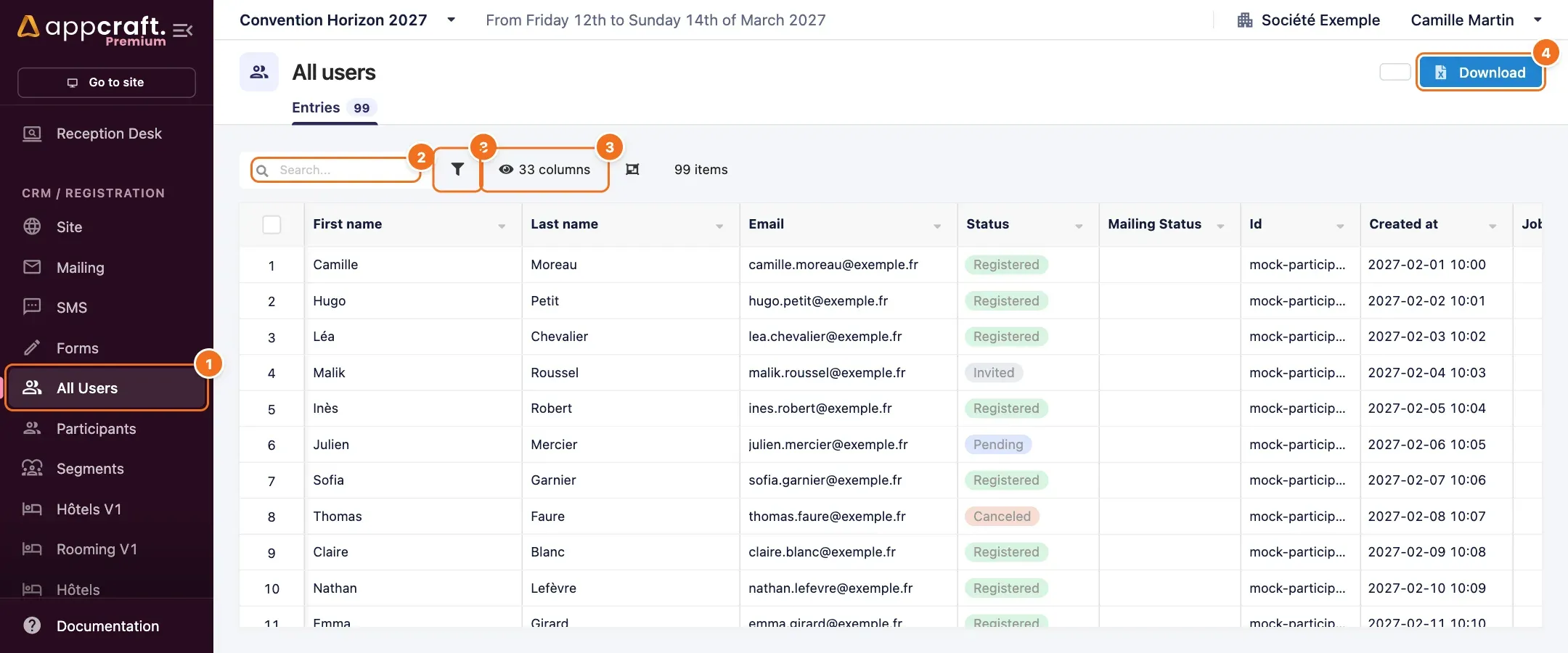
- In the menu, click All users. The Entries tab shows the total number of users.
- Type a name, first name, or email address into the search bar to find a person.
- Use the tools above the table to filter the list, group it by a column, or choose which columns to show.
- Click Download to export the list to Excel. A window will appear where you can choose the columns to export.
What the screen does not allow
Section titled “What the screen does not allow”This screen is read-only. You cannot add, edit, or delete users here.
To edit a profile, open the person’s collection in the menu (for example, Participants), then click on their row.
You also cannot add people to a segment from this screen: a segment can only contain people from the same collection. Do this from the relevant collection using Add to a Segment. See “Create and Use Segments.”
Frequently Asked Questions
Section titled “Frequently Asked Questions”Why does a person appear twice?
Section titled “Why does a person appear twice?”The same email address may appear in two collections—for example, as both a participant and a speaker. Each collection maintains its own record.
Can I send an email from this screen?
Section titled “Can I send an email from this screen?”No. Emails are sent from a user collection or from the Mailing module.
See also
Section titled “See also”Was this page helpful?
Thanks for your feedback!
Can’t find your answer? Contact support
© AppCraft EventsAppCraft Events websiteLog inContact support