
Site and formArticle 14 of 30
Translate the form
Each participant can fill in the form in their own language. You write the texts in their own tab (Questions, Screens, Emails & SMS, Appearance), then translate them in the Languages tab, which gathers them language by language.
Before you begin
Section titled “Before you begin”The form’s languages are added by AppCraft. If your form exists in only one language, the Languages tab tells you who to contact: your project manager, or AppCraft support.
You can delete a language, but you cannot add one: only AppCraft can. To delete a language, remove it from the list of languages at the top of the Languages tab, then confirm. This permanently erases all the translations of that language, across the whole form.
Translate the texts
Section titled “Translate the texts”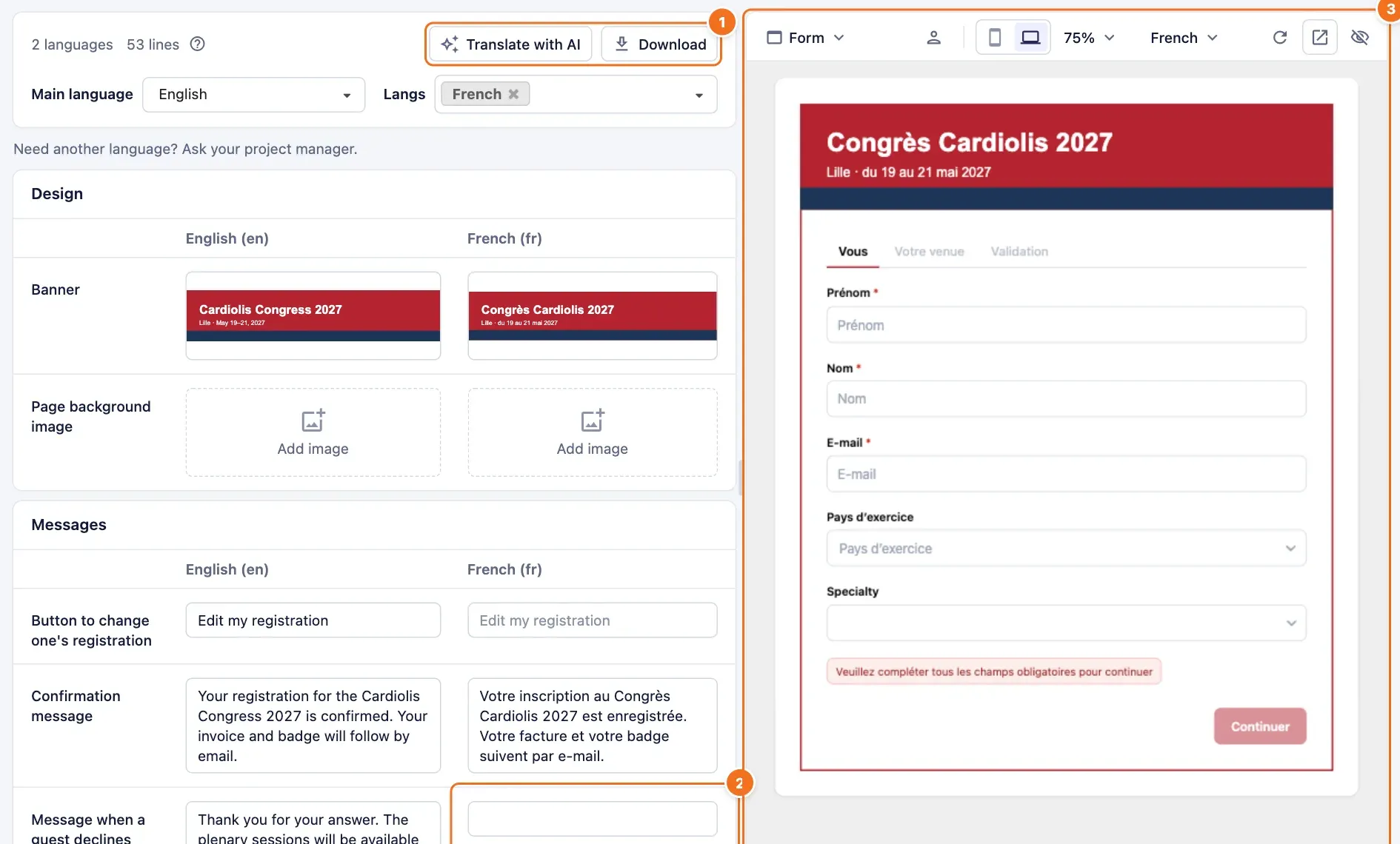
- Open the form, Languages tab. Translate with AI translates the texts for you (see below); Download saves the texts in an Excel file (see further down).
- Each line shows a text in the main language, then one column per language. Enter the translation in the empty box.
- The preview shows the form in the language of the box you are editing. Then click Save.
The texts are grouped in cards: Design (images per language), Messages, Emails, one card per field, then the form’s Default texts (buttons, error messages, summary…). A box left empty uses the text of the main language.
Translate with AI
Section titled “Translate with AI”- Click Translate with AI.
- Choose the texts to translate (the whole form, or just one field), the languages, and whether to translate Only what is missing or Translate everything again.
- Start the translation, then review each suggestion: keep or discard each box.
- Apply the translations you kept, then click Save.
AI must be enabled on the event. It only receives the texts to translate and the target language. See Create and edit a form with AI.
Send the texts to a translator
Section titled “Send the texts to a translator”Download creates an Excel file (.xlsx). It contains one line per text, with one column per language. It includes the Design, Messages, Emails cards and those of the fields. It does not include the Default texts (buttons, error messages, summary…): translate them directly in the editor.
Choose the participant’s language
Section titled “Choose the participant’s language”The form does not detect the language of the participant’s browser. Their language comes from one of these two means:
- The link: add
?lang=followed by the language code to the form’s address, for example?lang=enfor English. If the code matches no language of the form, the main language applies; - The language selector, at the top of the form. It appears as soon as the form has two or more languages. When the participant changes language, the page reloads: the answers already entered are lost.
Without ?lang= in the link, the participant therefore sees the main language, even if their browser is in English.
See also
Section titled “See also”Was this page helpful?
Thanks for your feedback!
Can’t find your answer? Contact support
© AppCraft EventsAppCraft Events websiteLog inContact support