
Site and formArticle 20 of 30
Understand what counts toward the maximum number of registrants and quotas
A form’s Maximum number of registrants and an option’s Quota count participants with the Registered status, and only them. A person with any other status (Invited, In progress, Pending, To moderate, Won’t come, Rejected, Canceled) doesn’t take a seat.
Limit the total number of registrants
Section titled “Limit the total number of registrants”- Open the form, Settings tab.
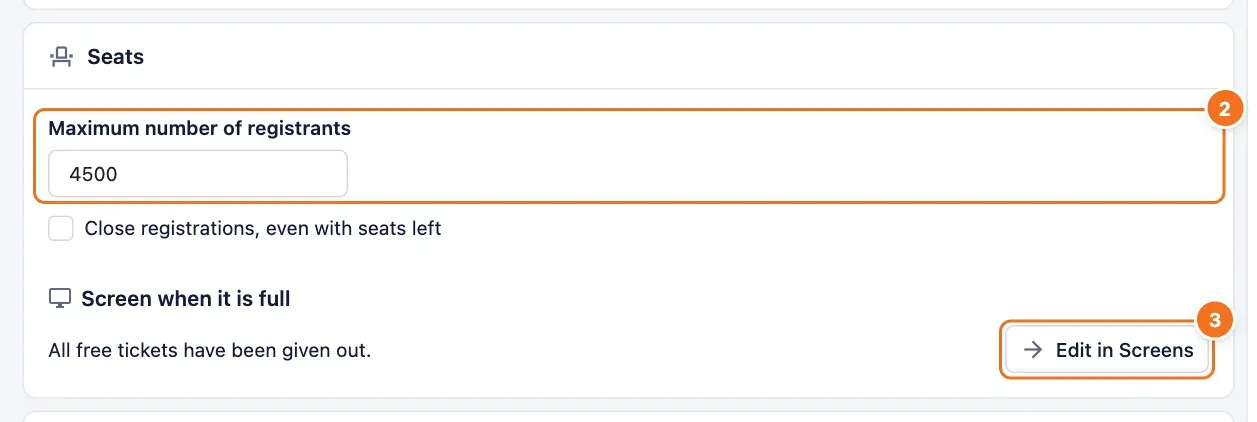
- In the Seats card, enter the Maximum number of registrants. Leave the field empty for no limit (“Unlimited”).
- Once you’ve entered the number, click Edit in Screens: the Screens tab opens on the “When it is full” card, where you write the message participants see when it’s full.
- Click Save.
Limit the seats for an option
Section titled “Limit the seats for an option”- In the Questions tab, open a Radio question, or add one. Leave Multiple choice unchecked.
- In the options, find the Quota column of the table and fill it in for each option concerned. If the table isn’t shown, turn on Change labels or add quotas: this switch is on by default.
- Set Display of the remaining places: Visible shows the number of seats, Hidden shows only “Available” or “FULL”.
- Click Save.
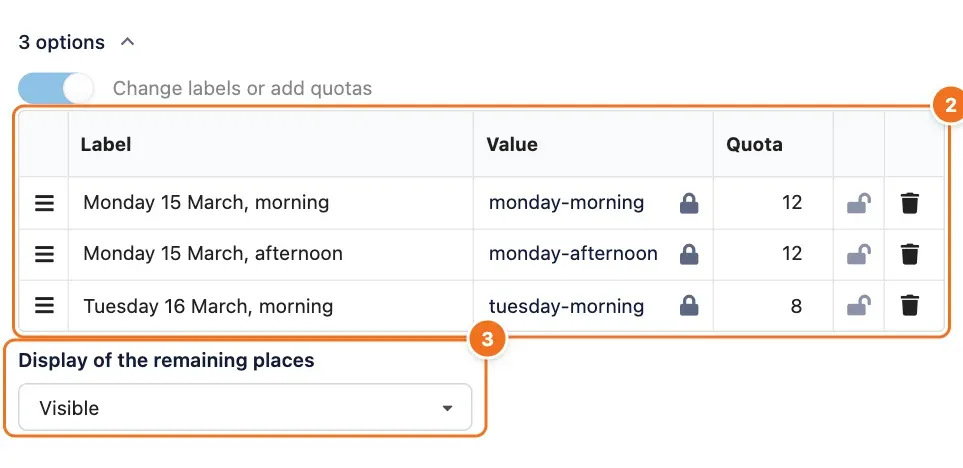
Among the choice questions, only Radio has a Quota column: Select and Multi-select field don’t. See also Let participants choose an activity with a quota.
Good to know
Section titled “Good to know”- Changing a status frees the seat immediately, and the back office doesn’t warn you. If you move registrants from Registered to In progress to ask them to confirm, their seats are freed. Other people can take them. When the first group comes back to confirm, they get the “full” message if the maximum has been reached in the meantime.
- The back office doesn’t check the maximum when you change a status. In the participant list, the Status column can be edited without comparing the total to the maximum number.
- With moderation, you can receive more requests than seats. To moderate requests don’t count: the form stays open as long as the number of Registered people hasn’t reached the maximum. When you click Register, the back office doesn’t compare the total to the maximum either. Count your registrants before accepting.
- With online payment, a seat is taken only once the registration is paid. Until then, the person is Pending. Several people can therefore start paying for the last seats.
- Companions each take a seat. A registration for three people is refused if only two seats remain.
- The maximum and quotas are counted across the whole participant list, not the form. If two forms in the same list have a question with the same Field name, their quotas share the same counter. See Offer a different form to visitors, exhibitors, and press.
- A participant with their personal link sees the form even when it’s full. They’re refused at submission, with the message from the “When it is full” screen (“Registrations are closed” if you haven’t written one). Only someone requesting an additional seat is refused: a person who is already Registered and doesn’t request an extra seat can save their change. Without their link, they go straight to the “full” screen.
- A person who is already registered can edit their registration when it’s full, as long as they don’t request an additional seat (a companion, for example). Close registrations, even with seats left also blocks edits.
- An option that reaches its quota is disabled, except for the person who already chose it. The counter shown (“slots left: 1 / 10”) reflects the moment the page was opened: it doesn’t update on its own. A person who leaves the form open can therefore see “1 slot left” and be refused at submission, with the message “Value “…” for “…” is not available anymore, please select a different value”. The counter then updates.
- A maximum of 0 doesn’t close the form. To close it, check Close registrations, even with seats left.
If that’s not enough
Section titled “If that’s not enough”- To ask your registrants to confirm without freeing their seat, don’t change their status: send them a reminder with an email from the Mailing module.
- There is no waiting list. Once the maximum is reached, the form shows the “full” screen.
- To limit a single profile, there are two cases. A Maximum number of registrants is counted across the whole participant list: for a maximum specific to one profile, you need a separate collection. AppCraft makes this setting: ask your project manager. An option’s Quota, on the other hand, only limits the forms that have that question: give it a Field name that the other forms don’t use.
See also
Section titled “See also”Was this page helpful?
Thanks for your feedback!
Can’t find your answer? Contact support
© AppCraft EventsAppCraft Events websiteLog inContact support