
CommunicationArticle 3 of 13
Track the delivery of an email campaign
After sending an email, check how many people received it and view the exact list of recipients for each status. You can then download this list or follow up with these people.
View a summary of all your mailings
Section titled “View a summary of all your mailings”The Dashboard tab in the Mailing module shows a delivery graph and four metrics: Sent, Delivered, Opened, and Errors. The menu above the graph lets you choose the time period (last 30 days by default), while the menu above the numbers shows All Templates or a single template.
Click a number to view details about the mailings. The Errors number opens the Errors tab.
Track the delivery of a template
Section titled “Track the delivery of a template”- In the Mailing module, click on the mailing template in the list.
- Open the Tracking & statistics tab.
- Choose the grouping option from the menu at the top of the list.
- Click on a status in a row to view the recipients involved.
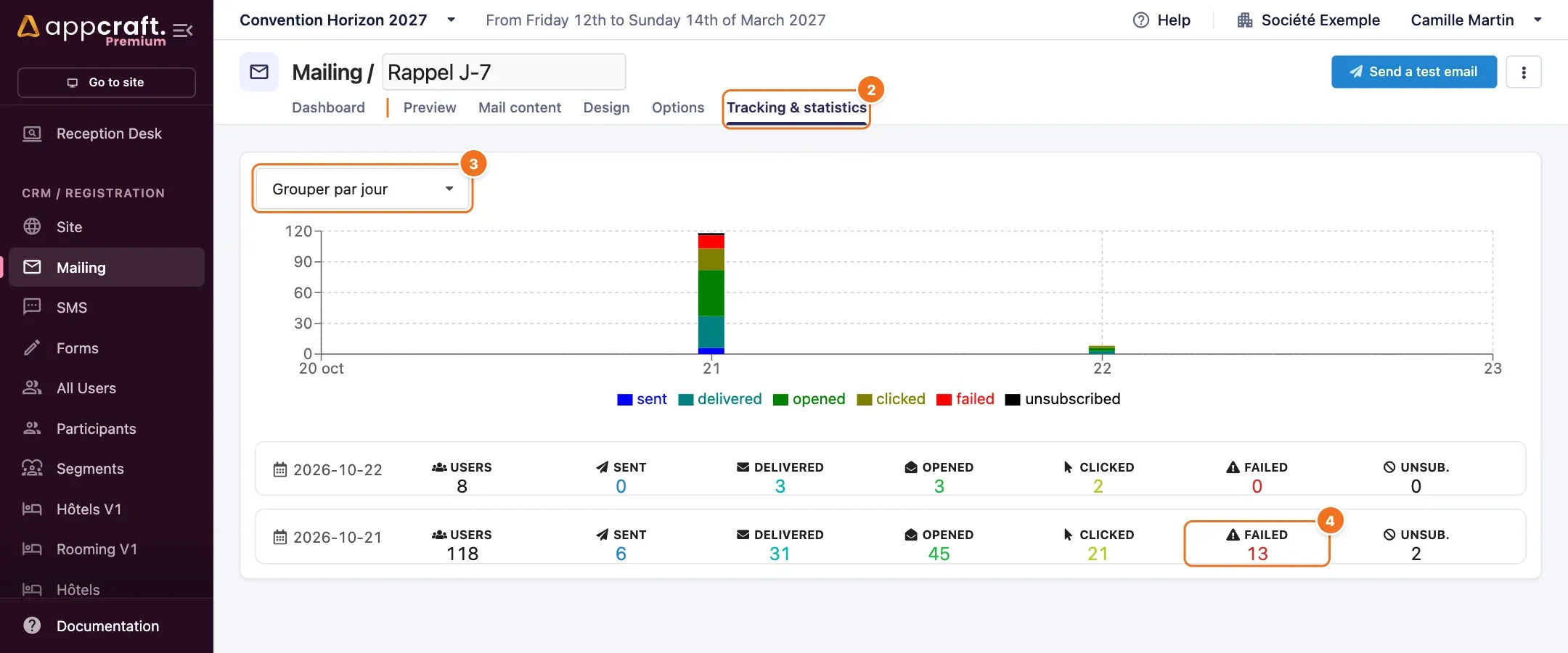
Available groupings:
- Group by day (default): one row per day the email was sent;
- Group by mailing: one row per mailing, including the time;
- Group by mailing (for bulk mailings only): hides individual mailings so you can analyze only the campaigns;
- Group everything together: a single line for all mailings using the template.
The graph above the list is clickable: click on a day to see the recipient(s) for that day.
Understanding the statuses
Section titled “Understanding the statuses”The statuses are shown in English, as shown on the screen:
| Status | Meaning |
|---|---|
| Users | All the people to whom the email was sent. |
| sent | The AppCraft server successfully sent the email. |
| delivered | The recipient’s server confirms receipt. |
| opened | The recipient opened the email. |
| clicked | The recipient clicked on a link or button in the email. |
| failed | The email was not received. Details about the error can be found in the Errors tab. |
| unsubscribers. | The recipient has unsubscribed. |
Download the list or follow up with recipients
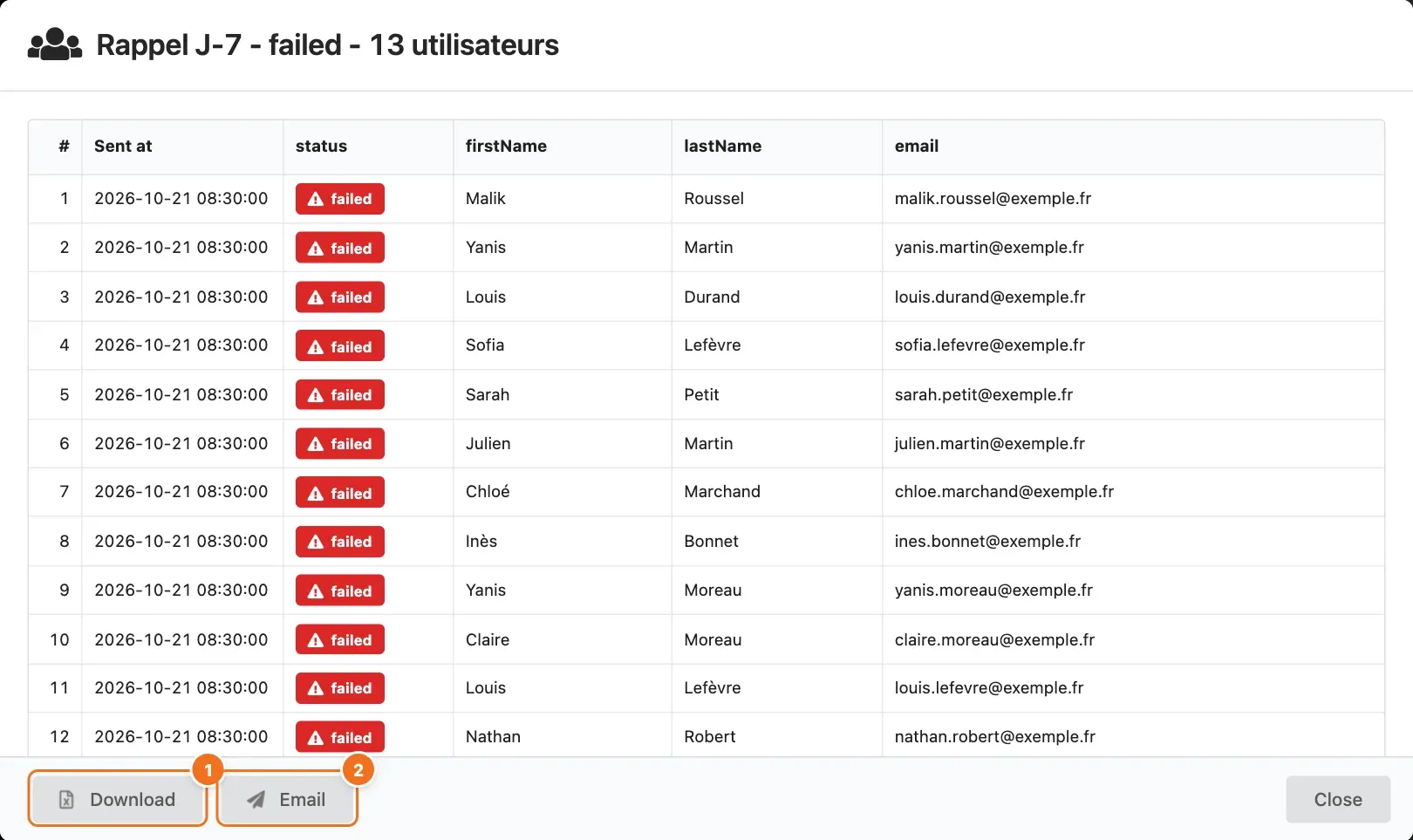
Section titled “Download the list or follow up with recipients”In the window that opens when you click on a status:
- Click Download to get the list in Excel format.
- Or click on Email to send a new email to these people—for example, a resend to those marked as “failed” after the fix to their addresses.
See also
Section titled “See also”Was this page helpful?
Thanks for your feedback!
Can’t find your answer? Contact support
© AppCraft EventsAppCraft Events websiteLog inContact support