
Site and formArticle 9 of 30
Open, close, and limit registrations
The form status, at the top of the editor, controls when people can register. The Settings tab controls who can register, how many people, duplicates, and moderation. The messages displayed in each case are written in the Screens tab.
Open or close the form
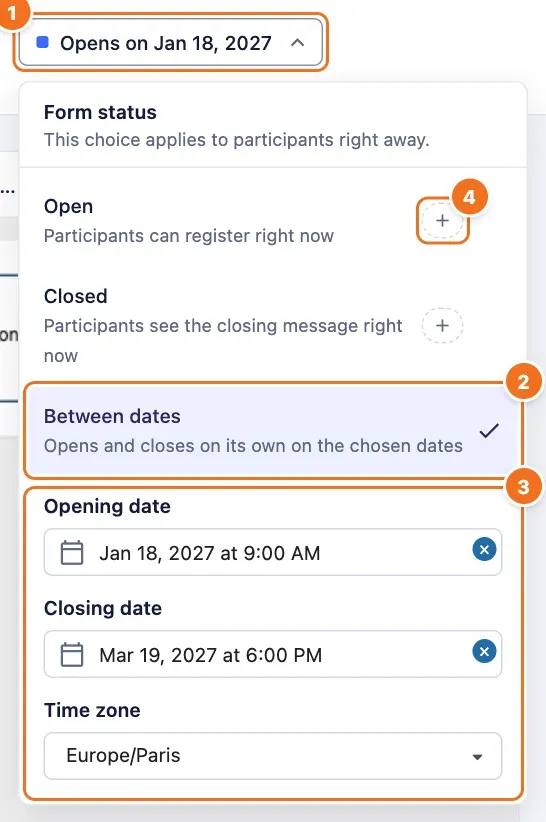
Section titled “Open or close the form”- Open the form, then click its status, at the top right of the editor (for example Open or Opens on Jan 18, 2027).
- Choose:
- Open: participants can register right now;
- Closed: participants see the closing message right now;
- Between dates: the form opens and closes on its own on the dates you choose.
- For Between dates, fill in the Opening date, the Closing date, and the Time zone, then click Save the dates.
- To make an exception (for example, to keep the form open for your VIPs), click the + next to Open or Closed.
Make an exception
Section titled “Make an exception”An exception keeps the form open for certain people when it is closed (Always open for), or closes it for certain people when it is open (Always closed for).
- Click the + next to Open or Closed, then click Open for some people or Close for some people.
- Define the condition: for example, the participant’s category is “VIP”.
- If needed, add dates specific to the exception, then confirm.
The number of exceptions then appears next to the status (“Open: 1 exception”). Click it to edit them.
Who can register, and how many
Section titled “Who can register, and how many”Open the Settings tab.
- Open the Settings tab.
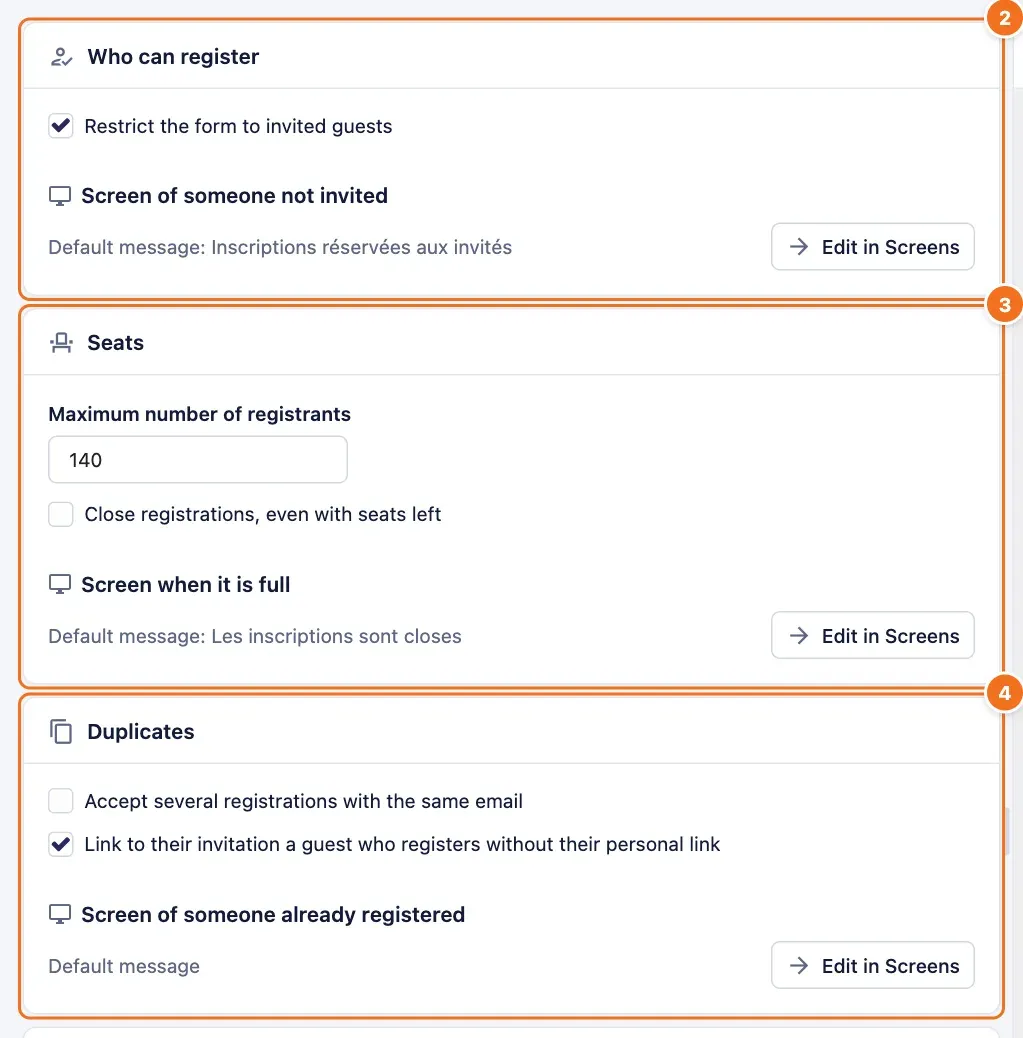
- Who can register: check Restrict the form to invited guests so that only people already in your participant list can respond.
- Seats:
- Maximum number of registrants: the form closes when this total number of registrants is reached. This is a global limit, not a per-person limit: with 140, the form closes after the 140th registrant. Leave it empty for unlimited. The count covers all registrants with the Registered status in the same participant database, across all forms. People awaiting moderation or payment do not count yet. Companions count: a registration for three people is refused if only two seats are left;
- Close registrations, even with seats left: closes registrations immediately, including for people with a personal link and for people who change their registration. No exception overrides it. A Code to register despite the closing also exists, but it does not let anyone register once the form is closed: do not share it with your team;
- Minimum number of workshops to choose (all blocks): useful if the form contains a Workshops field.
- Duplicates:
- Accept several registrations with the same email: unchecked on forms created in the current editor. An older form, created before this setting existed, accepts duplicates until you edit it: check the box on your existing forms. Do not turn it on if you have a platform or an app with login: the email address serves as the unique identifier there;
- Link to their invitation a guest who registers without their personal link: checked by default. A guest who fills in the form that is open to everyone updates their record instead of creating a duplicate;
- Accept a companion with the same email as the person registering them (forms with companions). The person registering then receives one email for themselves and one for each companion, and the companions will not be able to log in to a platform.
Under each card, Edit in Screens takes you to the message participants see in that case: person not invited, form full, person already registered.
When a setting has no effect on your form, the back office says so under the setting (for example “No effect: the form has no workshops.”).
Moderate registrations
Section titled “Moderate registrations”If the moderation module is enabled on your event (if not, ask your project manager for it), the Moderation of registrations card lets you approve or reject each registration from the back office.
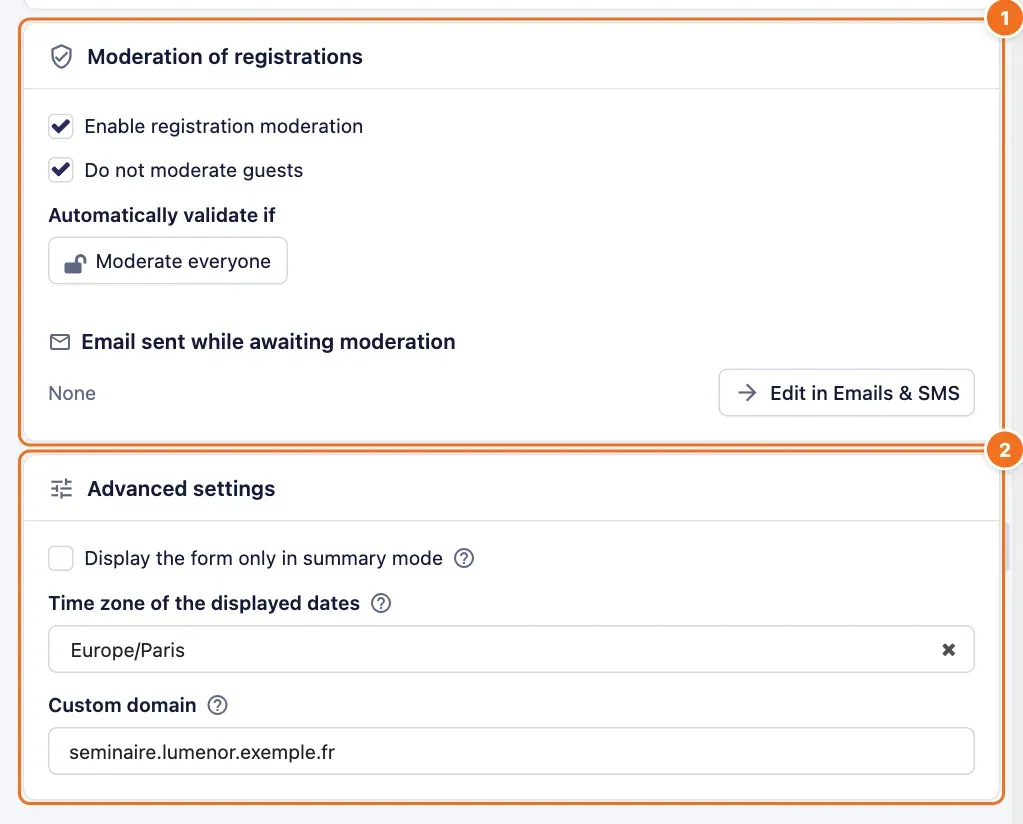
- In Moderation of registrations, check Enable registration moderation. Check Do not moderate guests to automatically accept the people already in your list. Under Automatically validate if, click the condition (by default “Moderate everyone”) to define the criteria for automatic acceptance.
- The Advanced settings are described below.
Then choose the email sent during moderation in the Emails & SMS tab. To notify the participant of the decision, also schedule a send with On moderation validated or On moderation rejected: see Schedule sending of an email. The day-to-day moderation procedure is detailed in Moderate registrations.
Advanced settings
Section titled “Advanced settings”- Display the form only in summary mode: participants can view their answers but cannot edit them. Only turn this mode on if participants have already responded, or if all the information in the form is already in the participant list: otherwise, they see an empty summary.
- Time zone of the displayed dates: shows certain form dates in the time zone you choose, whatever the time zone of the participant’s device. This applies to the dates written in the form’s texts and to workshop days and times. This setting does not change the opening and closing dates: they follow the Time zone chosen in the form status, or Paris if you do not choose one. It does not shift the date a participant enters in a question either.
- Custom domain: displays the form at your event’s address (white label), for example
inscription.mon-evenement.com. If the form is embedded in a site or a platform, enter the domain followed by the registration page. Your project manager helps you with this setup.
Orders and payment
Section titled “Orders and payment”If the order module is enabled (ask your project manager to enable it), the Orders and payment card offers:
- Enable order mode: sell products or seats (lunch, booth…);
- Enable online payment: opens a payment portal when the form is validated;
- do not tie a companion’s status to the one of the person registering them.
Payment setup is done with your project manager.
See also
Section titled “See also”- Customize form messages
- Building the form: adding and configuring fields
- Show an element conditionally
- Configure automatic emails and text messages for the form
- Test a form using the preview
- Use case: Understand what counts toward the maximum number of registrants and quotas
- Use case: Restrict registration to the people you invited
- Use case: Restrict registration to your company’s email addresses
- Use case: Automatically validate certain profiles and moderate the others
- Use case: Offer a different form to visitors, exhibitors, and press
Was this page helpful?
Thanks for your feedback!
Can’t find your answer? Contact support
© AppCraft EventsAppCraft Events websiteLog inContact support