
Visual assetsArticle 2 of 5
Preparing the visuals for a registration form
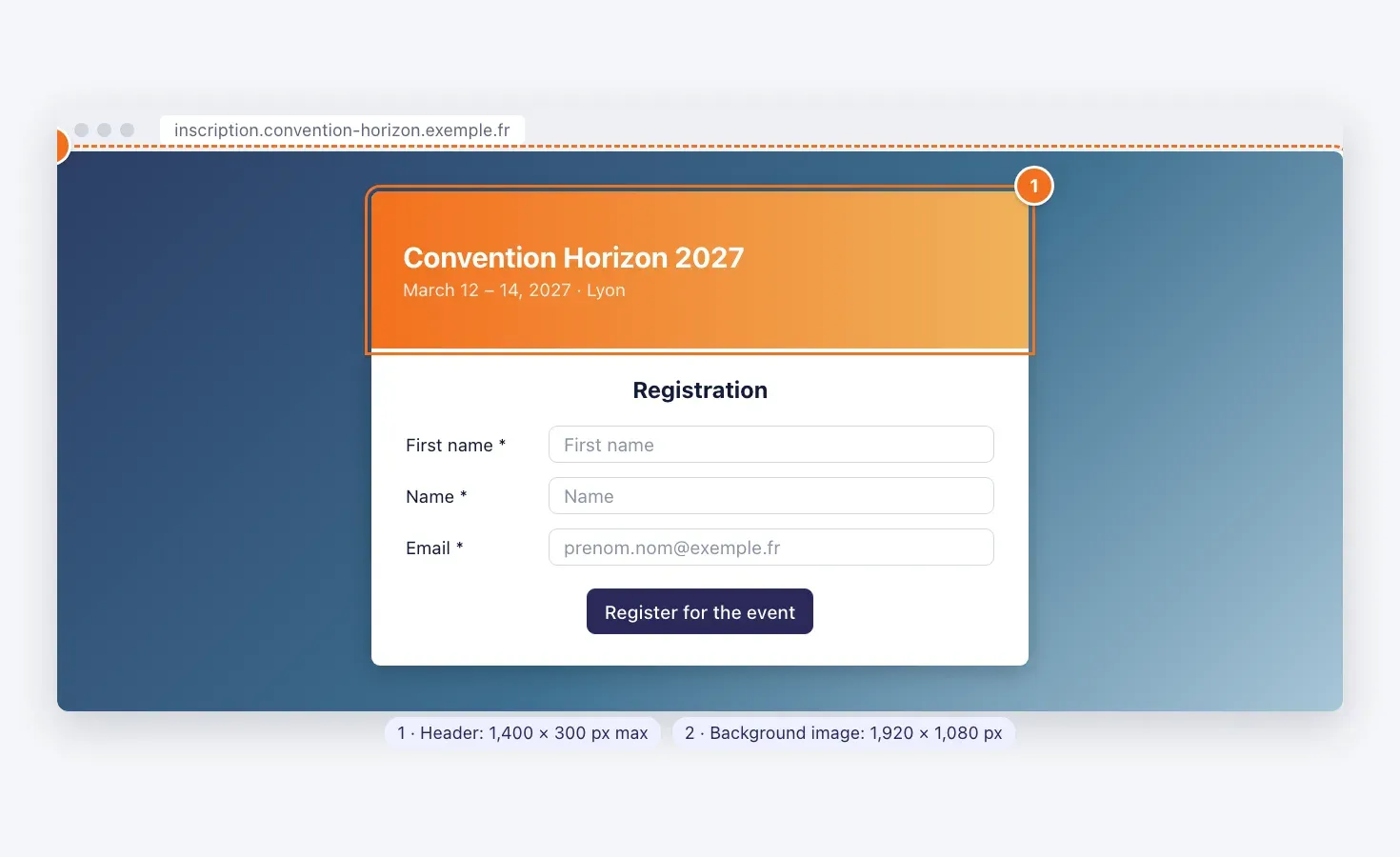
A registration form can display two visuals: a banner at the top of the form and a background image behind it. This page gives the dimensions to follow before uploading them to the back office.
Recommended dimensions
Section titled “Recommended dimensions”| Visual | Field in the back office | Width | Height | Note |
|---|---|---|---|---|
| Form banner | Banner at the top of the form | 1,400 px | 300 px maximum | Appears above the form title, across its full width |
| Background image | Page background image (Images and page background card) | 1,920 px | 1,080 px | Covers the page behind the form. The back office accepts a width of at least 800 px |
Upload the visuals
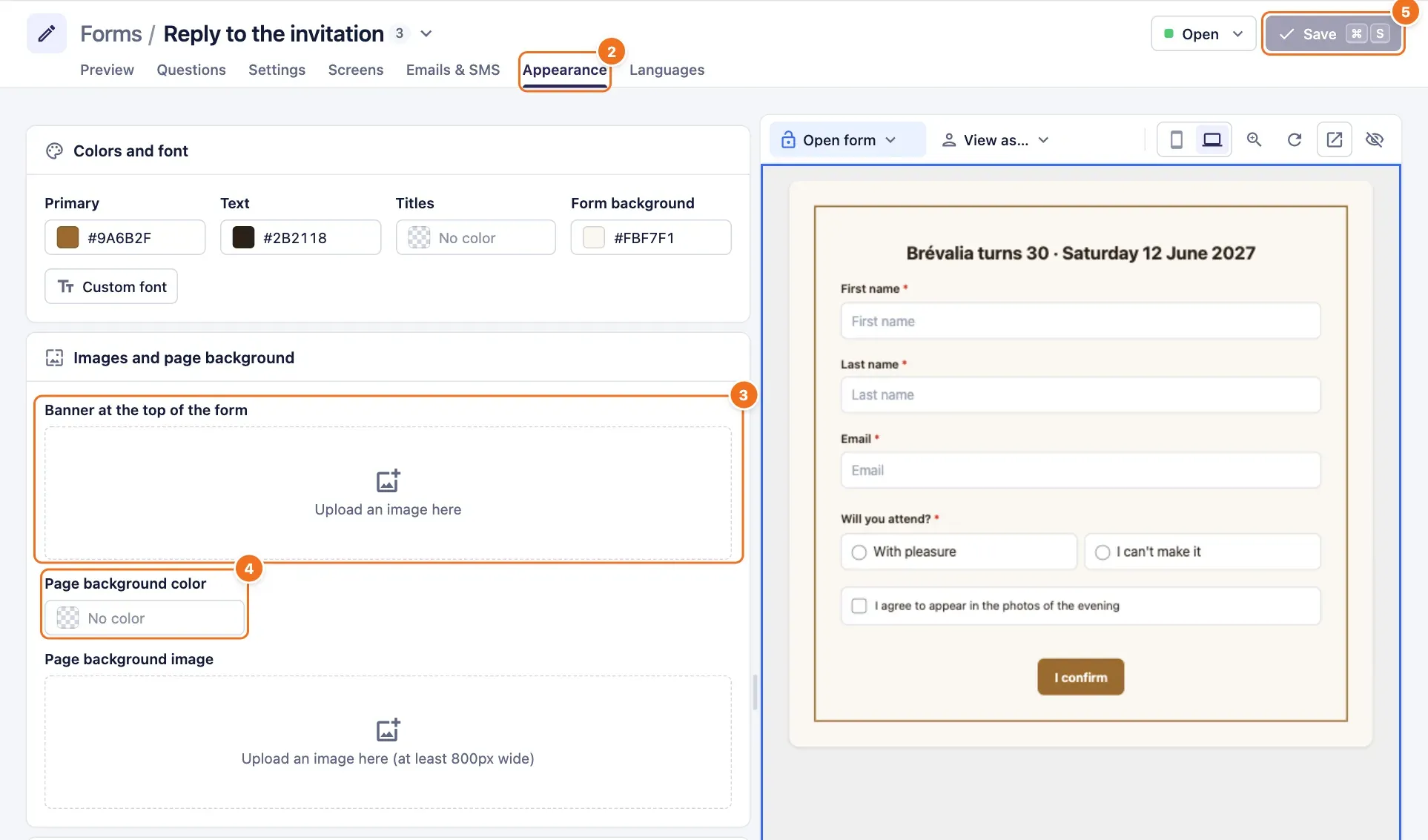
Section titled “Upload the visuals”- In the menu, open Forms, then the form you want to customize.
- Click the Appearance tab.
- In the Images and page background card, drag the banner into Banner at the top of the form.
- Choose a Page background color, then drag the image into Page background image.
- Click Save.
Frequently Asked Questions
Section titled “Frequently Asked Questions”My banner is cropped or distorted
Section titled “My banner is cropped or distorted”The banner keeps its proportions and adapts to the width of the form. If it looks too tall, reduce its height to 300 px maximum. Avoid placing text near the edges.
Which file format should I use?
Section titled “Which file format should I use?”A JPG for a photo, a PNG for a visual with text or transparency. Compress the image to speed up loading.
See also
Section titled “See also”Was this page helpful?
Thanks for your feedback!
Can’t find your answer? Contact support
© AppCraft EventsAppCraft Events websiteLog inContact support