
Platform and web appArticle 1 of 22
Preview your platform or web app
The Preview shows your platform or web app in the back office. You can navigate from page to page just like a participant.
Before you begin
Section titled “Before you begin”- The Preview feature is available in two menus: Platform > Preview for the desktop site, and Web App > Preview for the mobile app. They work the same way. The Web App is based on the platform: the Web App menu is only available if the platform is enabled for your event.
- Pages must be created and added to the menu to appear in the navigation. See Configure the Menu and General Settings.
Navigate the preview
Section titled “Navigate the preview”- In the Platform (or Web App) menu, click Preview. The mobile view is shown by default.
- In the top Left corner, click the phone or computer icon to switch between mobile and desktop views.
- To view the platform as a specific participant, open the User List in the Top Right and choose a person. The preview will reload, and you’ll be logged in with that person’s profile. The preview reflects their permissions: menus, pages, and blocks reserved for certain participants will appear or be hidden based on those permissions.
- To test under real-world conditions, click the icon to open in a new tab. The page opens in your browser, with the same participant.
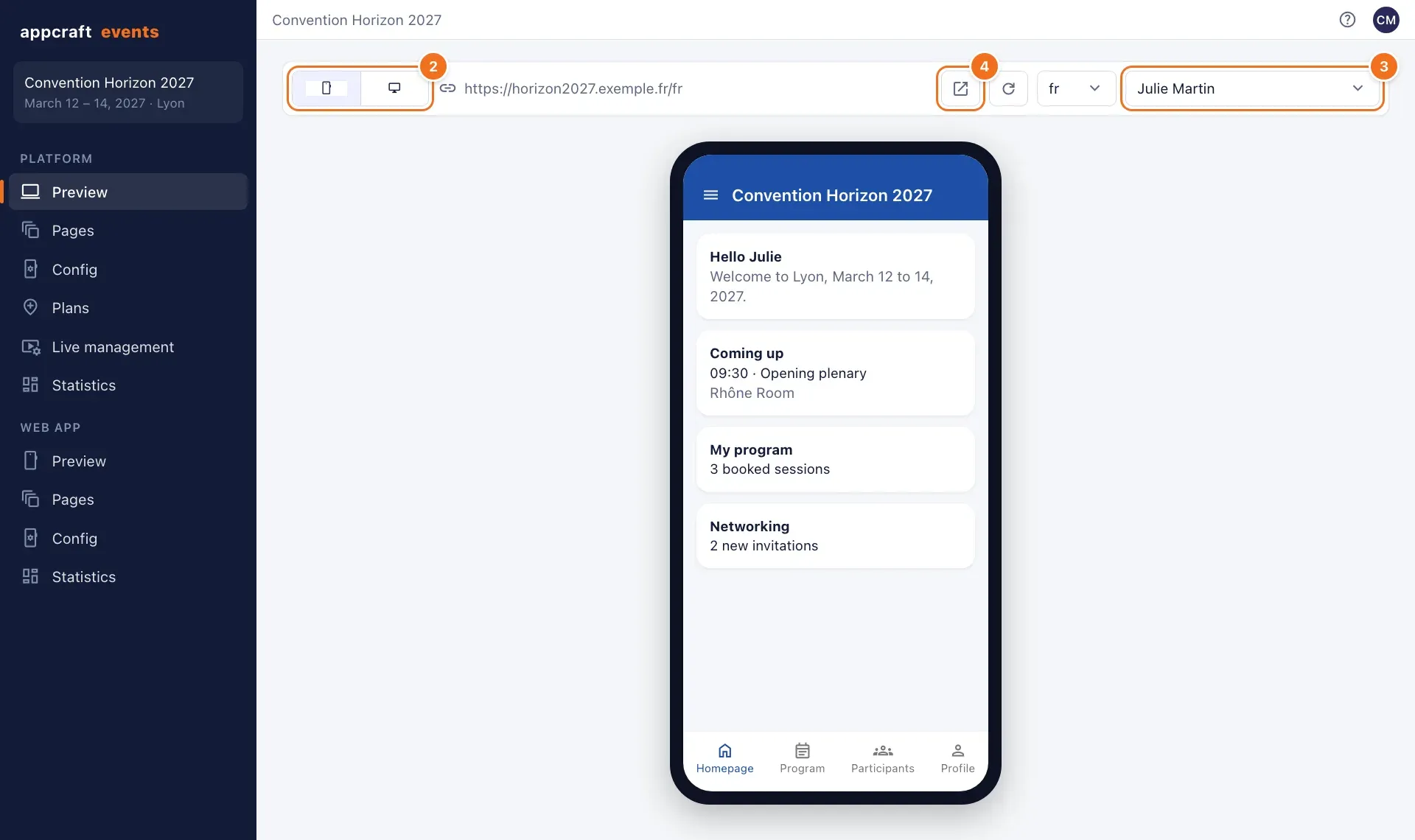
The toolbar also offers:
- the address of the page shown;
- a button to refresh the preview after making a change;
- a language selector, if your platform is available in multiple languages.
Frequently Asked Questions
Section titled “Frequently Asked Questions”I can’t find a participant in the list
Section titled “I can’t find a participant in the list”The list shows only those participants who are authorized to log in to the platform. Check the Connection possible for setting in Config > API.
The preview doesn’t show my latest change
Section titled “The preview doesn’t show my latest change”Check that you’ve saved your changes in Pages or Config, then click the refresh button on the toolbar.
Can I open the preview in full-screen mode?
Section titled “Can I open the preview in full-screen mode?”Yes. Click the icon to open in a new tab: the platform opens in your browser. If a participant is chosen, you’ll be logged in with that participant’s account in that tab.
How do I check each language?
Section titled “How do I check each language?”If your platform is available in multiple languages, a language selection option appears in the toolbar. Switch languages to review each version.
A page does not appear for the participant chosen
Section titled “A page does not appear for the participant chosen”It may be unpublished, missing from the menu, or reserved for other participants based on its Visible by setting. See Create and Configure a Platform Page and Show an Item Conditionally.
See also
Section titled “See also”Was this page helpful?
Thanks for your feedback!
Can’t find your answer? Contact support
© AppCraft EventsAppCraft Events websiteLog inContact support