
Site and formArticle 12 of 30
Customize the form's appearance
The Appearance tab adapts the form to your event’s branding: colors, font, banner, page background, field style, and layout. The preview on the right follows every setting, even before you save.
Change the form’s design
Section titled “Change the form’s design”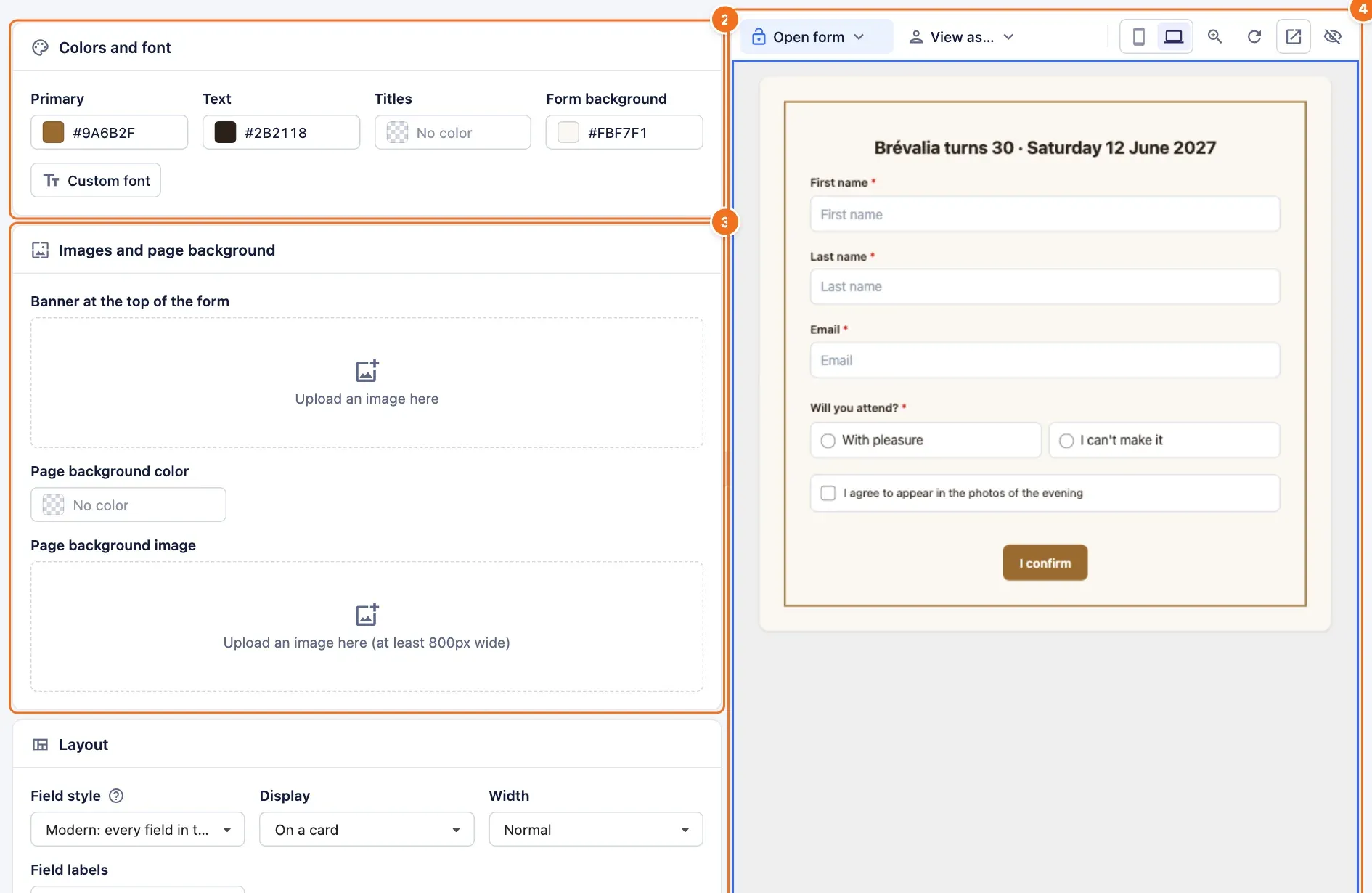
- Open the form, Appearance tab.
- In Colors and font, choose the form’s colors and, if needed, a Custom font.
- In Images and page background, add the Banner at the top of the form, then the page background color or image.
- Check the result in the preview, then click Save.
Colors
Section titled “Colors”| Color | Where it applies |
|---|---|
| Primary | Border accent, titles, buttons. It’s also used for the other colors left empty |
| Text | Field text (black by default) |
| Titles | Form titles (black by default) |
| Form background | Background of the form card, behind the texts (white by default). No effect if the form is displayed without a card |
Click a color to open the picker.
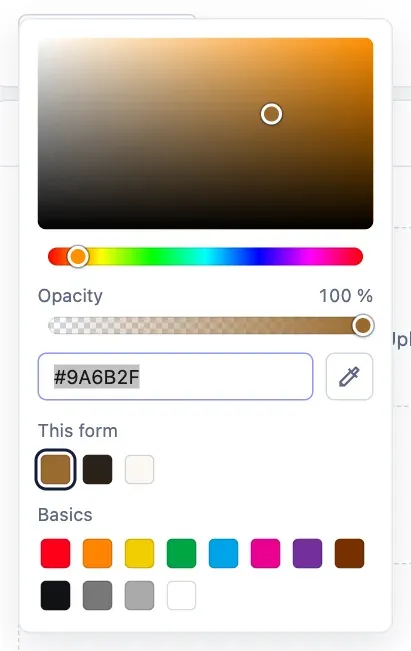
You can pick the color from the spectrum, enter its hex code (for example #9A6B2F), adjust its opacity, or click the eyedropper to pick a color displayed on your screen. At the bottom, shortcuts list the colors already used by this form and by the event.
Custom font
Section titled “Custom font”- Click Custom font.
- Enter the font name.
- Provide a fallback font, used if yours can’t be displayed (for example
"Helvetica", "Arial", sans-serif). - Drop the font files: regular, italic, bold, and bold italic.
Images and page background
Section titled “Images and page background”- Banner at the top of the form: a visual above the form (logo, banner).
- Page background color and Page background image: behind the form. The image must be at least 800 px wide.
You can drag your files into each area or click it to choose them from your computer. On a multilingual form, each image can change depending on the language: see Translate the form.
Layout
Section titled “Layout”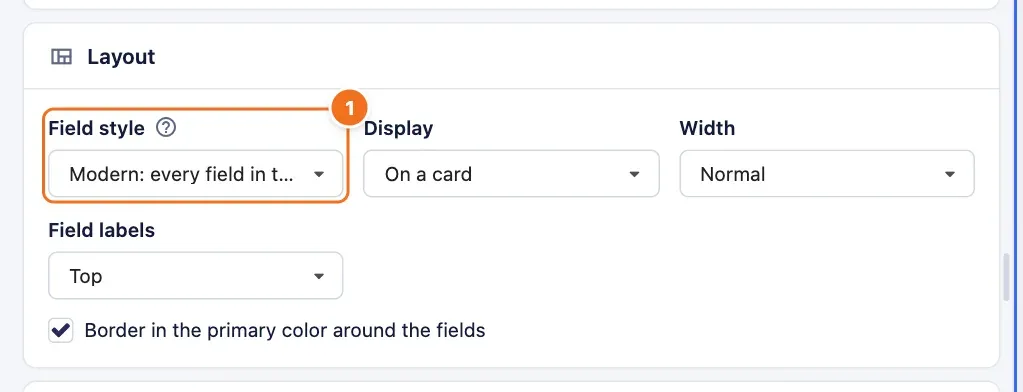
| Setting | Effect |
|---|---|
| Field style (1) | Modern: all fields have the same frame, height, and width, and are easy to customize with CSS. Classic: the style of older forms. New forms use Modern |
| Display | On a card: the form sits on the page background, in a frame. Without a card, on the page background: cleaner |
| Width | Normal, Large, or Full width |
| Field labels | Above the fields (Top) or to their left (Left) |
| Border in the primary color around the fields | Shows a border accent in the primary color around the fields |
Advanced settings
Section titled “Advanced settings”Browser tab icon (favicon): a small icon displayed in your participants’ browser tab.
See also
Section titled “See also”Was this page helpful?
Thanks for your feedback!
Can’t find your answer? Contact support
© AppCraft EventsAppCraft Events websiteLog inContact support