
Platform and web appArticle 16 of 22
Configure appointment booking with exhibitors
Participants can book an appointment with an exhibitor from the exhibitor’s page on the platform or the Web App. Time slots are opened by the exhibitor’s collaborators in their exhibitor dashboard. The Appointment booking section of the API tab connects the two: it specifies who schedules appointments, which exhibitors can be met with, and who opens the time slots.
Before you begin
Section titled “Before you begin”- Your exhibitors and their collaborators are entered in Event data: see Manage Exhibitors and Partners. Collaborators make their time slots available from their exhibitor dashboard (the “Contributor Areas” section of the back office).
- The Appointment booking section appears in Settings > API when contributor spaces are enabled for your event. If you don’t see this section, ask your project manager to enable it.
- The Exhibitor page on the platform must include the “Schedule Appointments” block: see Configure Exhibitor Pages.
Add an appointment booking feature
Section titled “Add an appointment booking feature”- Open Config in the Platform (or Web App) menu, then go to the API tab. Scroll down to the Appointment booking section.
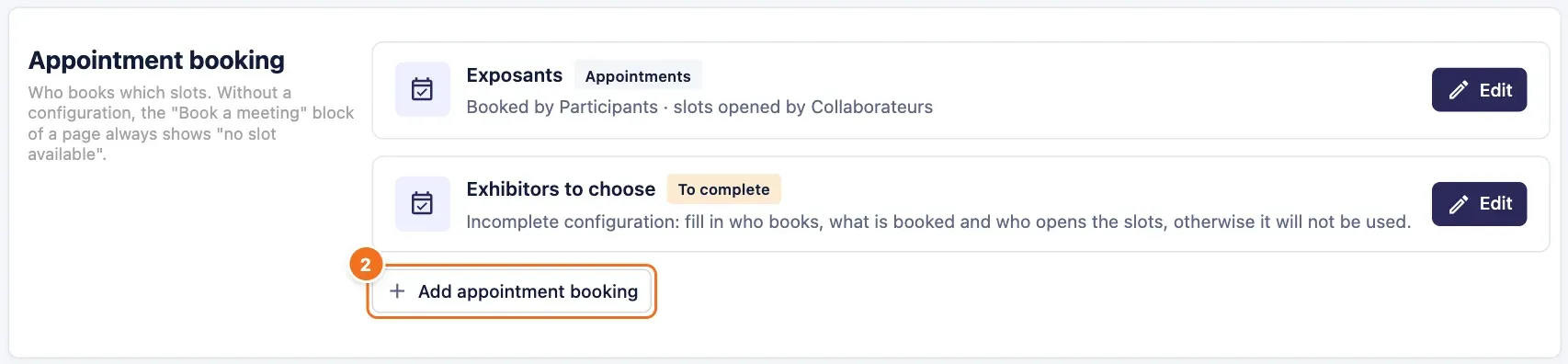
- Click Add an Appointment booking. A window will open, already populated with your first list of exhibitors.
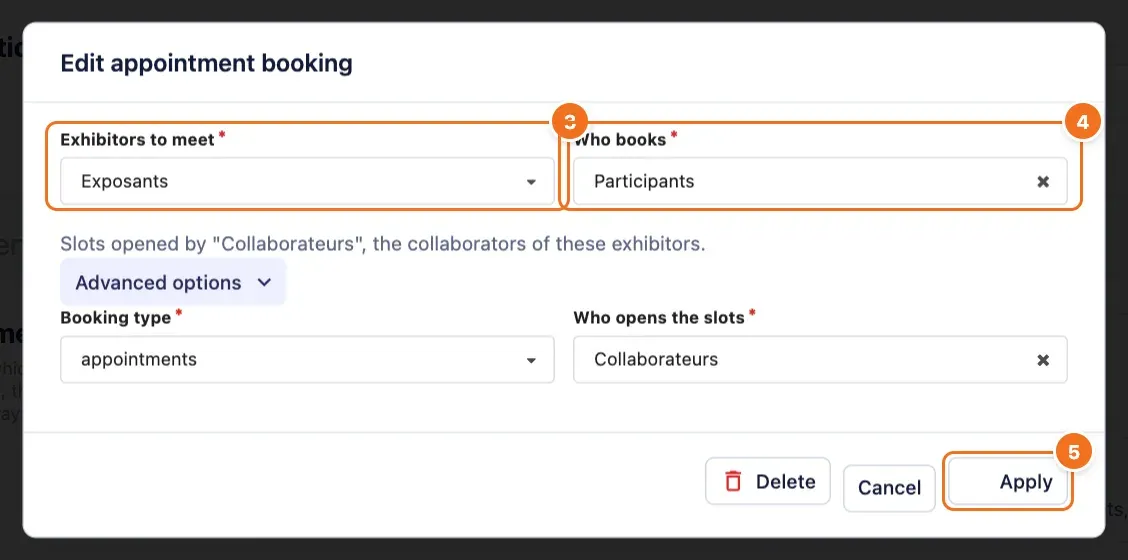
- Under Exhibitors to Meet, choose the list of exhibitors that participants can book (for example, Exhibitors).
- Under Who Books, choose who schedules the appointments: typically, Participants.
- Click Apply, then Save in the top right corner of the tab.
Below the two fields, a message explains who opens the time slots, for example, “Opened Slots,” which are opened by “Collaborators,” the collaborators of these exhibitors. The back office determines this based on the chosen list of exhibitors.
Advanced Options
Section titled “Advanced Options”Click Advanced Options to view the other two settings. They are filled in automatically in most cases.
| Field | Role |
|---|---|
| Reservation Type | appointments (appointments, the most common case) or opportunities (opportunities). It must match the type of the “Schedule an Appointment” block on the page. On the map, it shows as Appointments or Opportunities. |
| Who opens the time slots | The list of people who provide their availability, typically exhibitor staff. |
The advanced options open automatically when the back office cannot determine who is opening the time slots.
Review and fix the configurations
Section titled “Review and fix the configurations”Each appointment booking is summarized on a card: the list of exhibitors, the type (Appointments or Opportunities), and a line that reads “Reserved by … · opened Slots.”
- To change it, click Edit. In the window that opens, clicking Delete deletes the configuration.
- A card marked To Complete is not used by the platform. It is missing information about who makes the reservations, what is reserved, or who opens the time slots. Open it using Edit and fill in the empty fields.
Check from the Exhibitor page
Section titled “Check from the Exhibitor page”In Pages, open the Exhibitor page. If it contains a “Schedule an Appointment” block that hasn’t been configured, a warning will appear at the top of the editor: the block “will always show ‘no slots available’.” The Configure Appointment Booking link opens the API tab directly.
Frequently Asked Questions
Section titled “Frequently Asked Questions”Participants see “None of the slots are available.”
Section titled “Participants see “None of the slots are available.””Three possible causes:
- None of the appointment booking settings are configured for this list of exhibitors, or its status is To complete;
- The Reservation Type in the configuration does not match the one in the page block;
- Collaborators have not yet opened any time slots in their exhibitor dashboard.
Where can I track the confirmed appointments?
Section titled “Where can I track the confirmed appointments?”In the list of exhibitors, Appointments tab: see Manage Exhibitors and Partners.
See also
Section titled “See also”Was this page helpful?
Thanks for your feedback!
Can’t find your answer? Contact support
© AppCraft EventsAppCraft Events websiteLog inContact support