
Accommodation and travelArticle 3 of 11
Add hotels and their room quotas
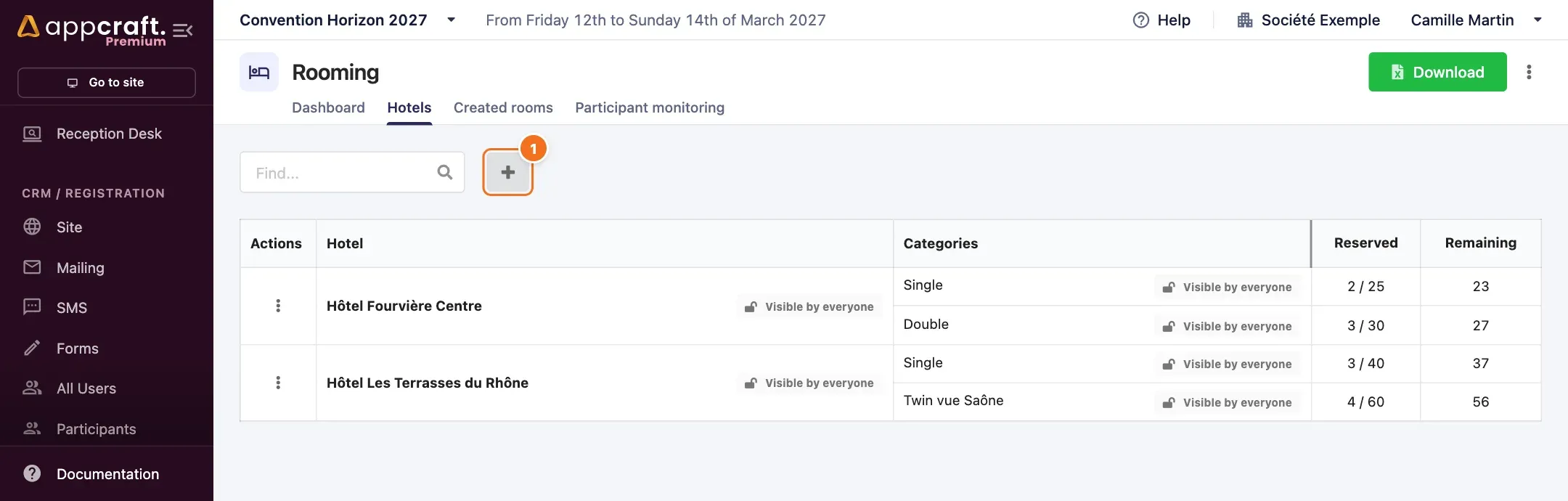
The Hotels tab in the Rooming module lists your hotels, their room categories, and the number of rooms available in each. This is what your participants will see when they choose their room.
Before You Begin
Section titled “Before You Begin”First, create your room types in the Dashboard. Without them, you won’t be able to add room categories to a hotel. See Setting Up Room Types and Rooming Sessions.
Add an hotel
Section titled “Add an hotel”- In the Hotels tab, click the + button next to the search field.
- In the Add an hotel panel, enter the Title: this is the hotel name that will be shown to participants.
- Under Room Categories, click Add and choose a room type from the list.
- Enter the Quota: the number of rooms available for this room type at this hotel. Repeat steps 3 and 4 for each room type, then click Save.
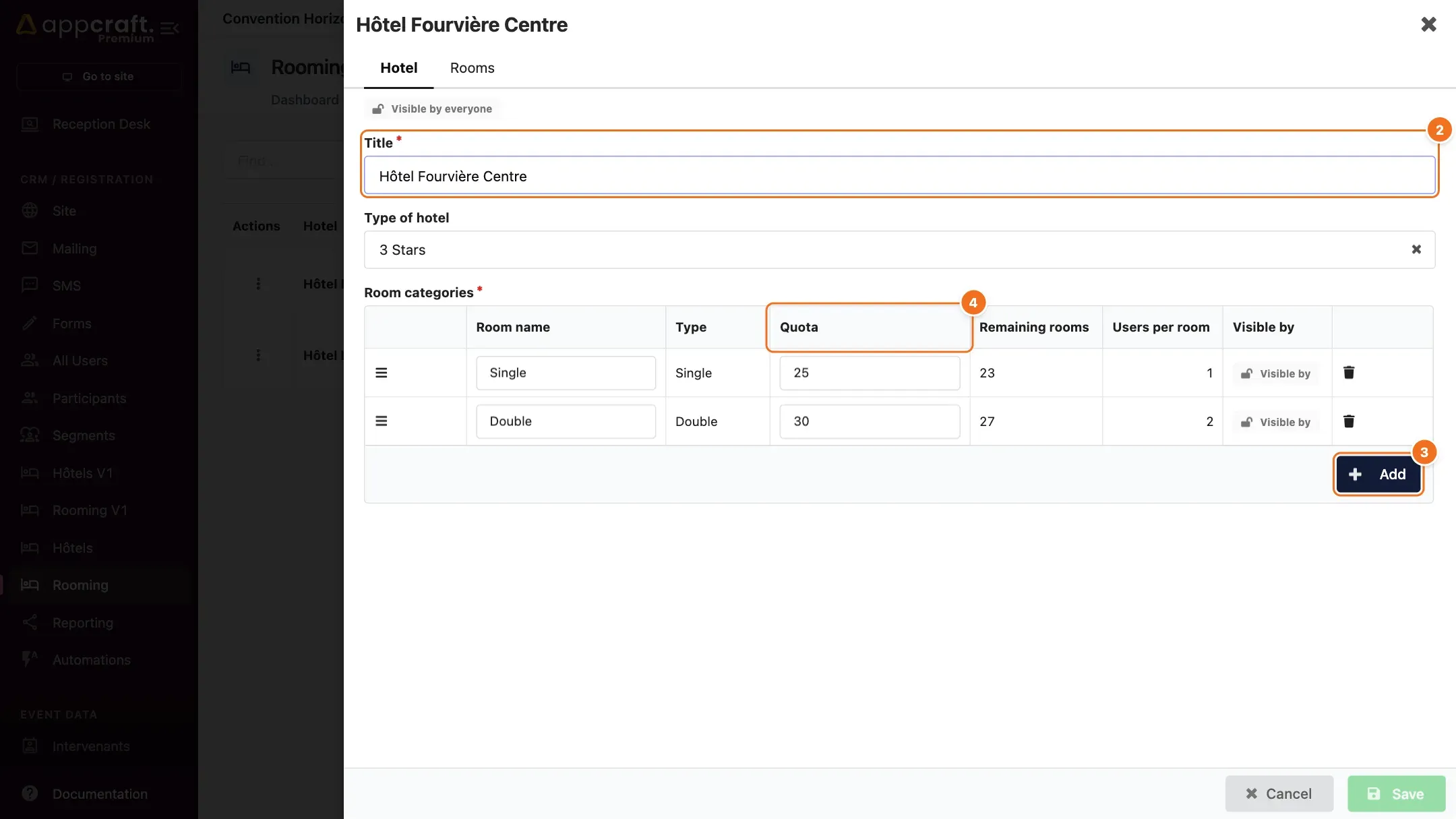
The Remaining Rooms and Users per Room columns are filled in automatically. You can rename a category in the Room Name field (e.g., “Twin with Saône View”).
Panel Options
Section titled “Panel Options”- Visible by, at the top of the panel: restricts hotel reservations to certain participants.
- Visible by, on a category line: reserves this category for certain participants.
- Type of hotel: the hotel’s star rating.
Manage the list of hotels
Section titled “Manage the list of hotels”- Click on a hotel name to edit it.
- The … menu on a row allows you to Edit, Duplicate, or Delete the hotel.
- The Reserved column shows the rooms reserved out of the total quota (e.g., “12 / 40”), while the Remaining column shows the rooms that are still available.
- Download exports the table to Excel format.
- The … menu in the top right lets you import a list of hotels.
See also
Section titled “See also”Was this page helpful?
Thanks for your feedback!
Can’t find your answer? Contact support
© AppCraft EventsAppCraft Events websiteLog inContact support