
Settings and connectorsArticle 2 of 6
Upload a document and get its link
To make a document available for download (PDF program, map, etc.), upload it to the back office. You’ll receive an address that you can then use for a button or link on the website, a page on the Platform, or in an email.
Upload the document and copy its link
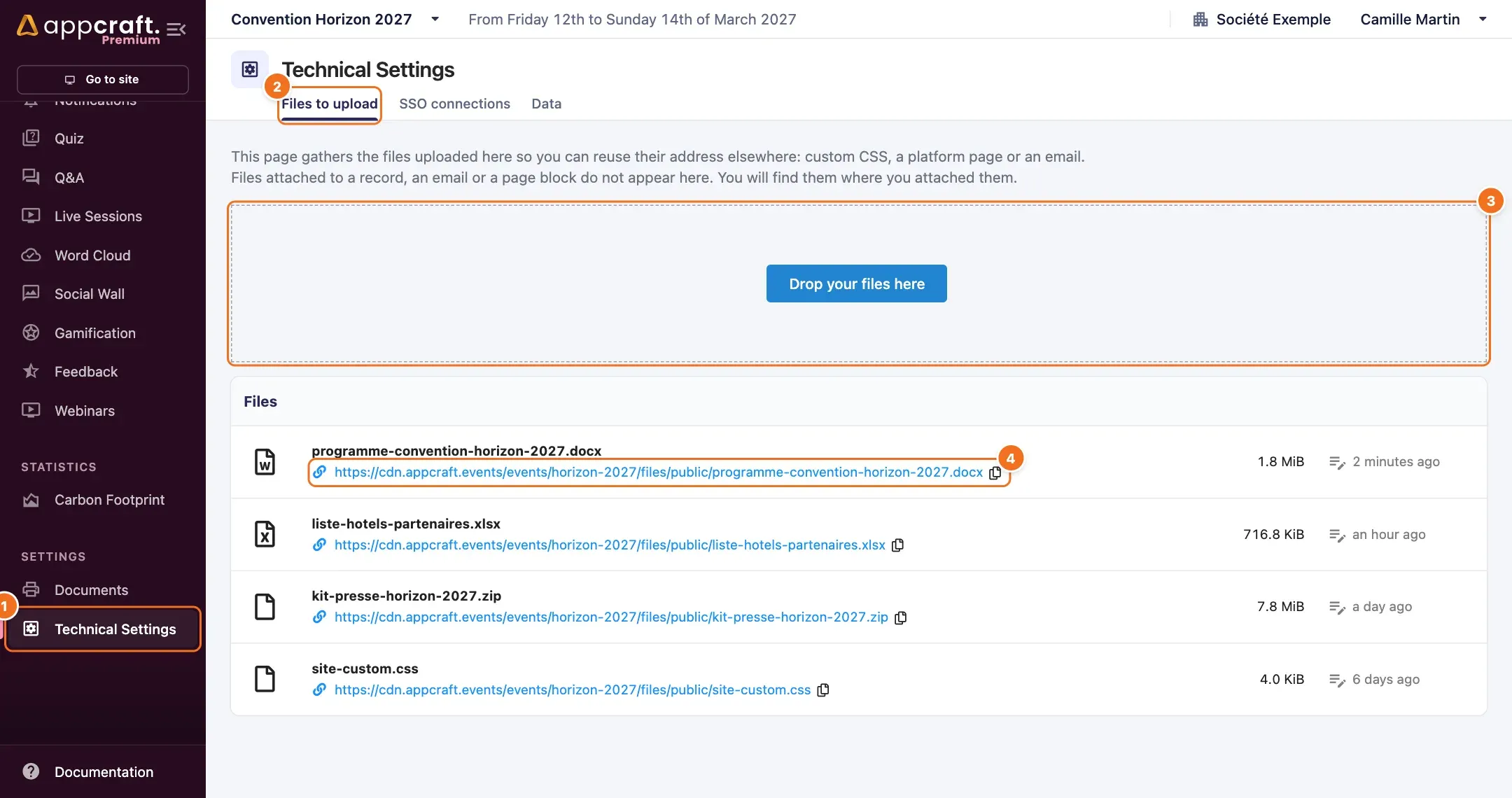
Section titled “Upload the document and copy its link”- In the left-hand menu, under the Settings section, click Technical Settings.
- Open the Files to upload tab.
- Drag your file into the Drop your files here area, or click it to choose it.
- The file appears in the Files list along with its address. Click the copy icon next to the link.
- Paste this link into the website, page, or email editor—for example, into a button’s link.
Frequently Asked Questions
Section titled “Frequently Asked Questions”I want to replace the document with a new version
Section titled “I want to replace the document with a new version”Upload the new version, then copy its link from the Files list. If the address is different from the old one, replace the old link wherever you’ve pasted it (website, pages, emails).
See also
Section titled “See also”Was this page helpful?
Thanks for your feedback!
Can’t find your answer? Contact support
© AppCraft EventsAppCraft Events websiteLog inContact support