
StatisticsArticle 5 of 9
Measuring networking activity
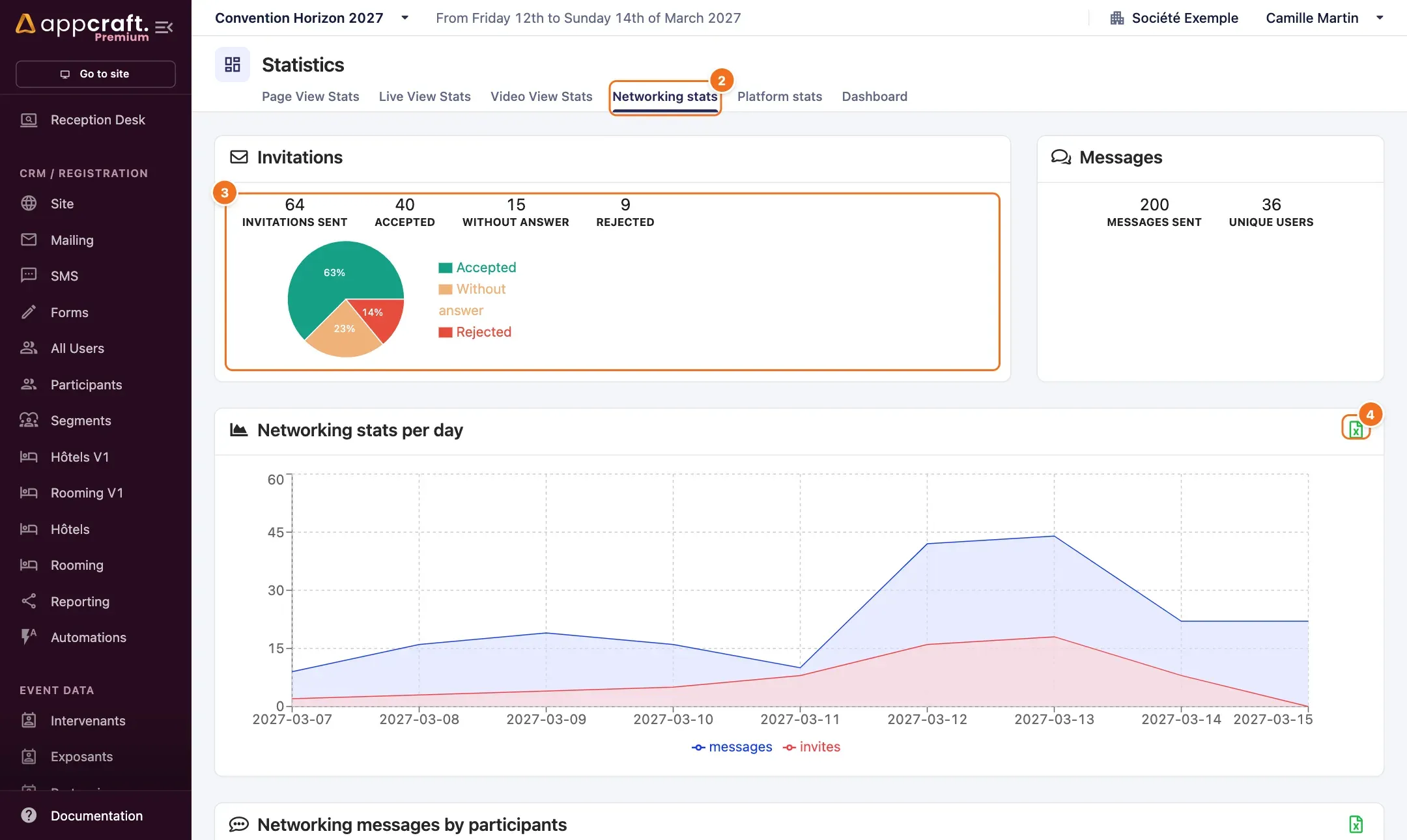
The Networking stats tab shows how participants interact with each other: chat invitations, messages, and appointments. It measures activity on the Networking page: see Configuring Networking Among Participants.
Before you begin
Section titled “Before you begin”The Networking stats tab does not appear in Statistics when the Networking module is enabled for your event. In that case, the same statistics can be found under Interaction > Networking, on the Statistics tab.
Open the networking statistics
Section titled “Open the networking statistics”- In the Platform (or Web App) menu, click Statistics.
- Click the Networking stats tab.
- Review the Invitations and Messages cards at the top of the screen, then look at the Networking stats per day chart.
- To export a map, click the green Excel icon in the top right corner of the map.
Invitations and Messages
Section titled “Invitations and Messages”A participant must send an invitation to start a conversation. Conversations take place one-on-one; there are no group chats.
- Invitations sent, Accepted, Without answer, and Refused, with a breakdown chart.
- Messages: Total messages sent and unique users who sent them.
- Networking stats per day: messages and invitations sent each day. Hover over the graph to see the numbers.
Activity by Participant
Section titled “Activity by Participant”The Networking messages by participants table lists each participant (Name, First name, Email) along with their Sent Messages, Received Messages, and the total number of messages (All Messages).
Appointments
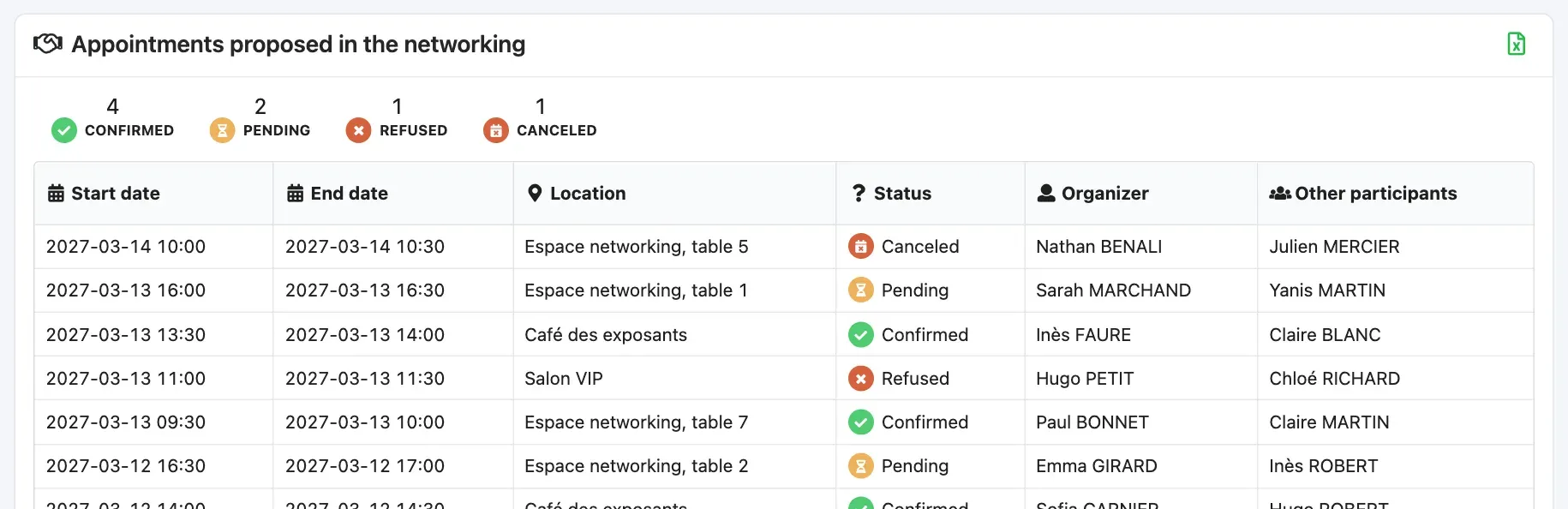
Section titled “Appointments”The Appointments proposed in the networking map counts appointments by status: Confirmed, Pending, Refused, and Canceled. The table provides details for each appointment: Start date, End date, Location (specified by the organizer for an in-person appointment), Status, Organizer, and Other participants.
See also
Section titled “See also”Was this page helpful?
Thanks for your feedback!
Can’t find your answer? Contact support
© AppCraft EventsAppCraft Events websiteLog inContact support