
Site and formArticle 26 of 30
Restrict registration to your company's email addresses
On the form’s Email field, list the allowed domains: only addresses from these domains can register. A domain is what comes after the @: cardiolis.exemple.fr for marie@cardiolis.exemple.fr. You can also list denied domains to block, for example, consumer email providers. This setting exists only on the Email field: it is in the field’s card, under More options.
Allow only your addresses
Section titled “Allow only your addresses”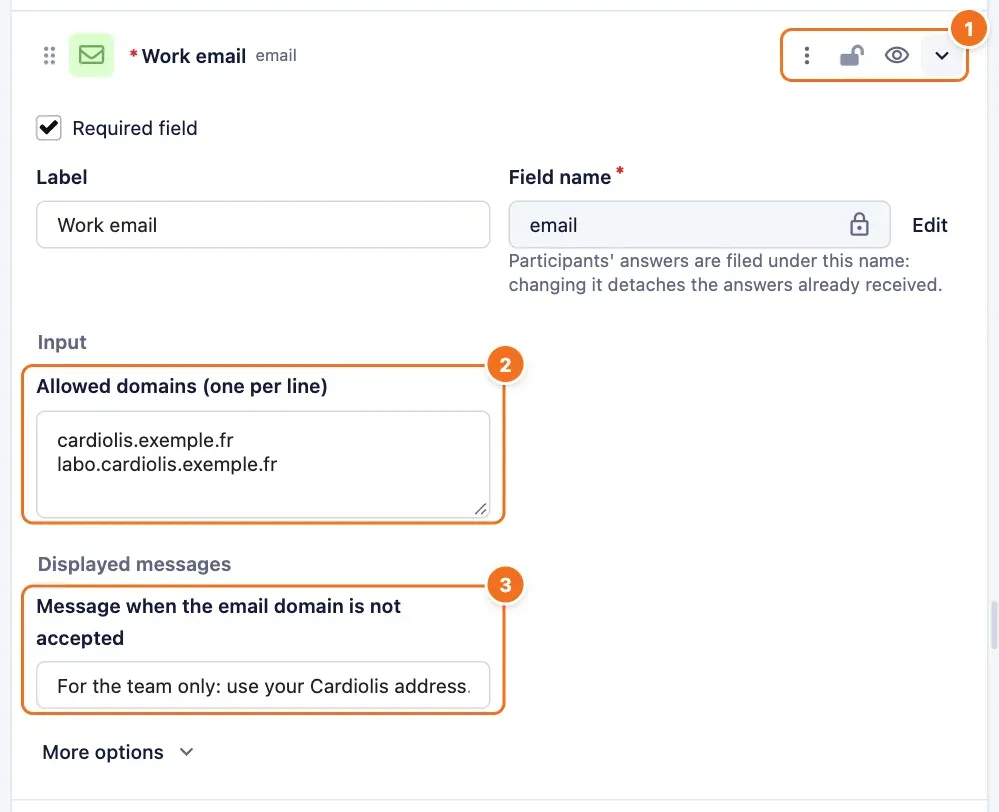
- Open the form, go to the Questions tab, then open the Email field’s card.
- Click More options. In Allowed domains (one per line), enter one domain per line, without the @:
cardiolis.exemple.fr. As long as this field and the message are empty, they stay under More options. - In Message when the email domain is not accepted, tell the person which address to use. If left empty, the form shows a default message: “The domain name “gmail.com” is not authorized”.
- In the Preview, type an address from another domain: the message appears under the field.
- Click Save.
To block addresses instead of allowing only some, fill in Denied domains (one per line), also under More options.
Good to know
Section titled “Good to know”- An allowed domain doesn’t cover its subdomains.
cardiolis.exemple.fracceptsmarie@cardiolis.exemple.fr, notmarie@labo.cardiolis.exemple.fr: add one line per subdomain. Capitalization doesn’t matter. - A denied domain goes further.
gmail.comalso deniesmail.gmail.com,gmail.com.fr, andmon-gmail.com: any domain that contains this text. Write the most specific domain possible. - With both lists filled in, only the allowed domains count. The denied domains are ignored.
- Don’t write the @. In the allowed domains,
@cardiolis.exemple.frlets nobody through, not even your colleagues. In the denied domains, it blocks nobody. - Nothing is checked when the form displays. The form opens for everyone, then checks the address as soon as the person enters it: the message appears under the field and submission is blocked. The server checks again when a registration is submitted and when it is changed: a submission that bypasses the form is refused too.
- The server checks only the field whose Field name is
email. This is the name of an Email field added as is: the name appears in the card, under Field name. A second Email field, for a companion for example, is checked by the form, not by the server. - The message has only one version. It appears in all of the form’s languages, with no column in the Languages tab. On a multilingual form, leave it empty: the default message exists in French, English, German, Spanish, Italian, and Portuguese. For any other language of the form, it appears in English.
- This isn’t an identity check. The form reads the domain; it doesn’t verify that the address exists or that it belongs to the person. Anyone can enter
inconnu@cardiolis.exemple.fr. - This setting protects only this form. It doesn’t check the participant import, or the addition of a person in the Participants list.
If that’s not enough
Section titled “If that’s not enough”- You want to open the form only to specific people. Restrict it to your invitees: see Restrict registration to the people you invited.
- You want to approve registrations one by one. Turn on moderation: see Moderate registrations.
- You want to protect the form with a password. This feature doesn’t exist.
See also
Section titled “See also”Was this page helpful?
Thanks for your feedback!
Can’t find your answer? Contact support
© AppCraft EventsAppCraft Events websiteLog inContact support