
InteractionArticle 9 of 17
Create gamification badges
Gamification rewards your participants when they complete actions on the platform: watching a video, replying to a quiz, getting checked in at the reception desk… Each badge unlocked earns points, which are displayed in a ranking.
Before you begin
Section titled “Before you begin”- The Gamification module appears in the menu, under the Interaction section. If it’s not there, contact your project manager.
- Gamification only works for participants logged in to the platform. It is not available on the mini-site.
- Prepare your visuals: AppCraft does not provide default images. For each badge, provide an “unlocked” image and a “locked” image, in PNG format, at 500 × 500 px.
The module has three tabs: Achievements (your badges), Statistics, and Ranking. The latter two are described in Tracking Gamification Stats.
Enable badge unlocking
Section titled “Enable badge unlocking”As long as badge unlocking is disabled, you can prepare your badges without anyone earning them. A banner that says Badge unlocking is disabled appears at the top of the Achievement tab, along with an Enable button.
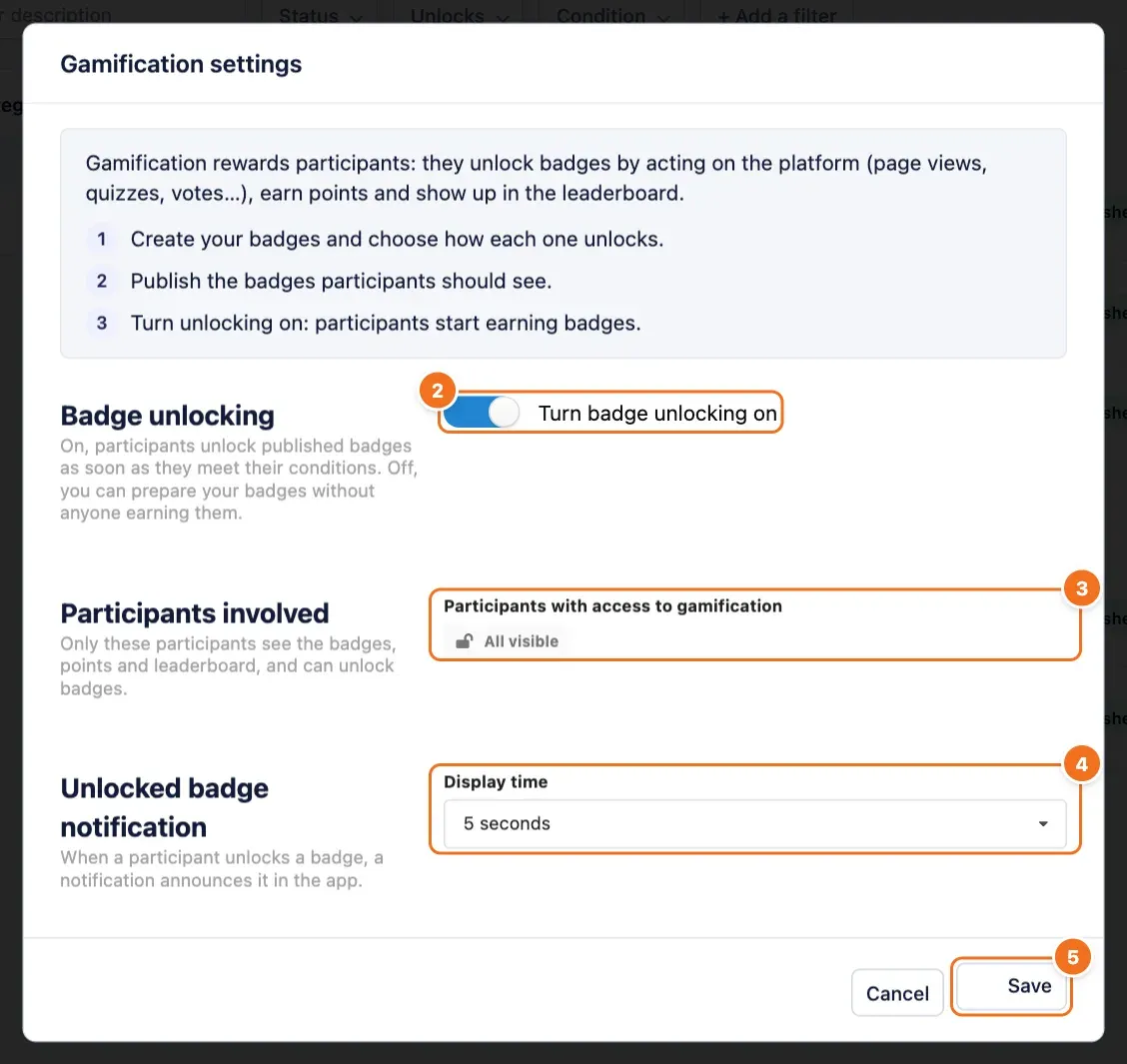
- In the Achievement tab, click Settings.
- Click “Enable” to unlock badges when your badges are ready.
- Under Participants with Access to Gamification, limit gamification to a subset of participants if needed: only they will see the badges, points, and ranking.
- Choose the duration of the notification that announces an unlocked badge in the app.
- Click Save.
These settings are the same as those in the Gamification block of the platform configuration (Set Up Access and Login): editing them here edits them there.
Create a category
Section titled “Create a category”Badges are organized by category (for example, “Discovery,” “Networking,” “Content”). A category also assigns default images to the badges.
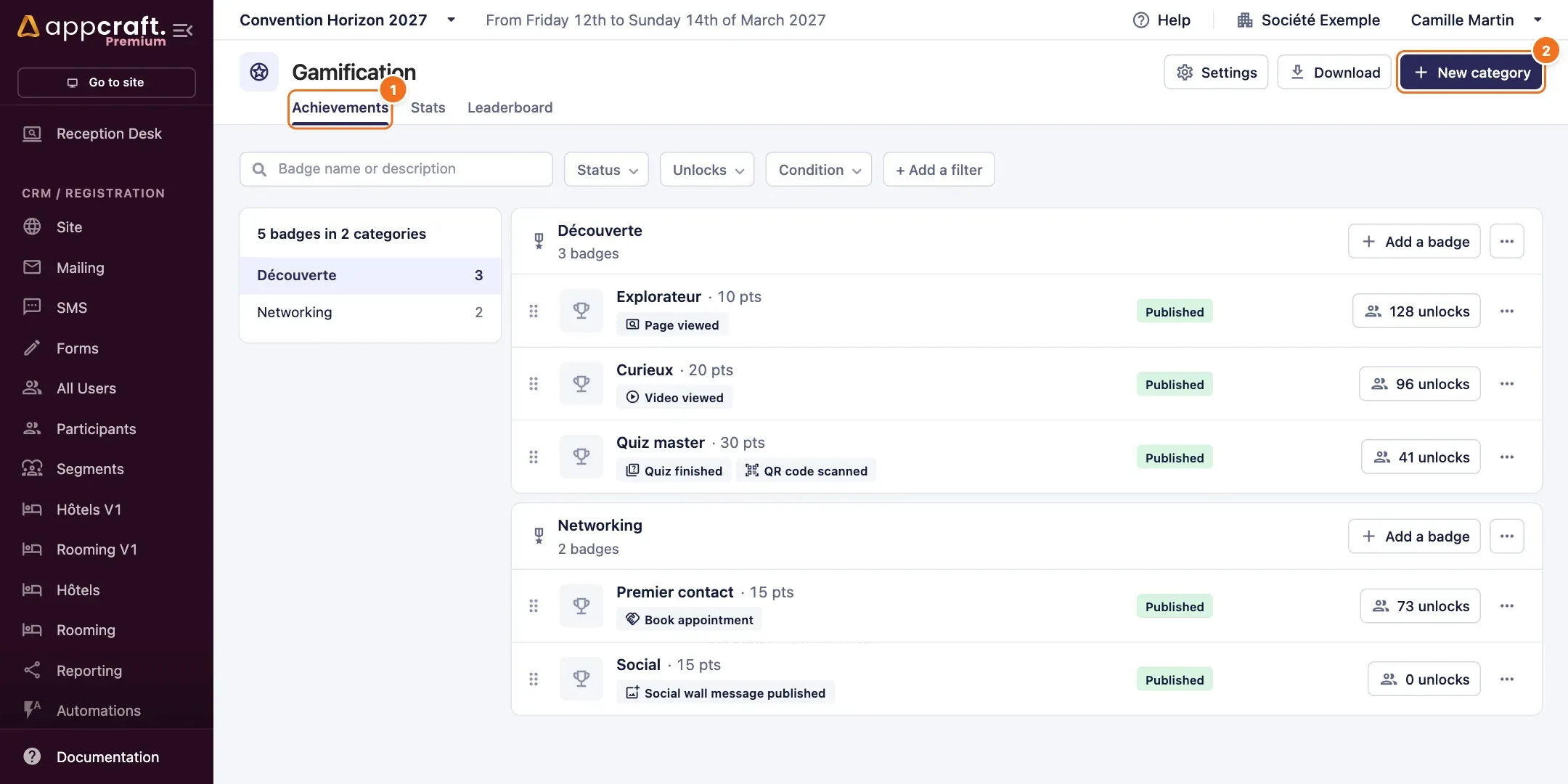
- In the menu, click Gamification. The Achievement tab opens.
- Click on New Category.
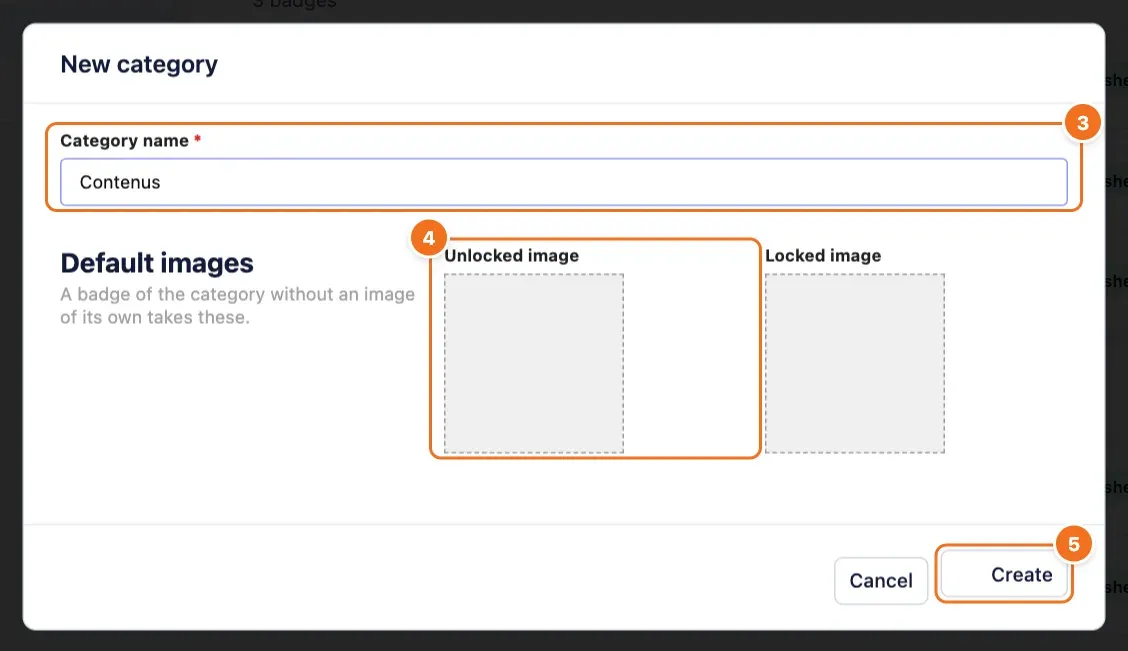
- Enter the category name.
- In Default Images, add the Unlocked image and the Locked image. A badge in the “No Image” category will use these images.
- Click Create.
Create a badge
Section titled “Create a badge”- On the category page, click Add a badge.
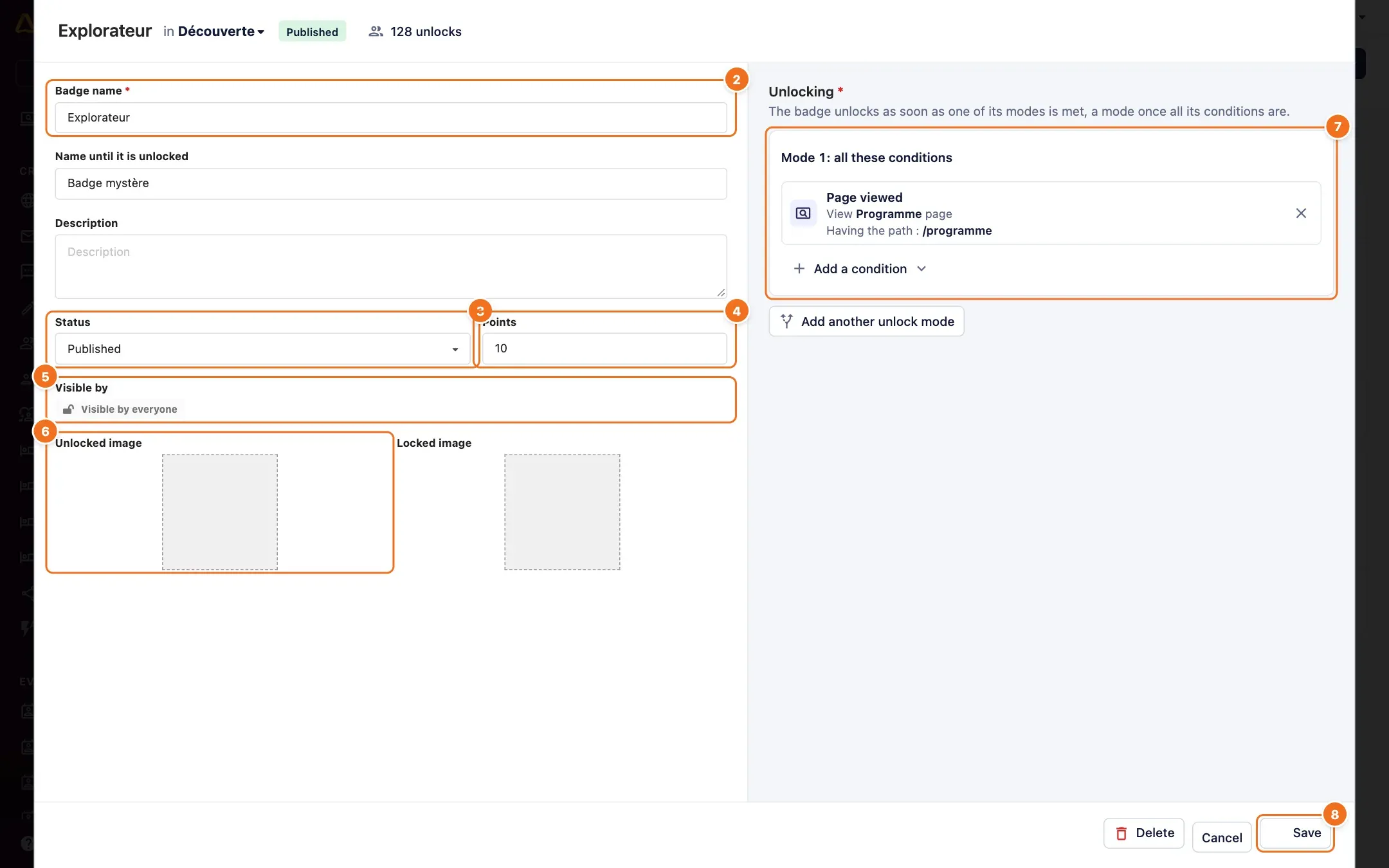
- Enter the Badge Name (mandatory; shown once unlocked), the Name while it’s still locked (the badge name if left blank), and, if needed, a Description.
- Choose the Status: Published to make it visible and unlockable, Unpublished to hide it, or Pending to prepare it. A new badge is Pending.
- Specify the number of points earned.
- If the badge applies only to some of the participants, set a condition under Visible by.
- Add the Unlocked image and the Locked image if they differ from those in the category.
- In the Unlock column, choose what the participant must do (see the next section).
- Click Save.
The category is shown at the top of the window, next to the name: click on it to move the badge to another category.
Define the unlock conditions
Section titled “Define the unlock conditions”The badge unlocks as soon as one of its tracks is completed. A track is completed when all of its conditions are met.
- In Mode 1: All These Conditions, click Add a Condition.
- Choose the type of condition from the list, sorted by category. You can also type its name into the search bar (“Page views, quiz, poll…”).
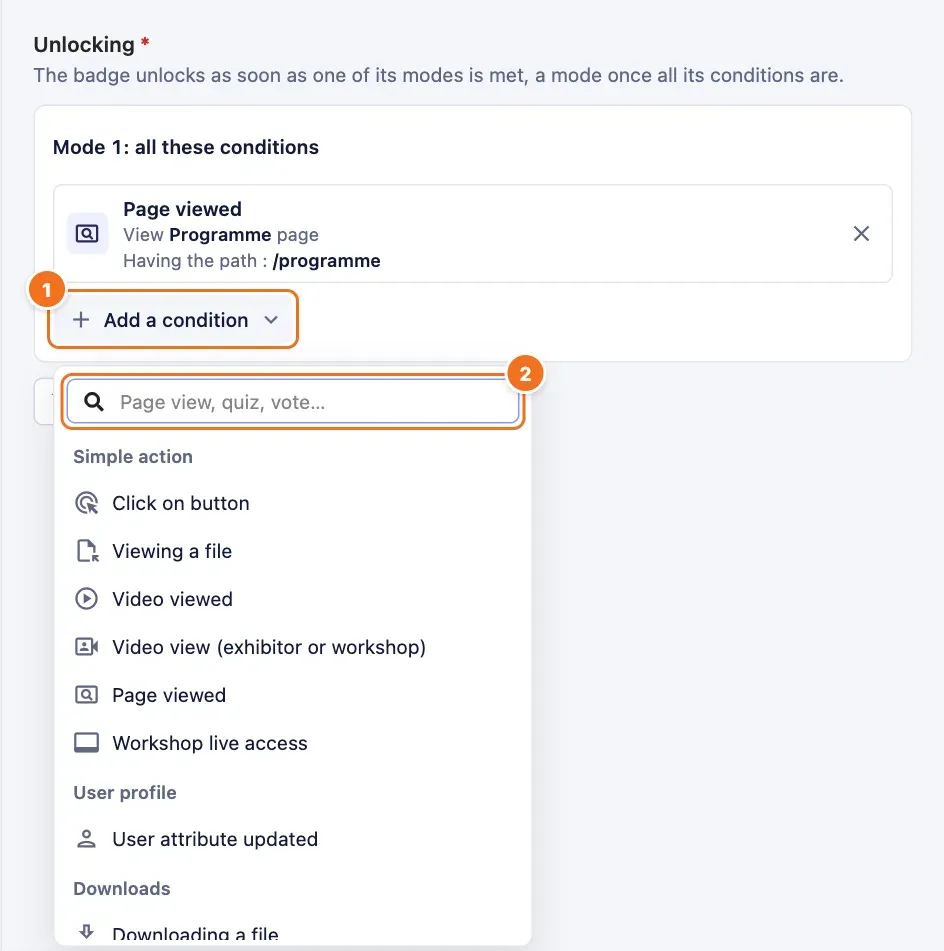
- The condition opens: specify the relevant element (the page, the quiz, the button, etc.) and its settings. Click on a condition’s header to close or reopen it, and click the X to remove it.
- To require a second action in addition to the first, click Add a Condition again in the same mode.
- To offer other ways to earn the same badge, click Add Another Unlock Method. To remove an extra method, click Remove This Method.
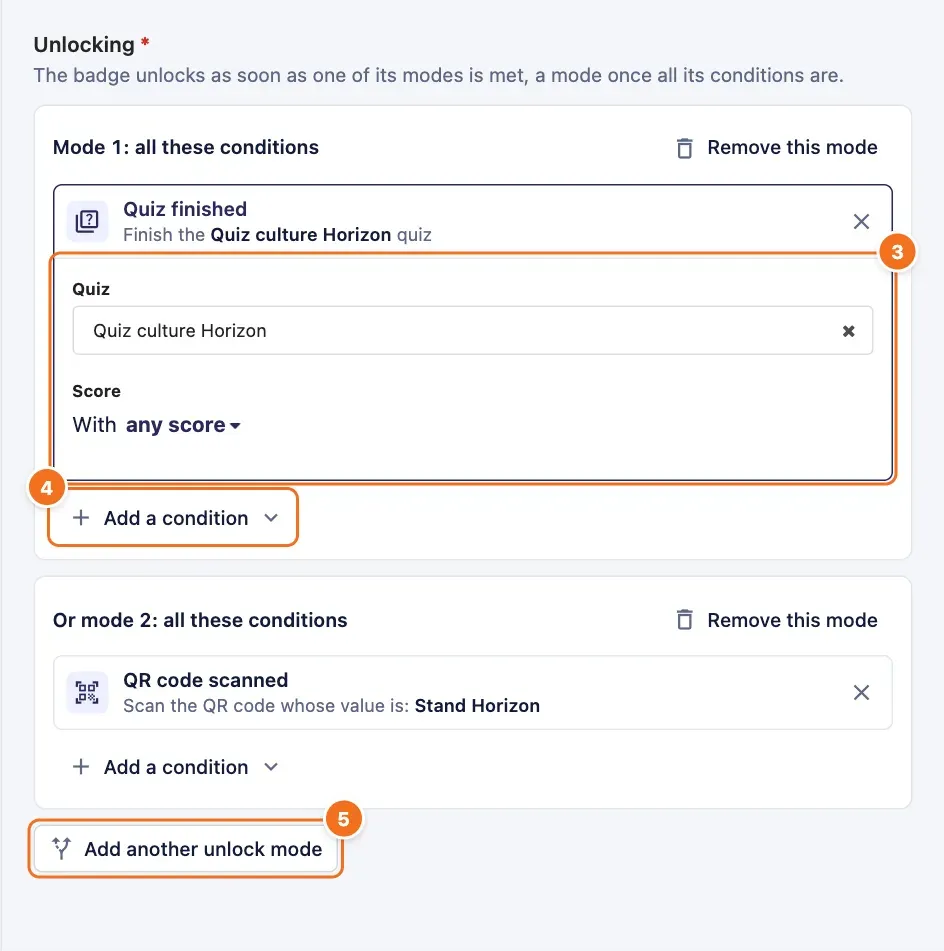
The list shows only the conditions for modules that are active in your event: for example, there is no Quiz Finished condition if the Quiz module is not enabled. Details for each condition can be found in “The Different Gamification Badges.”
View and edit your badges
Section titled “View and edit your badges”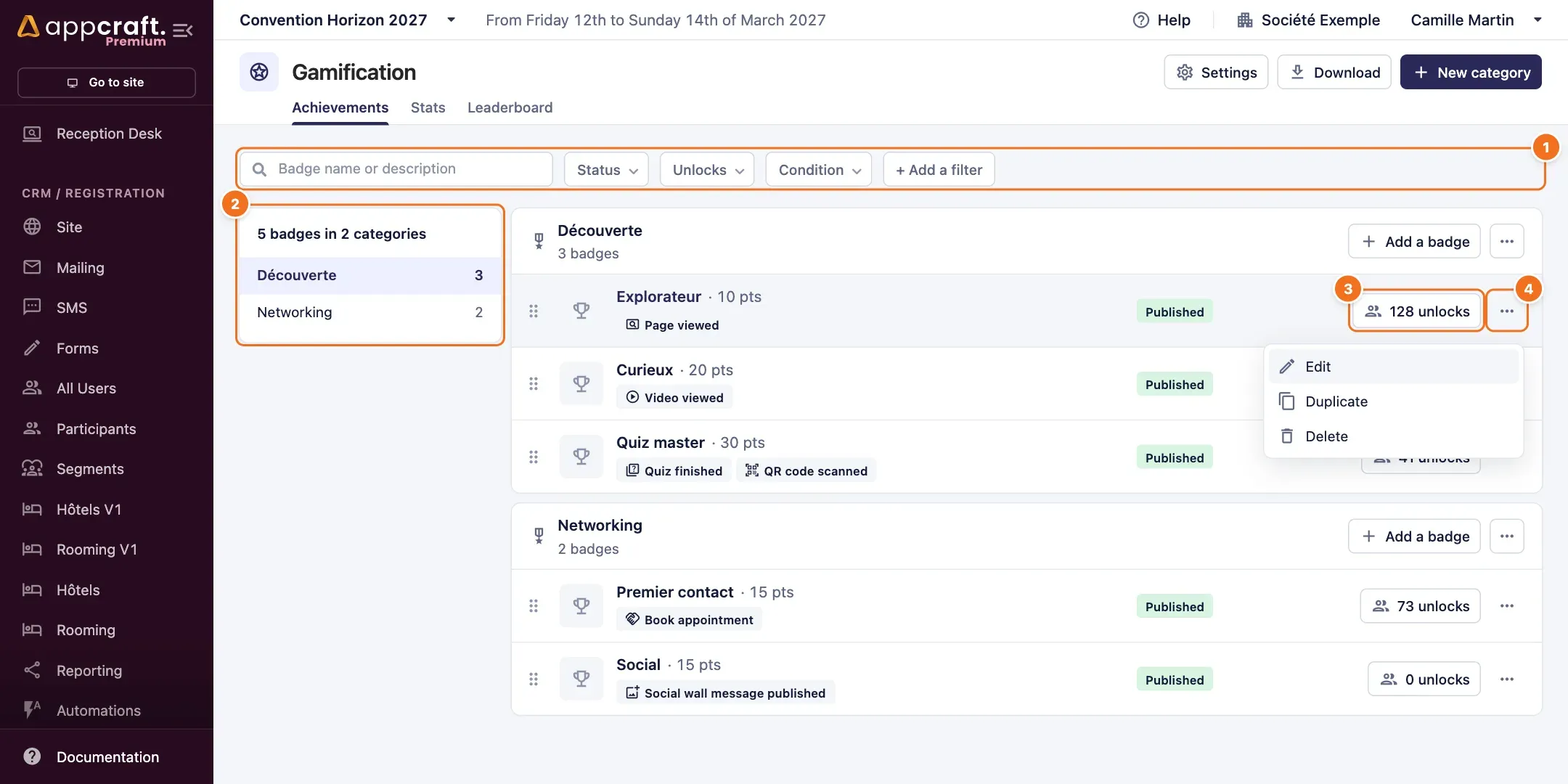
- The top bar lets you search for a badge by name or description, and filter by Status, Unlocks (Already Unlocked or Never Unlocked), Condition, Unlock Method, or Points. Clearing the filters removes them all.
- The table of contents on the left shows the number of badges per category. Click on a category to go there.
- The N Unlocks button for a badge lists the participants who have earned it.
- The ⋯ menu for a badge lets you Edit, Duplicate, or Delete it. You can also click on its name to reopen its window.
To change the order of badges in a category, drag them using the handle to the left of the row (with no filter active).
The ⋯ menu for a category lets you edit or delete it (Delete Category).
Show the ranking to participants
Section titled “Show the ranking to participants”To help your participants track their badges and points, add a ranking page to the platform: see Show the gamification ranking.
See also
Section titled “See also”Was this page helpful?
Thanks for your feedback!
Can’t find your answer? Contact support
© AppCraft EventsAppCraft Events websiteLog inContact support