
Settings and connectorsArticle 3 of 6
Multilingual event: what to check
Your event is offered in several languages. Here are the points to check so that every participant sees the form, emails, and site in their language.
Before you begin
Section titled “Before you begin”- Create your form first: the Languages tab translates texts that must already exist.
- In Mailing, create a version of each email for every language, with a clear name (for example “Registration confirmation EN”).
Translate the form
Section titled “Translate the form”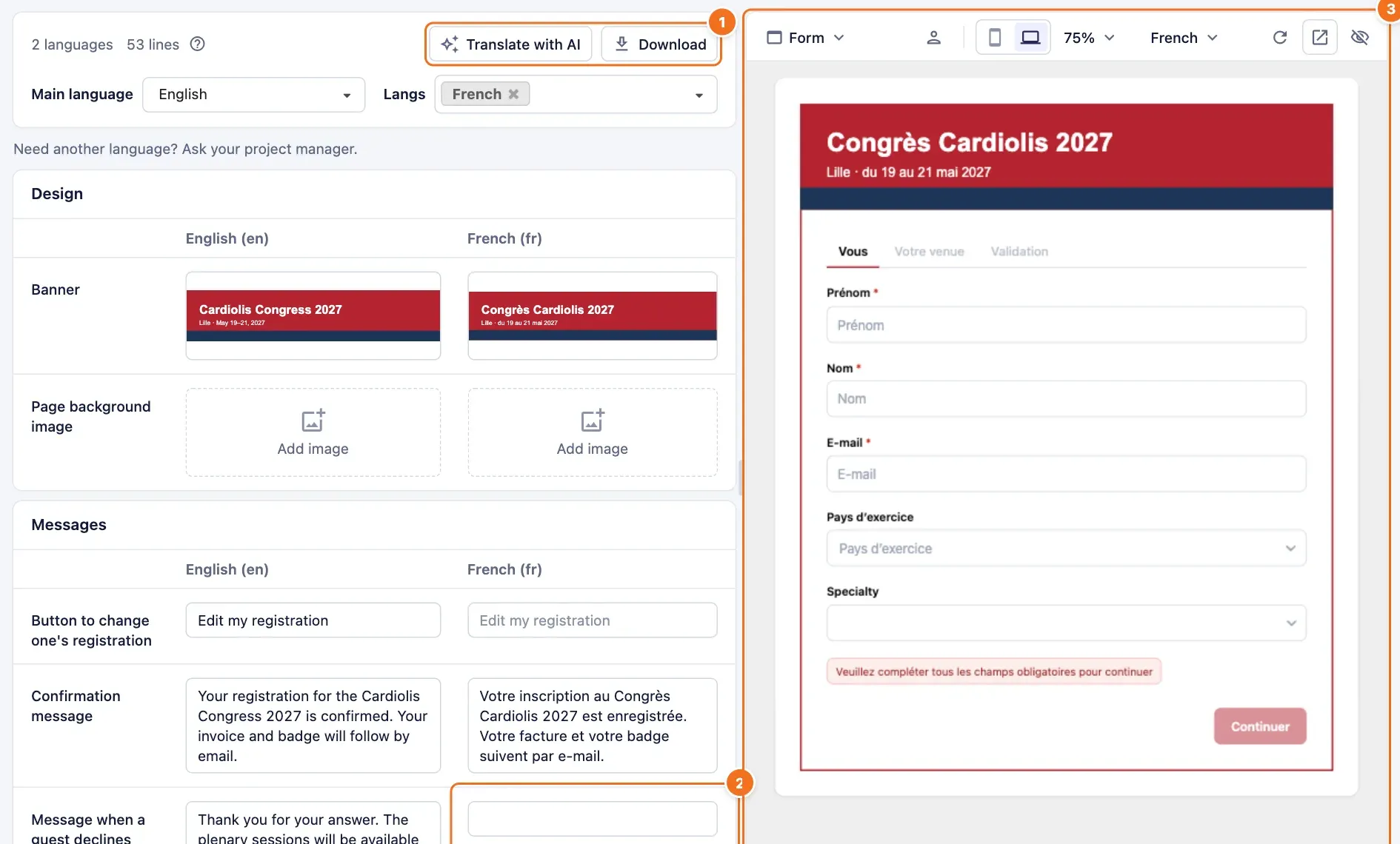
- In Forms, open your form, then the Languages tab.
- Check the Main language: this is the language in which the form was written.
- Check the translation languages in Langs.
- Fill in each line of the Design and Messages cards and of the form fields, or click Translate with AI. In the Emails card, choose for each language the template to send (registration, update, moderation, decline).
The details are in Translate the form.
Translate the site
Section titled “Translate the site”- Open Site, then click Edit on the site card.
- In the editor, click the gear icon, then Translations.
- First choose the default language, then enter the texts for each language.
Translate the feedback
Section titled “Translate the feedback”If you use a feedback questionnaire, also choose its original language, then translate each block in its Translations tab. See Create a feedback questionnaire.
Translate the platform
Section titled “Translate the platform”If your platform has several languages, the design’s Translations tab translates the logos and the sign-in page texts. See Customize the platform’s design.
Identify each participant’s language
Section titled “Identify each participant’s language”The Form language column in the participant list shows which language each person used to fill in the form. Filter on this column to check a send by language. See Understanding the automatic participant columns.
See also
Section titled “See also”Was this page helpful?
Thanks for your feedback!
Can’t find your answer? Contact support
© AppCraft EventsAppCraft Events websiteLog inContact support