
Site and formArticle 16 of 30
Offer a different form to visitors, exhibitors, and press
Create one form per profile with New form, keeping the same Target collection. Each form has its own questions, messages, open/closed state, and its own email choices (from the event’s templates). All registrants land in the same participant list: add a Hidden field with a fixed value so you can tell which form each one came from.
Before you begin
Section titled “Before you begin”The number of forms may be limited on your event. If so, the counter is shown below the list (“You currently have 2 / 3 forms”). At the limit, New form is blocked: to create more, contact your project manager.
Create the form for another profile
Section titled “Create the form for another profile”- In the menu, click Forms, then New form.
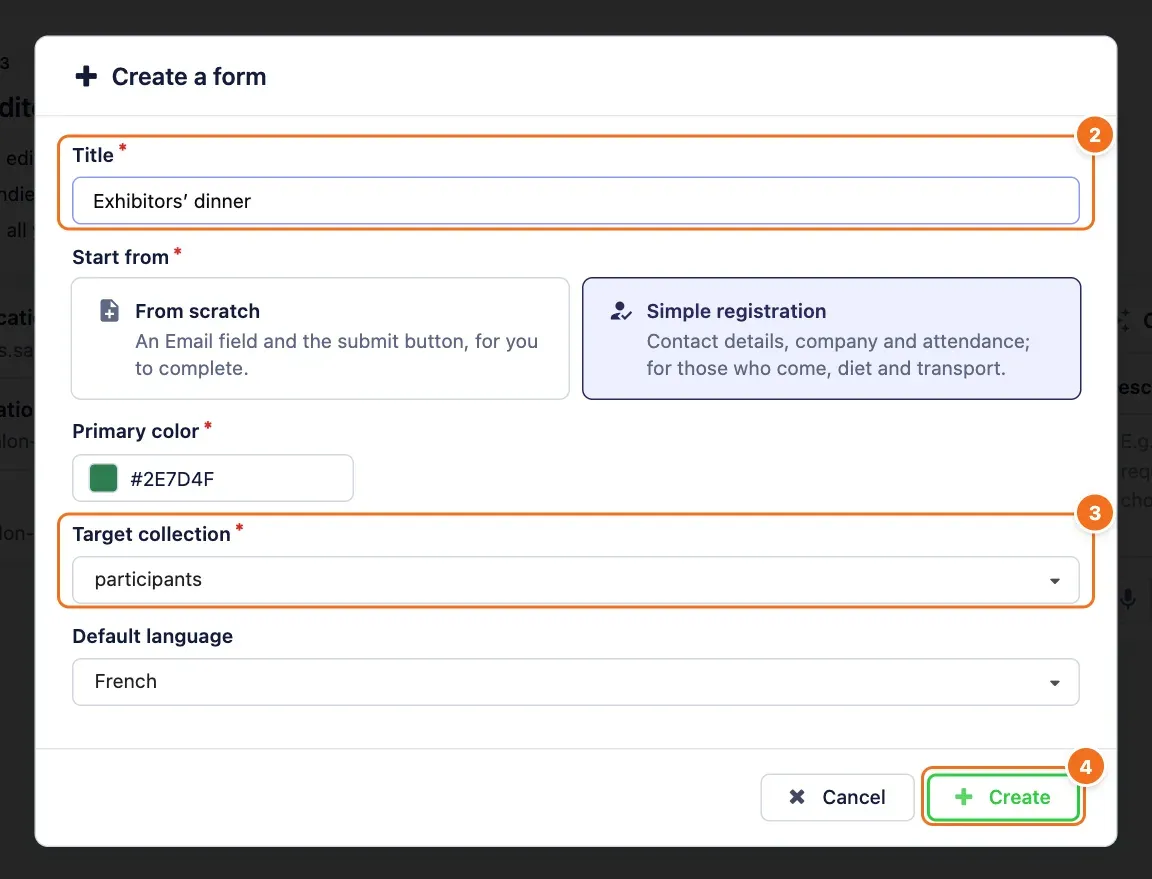
- Enter the Title, for example “Exhibitors’ dinner”.
- Keep the Target collection set to participants: registrants from all your forms then land in the same list.
- Click Create.
Identify each registrant’s profile
Section titled “Identify each registrant’s profile”A registrant’s record doesn’t say which form they used. Add a hidden field with the same name to each form, with a different value per form.
- In the Questions tab of the exhibitors’ form, click Add new field, open the Custom fields tab, then choose Hidden field (under Advanced fields).
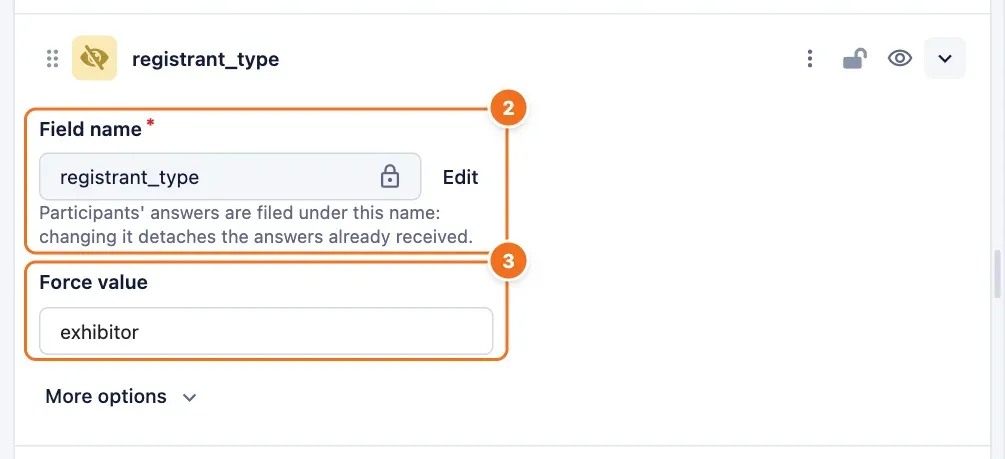
- Enter the Field name, for example
registrant_type. Use the same name in all forms. - In Force value, enter this form’s value, for example “exhibitor”. Enter “visitor” in the visitors’ form, and so on.
- Click Save, the button in the editor header: it saves the whole form, not just the field.
Good to know
Section titled “Good to know”- The maximum number counts the whole participant list, not the form. It counts people with the Registered status, across all forms. If the visitors’ form is limited to 4,500 and 300 exhibitors and 80 journalists are already registered in the same list, 4,120 seats remain for visitors.
- Two forms that each have a maximum close at different times. Each form closes when the list’s total reaches its own maximum. If two forms have different maximums, the one with the lower maximum closes first, and the other stays open until its own maximum (they close at the same time only if their maximums are equal). Registrants from one therefore count toward the other’s maximum. A form with no maximum stays open even when the others are full. See What counts toward the maximum number and quotas.
- The collection is chosen at creation and can’t be changed afterward. No editor setting lets you change it later.
- A participant’s personal link opens every form in their collection. A visitor who opens their personal link on the exhibitors’ form address finds their answers there. If they submit that form, they update their record instead of creating another one, and the hidden field takes the value “exhibitor”. Exception: if that form doesn’t allow updates (Allow updating registration setting), a participant who is already registered gets the message “Updates are not allowed” and their record doesn’t change. On a form from another collection, the person sees an access denied message, in English by default, which the editor doesn’t let you change.
- A hidden field’s value is overwritten on every submission. A person who fills in two forms from the list keeps the value from the last submission.
- Duplicates are checked across the whole list. If Accept several registrations with the same email is unchecked in the Settings tab of the exhibitors’ form, a visitor who is already registered can’t register as an exhibitor with the same email: their submission is refused and they see the message you wrote in the If they are already registered card of the Screens tab (by default: “This user already exists”). A canceled registration doesn’t count as a duplicate. If the box is checked, they will have two records.
- Each form has its own settings. Closing the visitors’ form doesn’t close the exhibitors’ form.
If that’s not enough
Section titled “If that’s not enough”- Fully separating a profile (its own list, its own maximum, its own duplicates) requires a separate collection. AppCraft makes this setting: ask your project manager. You then create the form on that collection.
- Changing the collection of an existing form isn’t possible from the editor. AppCraft makes this setting: ask your project manager.
- With the reception desk, only one of your forms is shown, and no screen lets you choose which one. AppCraft makes this setting: ask your project manager.
See also
Section titled “See also”Was this page helpful?
Thanks for your feedback!
Can’t find your answer? Contact support
© AppCraft EventsAppCraft Events websiteLog inContact support