
Site and formArticle 25 of 30
Reuse last year's form
To start from last year’s form, there are two paths. Duplicate copies a form within the same event. Clone event creates a new event that carries over its site, emails, forms, and the rest of its configuration, but never the participants. In both cases, check the status, dates, and address of each form afterward.
Before you begin
Section titled “Before you begin”- Duplicate doesn’t require any particular permission. The number of forms may be limited on your event: if so, the counter is shown below the list (“You currently have 2 / 3 forms”).
- Clone event requires the permission to clone events (along with the one to create them): Operator accounts don’t have it. If the event’s ⋮ menu doesn’t offer Clone event, your account doesn’t have the cloning permission. Ask an administrator of your organization to grant it.
Duplicate a form within the same event
Section titled “Duplicate a form within the same event”- In Forms, click the ⋯ menu on the form’s row.
- Click Duplicate.
- In the window, edit the copy’s Title: its address is derived from it.
- Click Duplicate. The copy appears in the list.
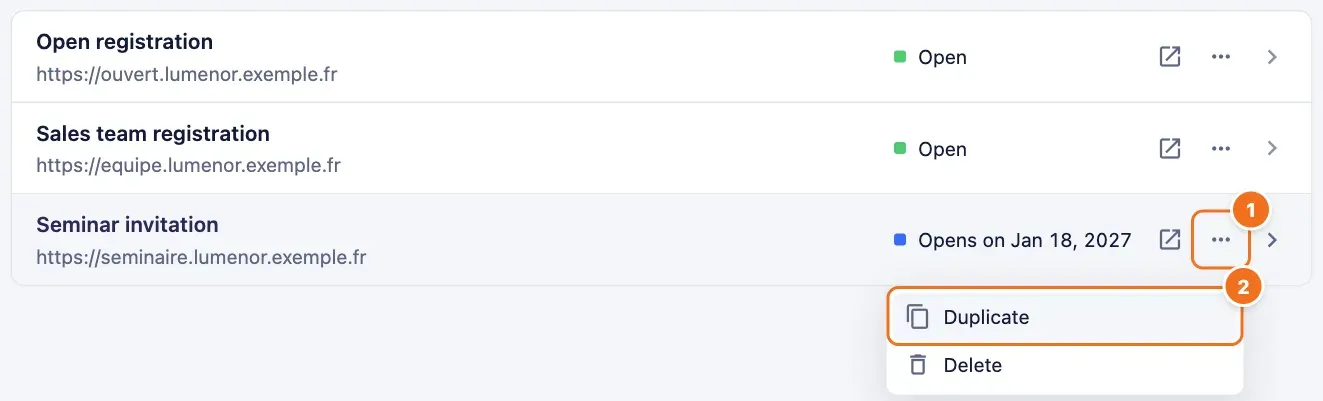
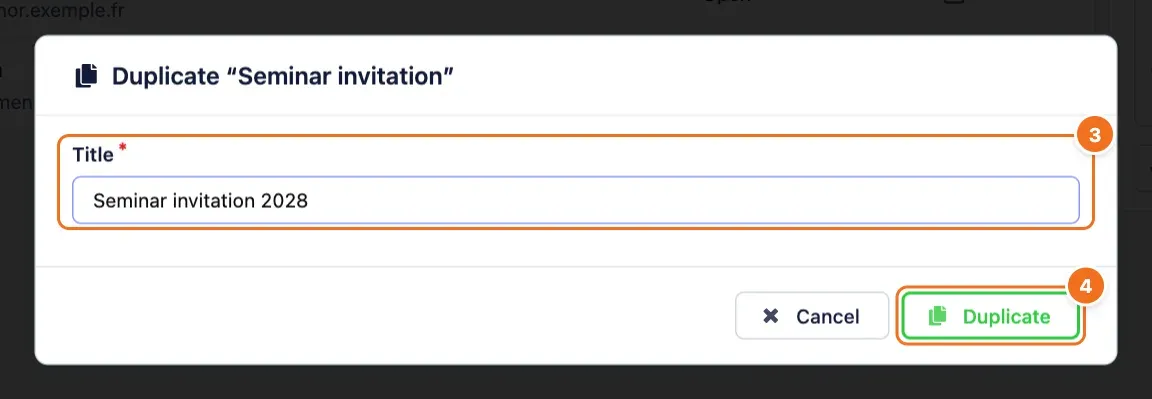
Then open the copy: check the status at the top of the editor, then the Settings and Screens tabs.
Clone the event to carry over all its forms
Section titled “Clone the event to carry over all its forms”- In the left menu, click Events, then the ⋮ menu on the event’s row.
- Click Clone event.
- Fill in the Event’s name and the Dates of the new event.
- Click Create my event. Wait until the copy is finished: the window closes and the new event appears in the list (reload the page if it isn’t there).
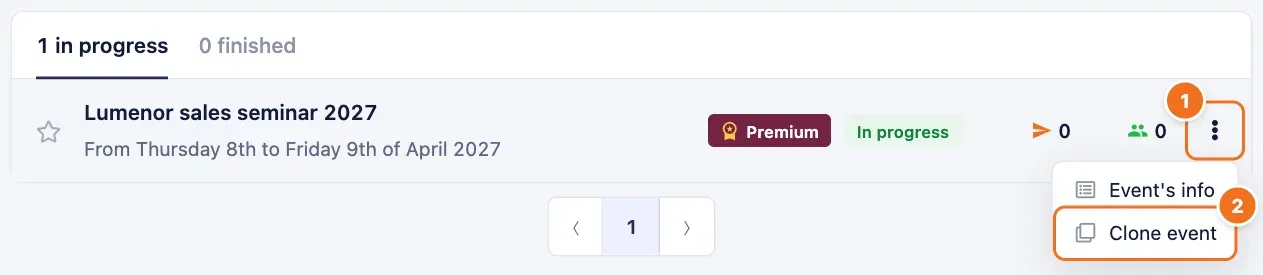
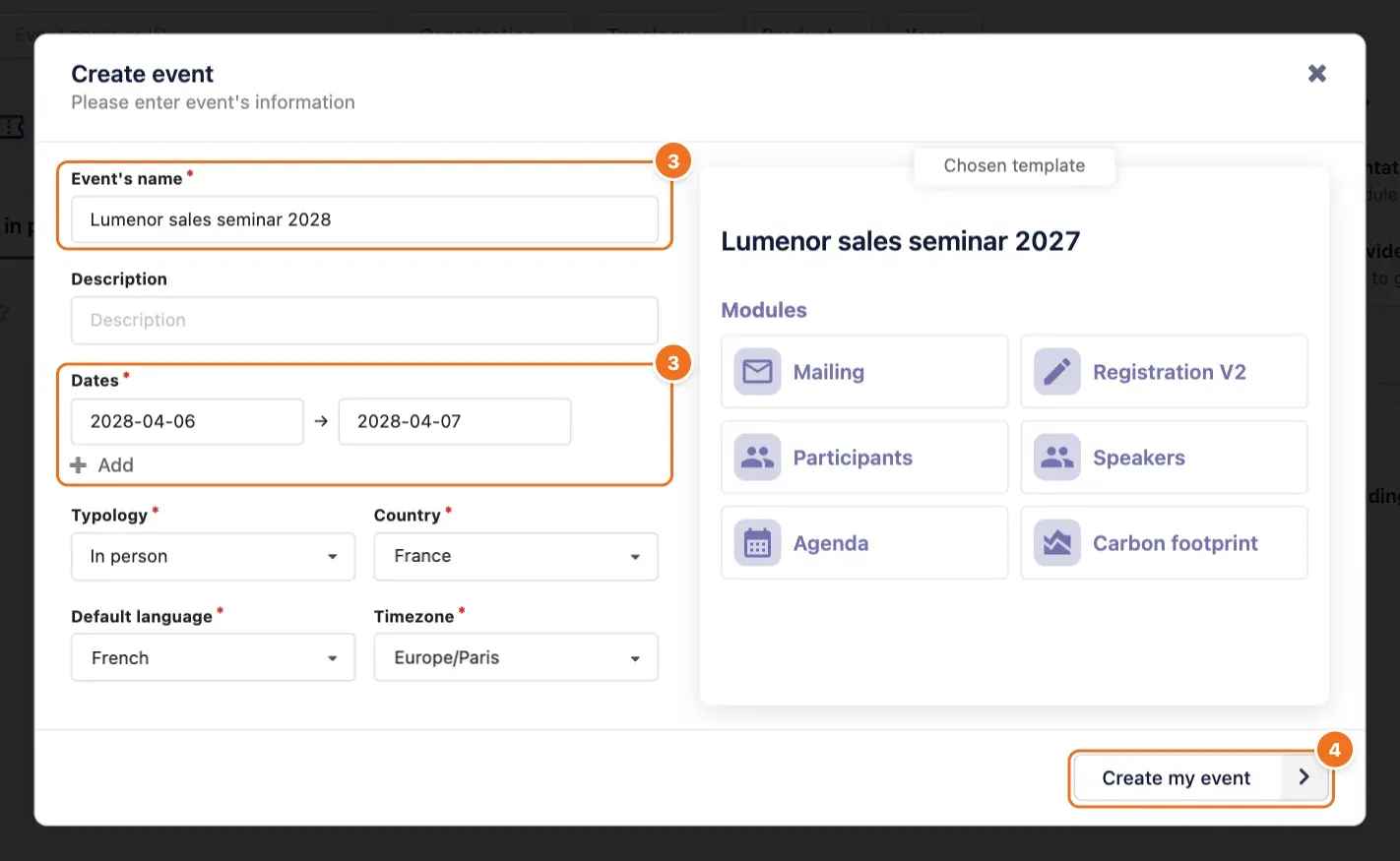
Open the new event, then Forms: the list shows the status of each form. Then open each form to check its dates, messages, and settings before opening it to the public.
Good to know
Section titled “Good to know”- Duplication stays within the event. There is no way to copy a form to another event: to do that, clone the event.
- Cloning carries everything over, with no choices. The Chosen template summary in the window lists the original event’s modules: it can’t be checked or unchecked. Cloning carries over the site, emails, forms, badge, agenda, and speakers, among other things. It never carries over the participants. Then delete what you don’t need. To start from a template without the agenda or speakers, see Create event from a template.
- Renaming doesn’t change the address. The address comes from the title entered when the form was created. Renaming the form in the editor only changes its title. For a new address, duplicate with a new title. A title that produces the same address as an existing form is refused.
- Deleting the old form breaks links already sent. Close it instead. See Change a form’s address.
- The copy keeps the original’s status and dates. Last year’s form is often already Closed: check the status before sending the link.
- The cloned form starts out open, with no dates. One exception: if the original was closed with the Close registrations, even with seats left checkbox, that box is carried over and the cloned form stays closed. It has a new address: last year’s links still lead to the old form. Set its status and dates before distributing the new link.
- For now, cloning also doesn’t carry over the exceptions, the closing message, or the Form’s update unauthorized mode. If you had set them, redo them on the cloned form.
- “Erase the answers to the questions the participant no longer sees” is checked by default on the copy and on the cloned form, even if the original didn’t have it. When a participant edits their registration, the answers to hidden questions are erased from their record. See Customize the form screens.
- The copy refuses duplicate registrations, has no custom domain name, and shares the original’s email templates, even if the original accepted duplicates or had a domain. Editing a template changes both forms.
- A copy in the same event shares the participant list. The Maximum number of registrants counts the registrants of all the forms in that list. See Open, close, and limit registrations.
If that’s not enough
Section titled “If that’s not enough”- Duplicate shows “You have reached the maximum number of forms allowed”: to create more, contact your project manager.
- Cloning is blocked because the event ended more than 2 years ago: a message explains it. It directs you to your dedicated project manager (Premium plan) or to support (other plans) to create a new event.
- Cloning is refused because of a lack of credits: contact your account manager.
- To carry a form over to an event that already exists, there is no direct copy: ask your project manager for advice.
See also
Section titled “See also”Was this page helpful?
Thanks for your feedback!
Can’t find your answer? Contact support
© AppCraft EventsAppCraft Events websiteLog inContact support