
CommunicationArticle 4 of 13
Understand email delivery errors
The Errors tab in the Mailing module lists all undelivered emails (Status: failed), organized by reason and explained in simple terms, along with what to do. Use it to correct addresses and resend to the right people.
Analyze the errors
Section titled “Analyze the errors”- In the Mailing module, open the Errors tab.
- In the top right corner, choose the time period: Last 30 days (default), Last 7 days, Today, Current month, Previous month, one year, or a Custom range.
- Choose the view: By reason (default) or By domain (by the domain name of the email addresses, often the participant’s company).
- To find a person or a company, type their address or domain into the Email address or domain field.
- Click Download in the top right to export the list to Excel.
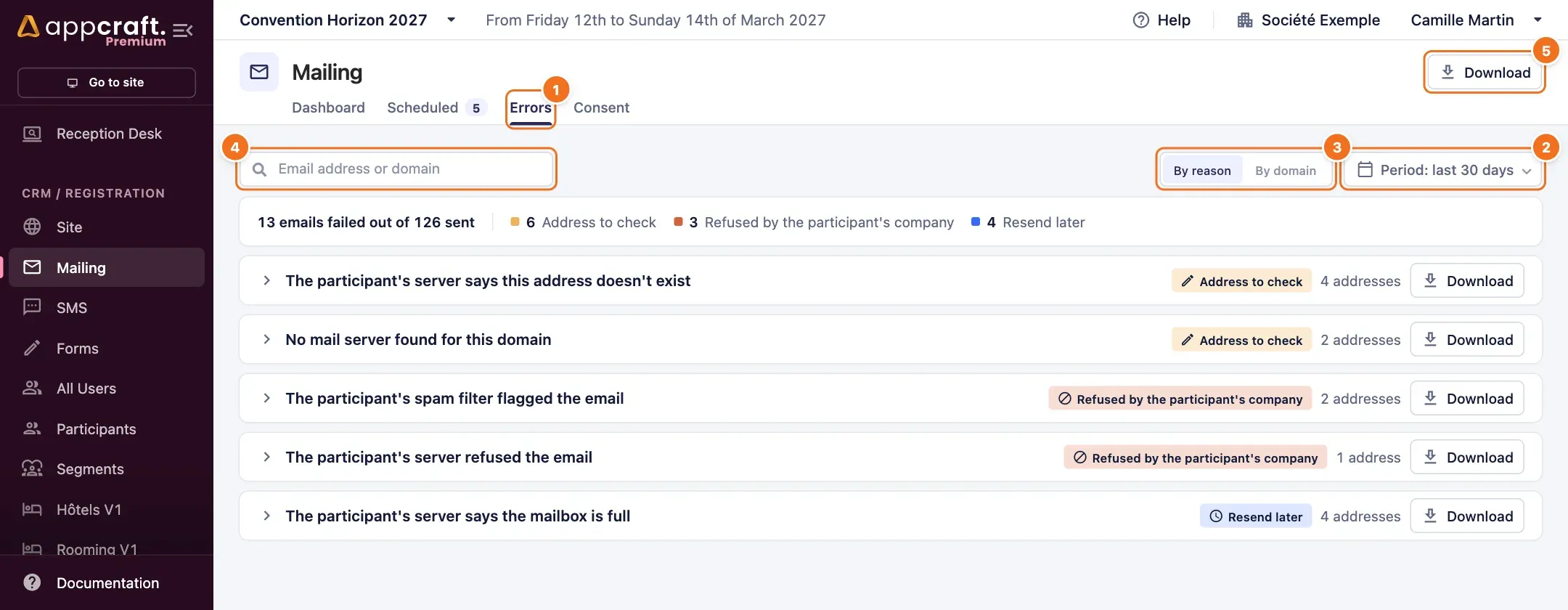
The banner at the top provides the period summary: the number of failed emails out of the total number of emails sent, followed by the number of addresses by type of action.
In the By reason view, each block displays the reason in French, an action label, the number of affected addresses, and a Download button specific to that block. Open a block to read the steps to take and the list of addresses, with the raw server message below each one.
What to Do Based on the Error Code
Section titled “What to Do Based on the Error Code”| Tag | What You Can Do |
|---|---|
| Address to check | Check the address in the participant’s profile and fix it if necessary, then resend the email. |
| Refused by the participant’s company | Ask the participant to have their IT department whitelist emails from the event, then resend the email. |
| Blocked on the sending side | Nothing for the participant to fix: contact AppCraft support, resend later, or request a different address. |
| Email to edit | Edit the email (file size, images, attachments), then resend it. |
| Resend later | The error is likely temporary: resend the email in a few hours. |
| Retrying | Nothing to do for now: the system will automatically retry sending the email over the next few hours. |
| Unrecognized reason | Read the server’s response below the address and contact AppCraft support if necessary. |
| Nothing to do | The person has chosen to stop receiving emails: do not contact them again. |
Frequently Asked Questions
Section titled “Frequently Asked Questions”Can I view errors from more than a month ago?
Section titled “Can I view errors from more than a month ago?”The custom beach calendar does not go back beyond a certain minimum date. For older records, download the list regularly.
How do I resend the email to the recipients who were affected by the errors?
Section titled “How do I resend the email to the recipients who were affected by the errors?”First, correct their addresses: invalid addresses are also flagged in the participant list anomalies (see Correcting Anomalies). Next, in the Tracking & statistics tab of the template, click Failed and then Email.
See also
Section titled “See also”Was this page helpful?
Thanks for your feedback!
Can’t find your answer? Contact support
© AppCraft EventsAppCraft Events websiteLog inContact support