
InteractionArticle 16 of 17
Moderating participants’ questions and posts
You have control over what participants publish: questions asked during a Q&A and posts on the social wall. This page answers the most common questions about moderation. For details, see “Hosting a Live Q&A” and “Managing the Social Wall.”
How do I choose which questions to display to all?
Section titled “How do I choose which questions to display to all?”- In Interaction, open Q&A.
- On the session page, click the pencil icon to edit it.
- Under Question Display, set Questions to Show to After moderation.
- Save, then open the moderation interface using the Moderator button in the session.
The moderator sees all questions in the order they are received. The moderator chooses which ones to show, archive, or delete. Participants see only the validated questions.
Other possible settings for Questions to show: None, Only own questions, or All (unmoderated).
Are inappropriate questions blocked?
Section titled “Are inappropriate questions blocked?”Yes, if you provide a word list. In the Q&A form, fill in the “Blacklist” field (one word per line). Any question containing one of these words will be filtered out and set aside in the moderator interface.
Social Wall
Section titled “Social Wall”How do I moderate posts?
Section titled “How do I moderate posts?”- In Interaction, open Social Wall.
- Click the Moderation tab.
- In To moderate, click on a post to open it.
- Click Publish if the content is correct, or Delete if not.
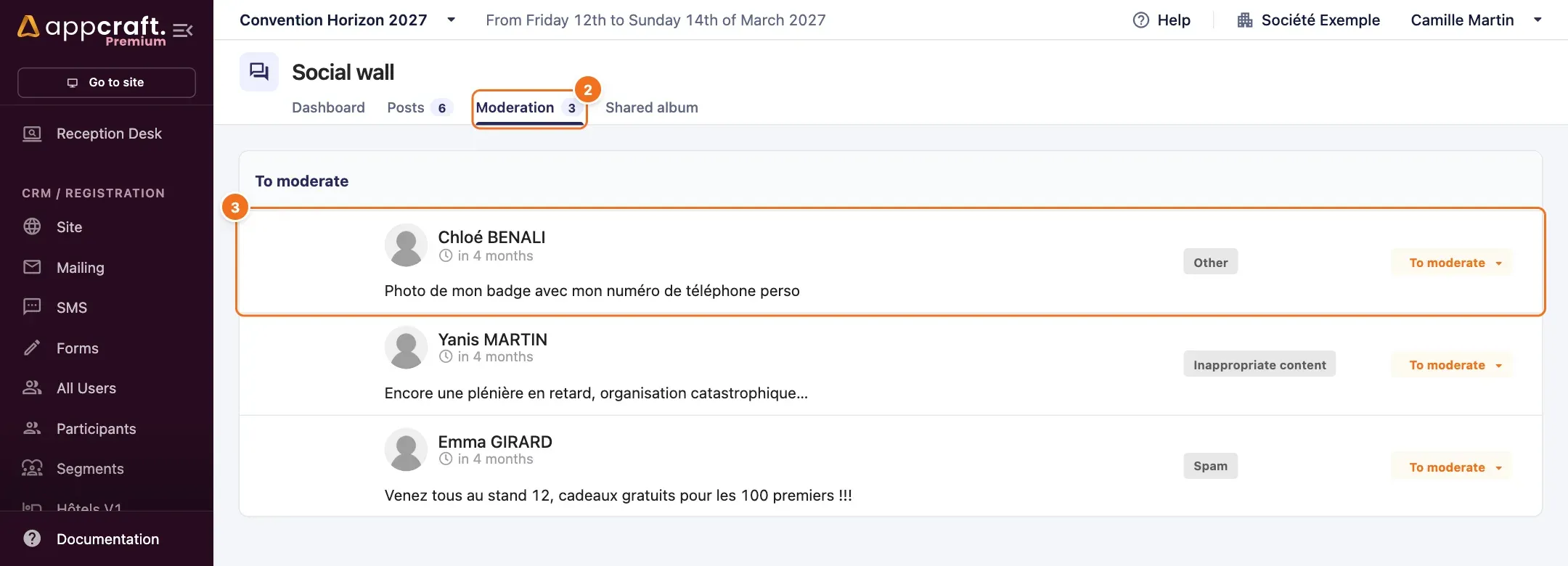
Below the Pending Moderation list, the Posts section shows posts that have already been moderated. There, you can change a post’s status to: Published, Pending Moderation, or Deleted.
Can participants report a post?
Section titled “Can participants report a post?”Yes. In Pages, open the social wall page on your platform or Web App (see Add the social wall to the platform). Under Posts management, enable Allow publications report. Reported posts appear in the Moderation tab, along with the reason for the report.
Can we block certain words or emojis?
Section titled “Can we block certain words or emojis?”Yes. On the same social wall page, in the Blacklist section, fill in Blacklist (words) and Blacklist (emojis).
See also
Section titled “See also”Was this page helpful?
Thanks for your feedback!
Can’t find your answer? Contact support
© AppCraft EventsAppCraft Events websiteLog inContact support