
InteractionArticle 5 of 17
Send notification
The Notifications module sends messages to your participants’ phones: room changes, doors opening, workshop reminders. You can send messages immediately, schedule them for a specific date, or set them to be sent according to the program schedule.
Before You Begin
Section titled “Before You Begin”- The Notifications module appears in the menu under the Interaction section. If it’s not there, contact your project manager.
- Participants must have enabled notifications on their phones. Notifications will not be delivered to a phone where they are disabled.
- For the Web App (PWA), notifications also depend on the platform’s access settings: see Set Up Access and Login.
Create a notification
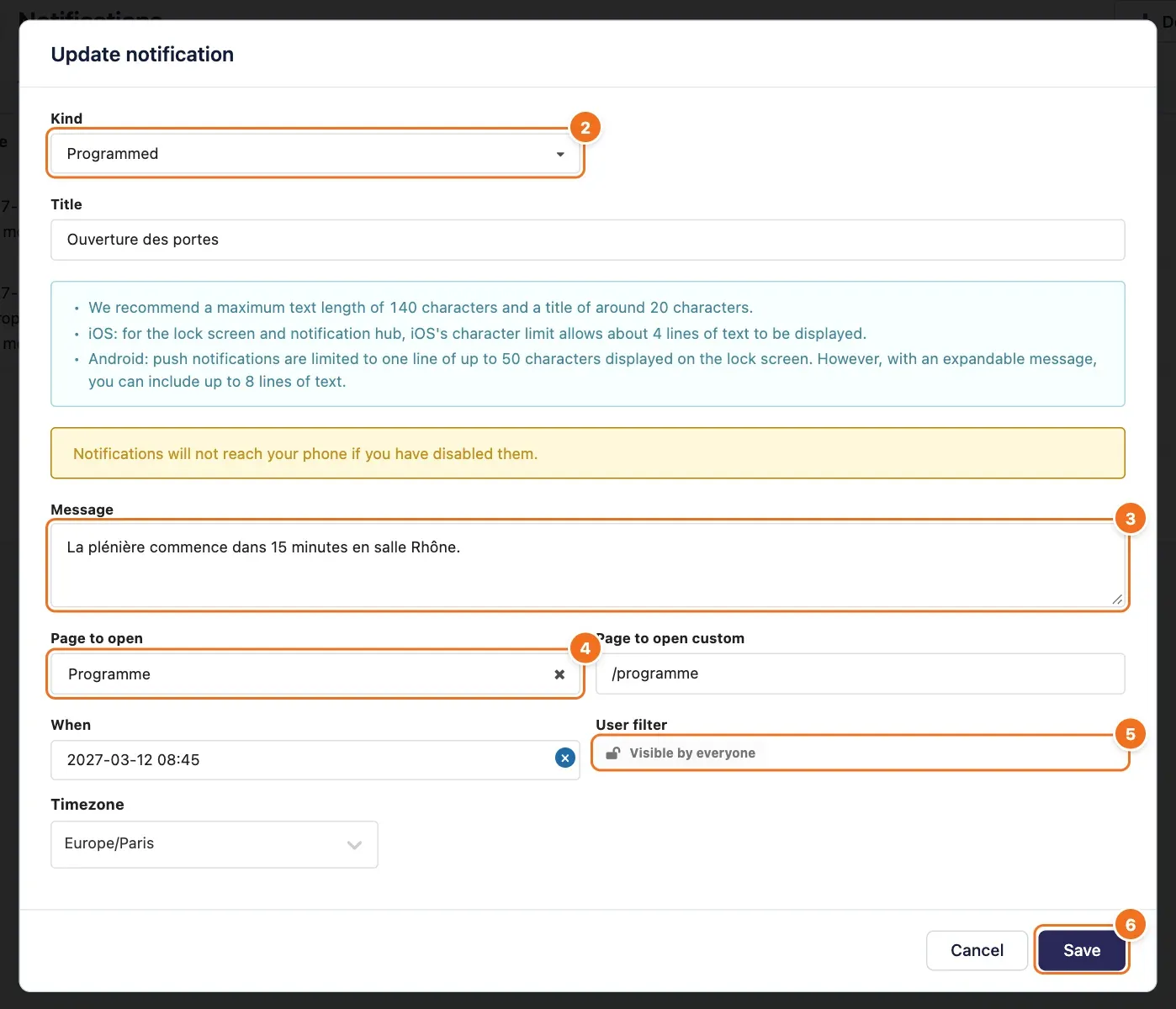
Section titled “Create a notification”- In the menu, click Notifications, then click Add.
- Choose the Type: To Send, Scheduled, or Workshop.
- Enter the Title and Message.
- If needed, choose the page to open when the participant taps the notification.
- Define the recipients in User filter, using a condition based on participant information (status, profile type, company, etc.). Without a filter, all participants receive the notification. The conditions are described in “Conditional Display of an Item.”
- Click Save.
Send a “To Send” notification
Section titled “Send a “To Send” notification”The notification is saved without being sent. When the time comes, click Send on its line.
Schedule a notification
Section titled “Schedule a notification”- Choose the Scheduled type.
- Under When, select the date, time, and time zone (default: Europe/Paris).
- Save: The notification will be sent automatically.
To schedule multiple notifications at once, click Import, then paste the columns from your spreadsheet, including the headers. The import window shows the expected format.
Schedule a notification on the program
Section titled “Schedule a notification on the program”The Workshop type sends a notification for each workshop, based on its schedule.
- Choose the Workshop type.
- If necessary, limit the workshops in question in Workshops Filter (for example, by room or program track).
- Under When ?, choose Before start, After start, Before end, or After end.
- In How many time (minutes) ?, specify the delay.
Track notifications
Section titled “Track notifications”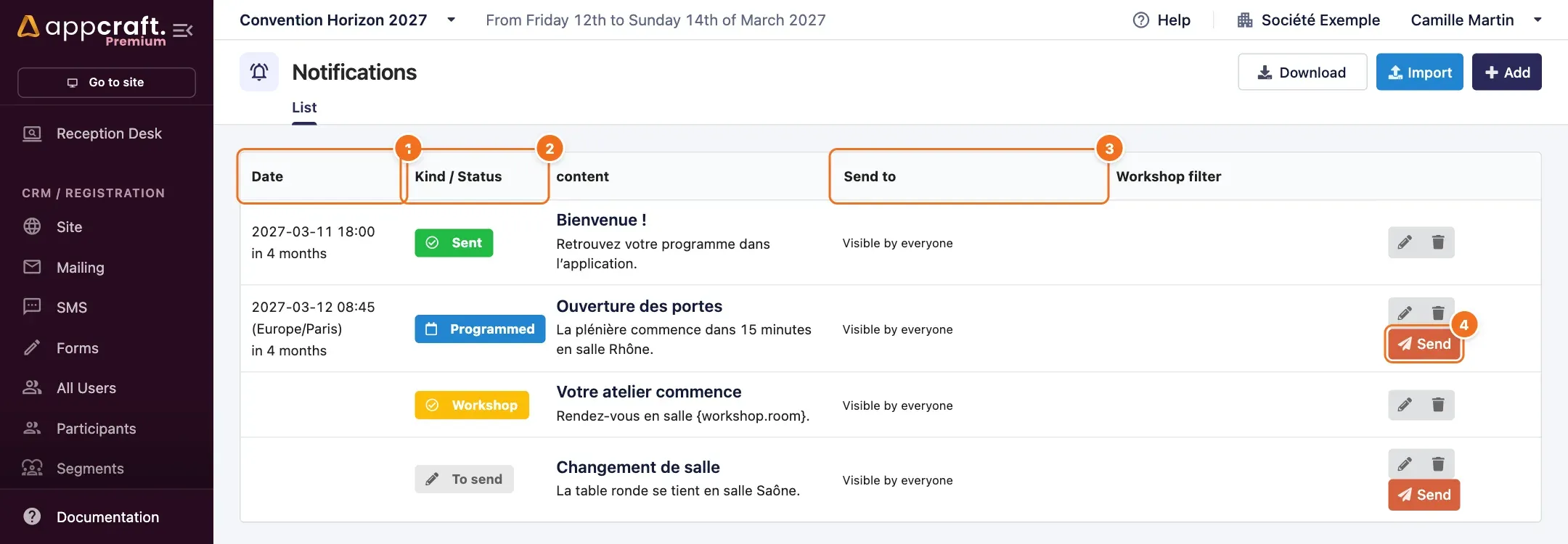
- Date: scheduled or actual send date.
- Kind / Status: To send, Scheduled, Sending, or Sent.
- Sent to: the targeted recipients.
- The buttons on the row let you edit, delete, or send the notification.
Download and export the list in Excel format.
Frequently Asked Questions
Section titled “Frequently Asked Questions”Can participants view the notifications they’ve received?
Section titled “Can participants view the notifications they’ve received?”Yes, if you add a notification center page to the platform or the Web App: see Create the Notification Center.
Can you send a notification from the platform?
Section titled “Can you send a notification from the platform?”Yes, for admin accounts: the Admin Account column must be checked on their participant profile. The Send Notification button will then appear on the Platform’s notifications page.
See also
Section titled “See also”Was this page helpful?
Thanks for your feedback!
Can’t find your answer? Contact support
© AppCraft EventsAppCraft Events websiteLog inContact support