
Platform and web appArticle 18 of 22
Launch live streams and replays from the Live management room
The Live Management Room is your command center on the day of the event. From there, you launch live streams, publish replays, and trigger feedback, session by session, without touching the program.
Before you begin
Section titled “Before you begin”- Sessions are pulled from the program: all sessions in the program appear in the Live management system, ranked by day and time. See Building the Event Program.
- Live streams & replays links and feedback links must be entered for each session. Without a link, the corresponding button will not appear.
The Live management tabs
Section titled “The Live management tabs”In the Platform menu, click Live management. The module has four tabs:
- Live streams & replays management: Launching live streams, replays, and feedback, as described in this article.
- Live stream monitoring: real-time live stream statistics.
- Live streams & replays links: all links by session, along with their state (On Air).
- Meeting Rooms: The state of the meeting rooms.
Start a live stream
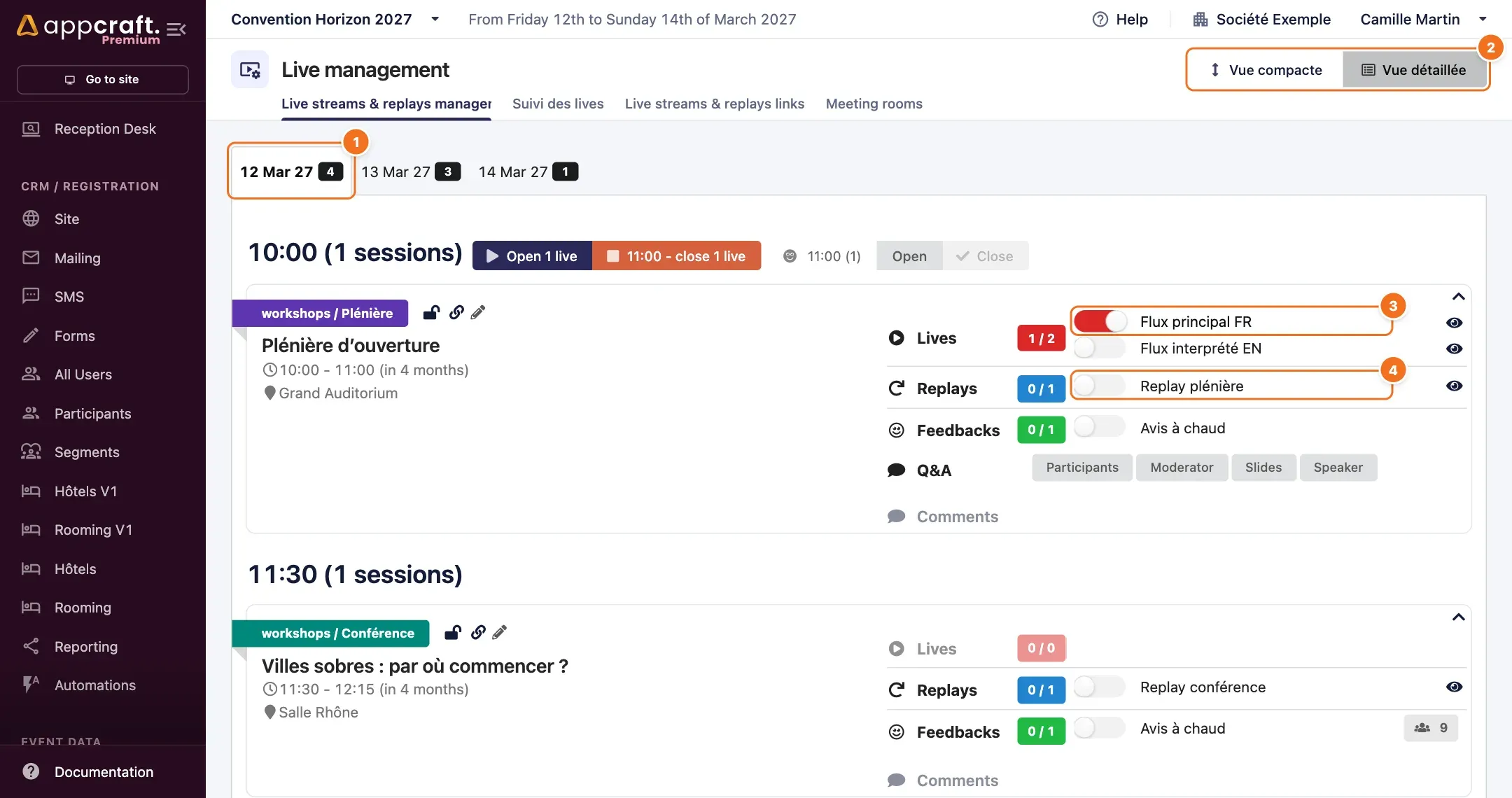
Section titled “Start a live stream”- In the Live streams & replays management tab, choose the day from the date tabs (the badge indicates the number of sessions for that day).
- In the top right corner, click on Detailed View to show the controls.
- On the session map, enable the stream switch under Live Streams. The live stream will immediately show on the platform in the designated location, without any action required from session participants.
- At the end of the session, turn off the switch. To publish the recording, enable the switch under Replays.
Check a live stream before going live
Section titled “Check a live stream before going live”Click the eye icon next to a stream. A window will show the player and its links. You can run a test broadcast: it remains invisible to participants as long as the switch is turned off.
On each map, you’ll also find:
- the padlock: it locks the Live management to that session. The other sessions are grayed out and can no longer be clicked, which prevents you from starting one by mistake. Click again to unlock;
- the link icon: opens the session on the platform;
- the pencil icon: opens the session details page so you can edit it;
- Q&A: links to the Participant, Moderator, Slides, and Speaker views for live questions; Comments: comments from participants.
Show live feedback
Section titled “Show live feedback”The shown questionnaire is set up in Interaction > Feedback: see Create a Feedback Questionnaire.
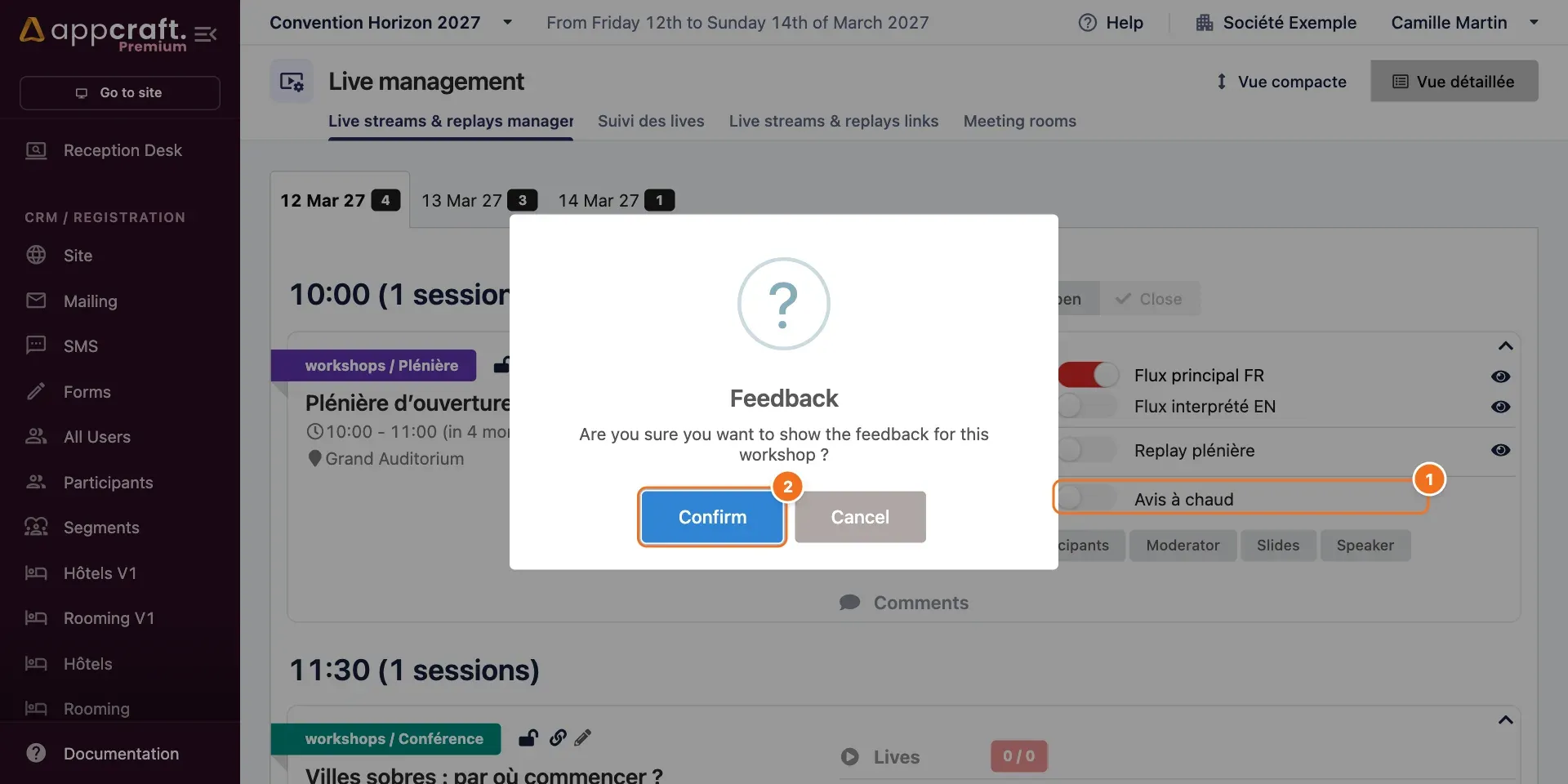
- In Detailed View, enable the switch under Feedback on the session map.
- In the “Are you sure you want to show feedback for this session?” window, click Confirm.
The questionnaire opens in the player at the end of the live stream. It disappears once it’s filled out.
Frequently Asked Questions
Section titled “Frequently Asked Questions”I don’t see a switch on my session
Section titled “I don’t see a switch on my session”Switch to Detailed View. If the toggle switch is still missing, the corresponding link hasn’t been entered in the session. Open it with the pencil icon and add the link.
A session is grayed out
Section titled “A session is grayed out”Other session is locked with the padlock icon. Click the padlock on the locked session to unlock the Live management.
See also
Section titled “See also”Was this page helpful?
Thanks for your feedback!
Can’t find your answer? Contact support
© AppCraft EventsAppCraft Events websiteLog inContact support