
InteractionArticle 6 of 17
Create the Notification Center
The Notifications page lists all notifications sent to participants. There, they can access information shared during the event at any time.
Create the page
Section titled “Create the page”- Open Web App > Pages (or Platform > Pages) and click Add.
- Choose the Notifications type. The path
/notificationsis suggested. - Enter the Title, choose the Publication state, and click Save.
The page automatically shows notifications sent from Interaction > Notifications: see Send notification.
Adjust the display
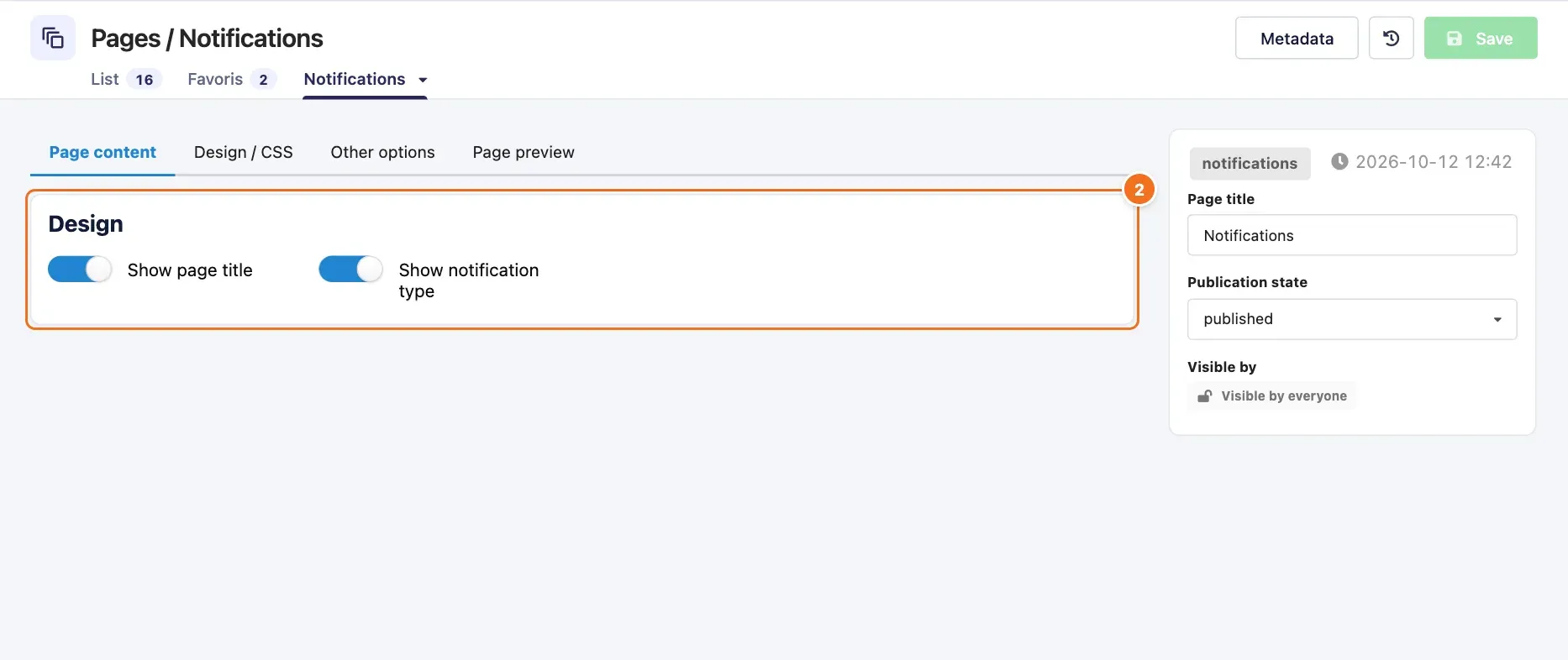
Section titled “Adjust the display”- Open the page and go to the “Page content” tab.
- In Design, choose whether to enable or disable Show page title and Show notification type.
- Click Save.
Send notifications from the platform
Section titled “Send notifications from the platform”A participant can send notifications directly from the platform if their profile is checked in the Admin Account column of the participant database. This is convenient for a team member who is on-site.
See also
Section titled “See also”Was this page helpful?
Thanks for your feedback!
Can’t find your answer? Contact support
© AppCraft EventsAppCraft Events websiteLog inContact support