
CommunicationArticle 9 of 13
Create an automation
An automation triggers an action on its own when an event occurs—for example, notifying your team via email when a participant changes their answer. It saves you from having to manually check the participant list.
Before you begin
Section titled “Before you begin”- The Automations entry appears in the CRM / Registration section of the menu when the module is enabled for your event.
- The number of automations may be limited by your plan. The counter is shown below the list.
- To send an email or SMS to a participant, first set up the template in Mailing or SMS: see Create and Edit an Email Template and Create and Manage Your Text Message Templates.
View the list of automations
Section titled “View the list of automations”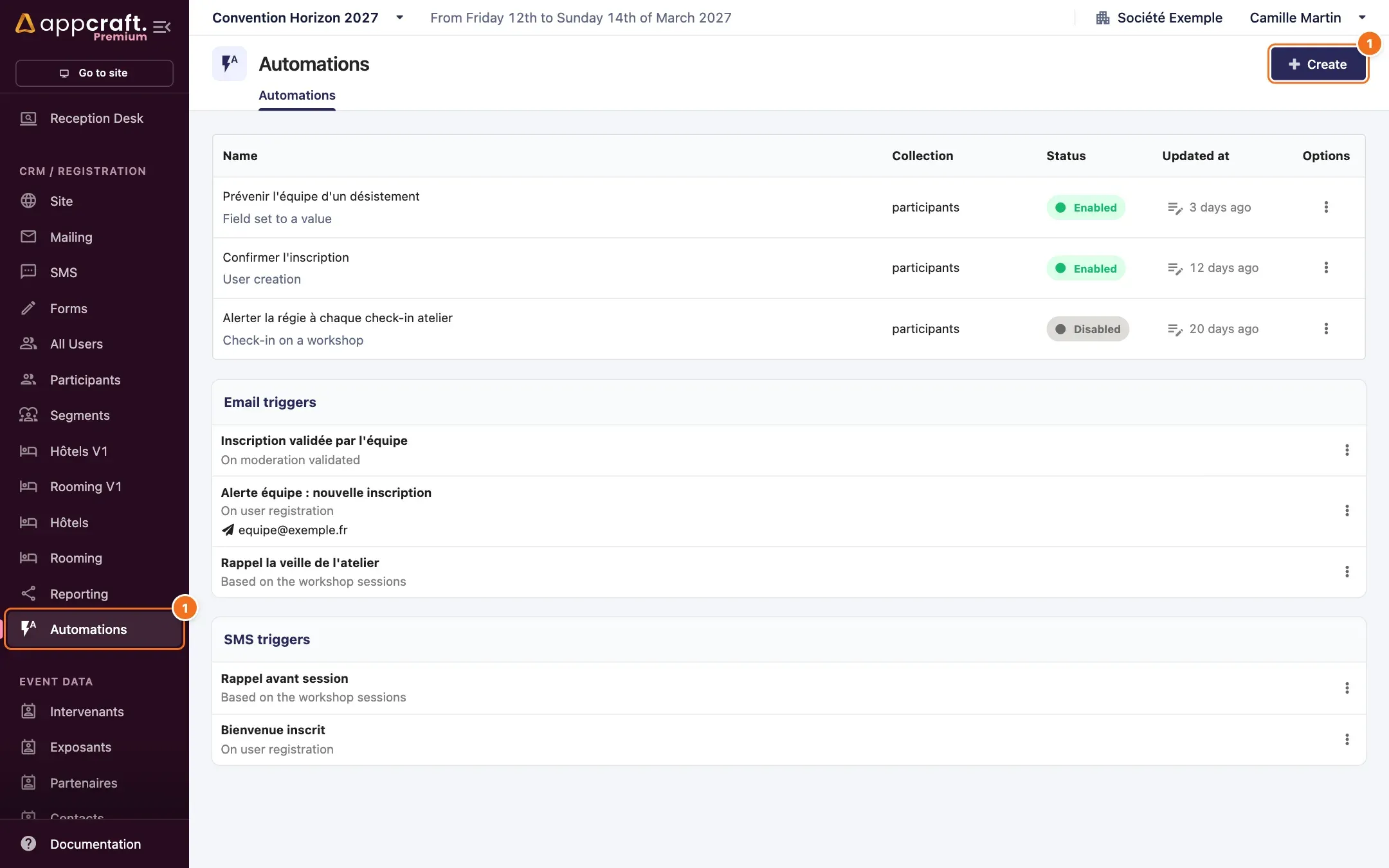
Below each automation’s name, a line provides a summary of its triggers (“A, B, or C”) or indicates None.
Below the list, two cards show the automatic messages scheduled in the sending modules:
- Email triggers: emails scheduled in Mailing based on a trigger (upon registration, when a field is updated, etc.). See Schedule sending.
- SMS triggers: The same applies to text messages, using the SMS module. See Schedule sending of an SMS.
You can edit them from these cards as well as from Mailing or SMS. An empty card is not shown.
Create and enable the automation
Section titled “Create and enable the automation”- In the menu, click Automations, then click Create.
- Choose the relevant collection (for example, Participants). The fields that appear next depend on this choice, and this choice is final.
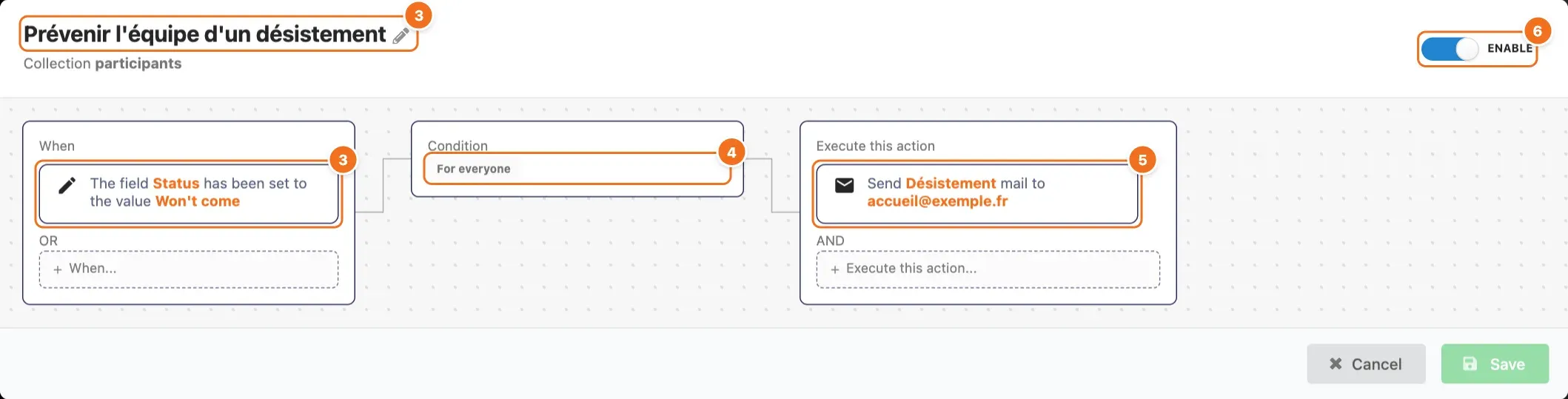
- In the editor, give the automation a title, then click When and choose the trigger.
- If the action applies only to some people, click For everyone and add a condition. This is the standard Condition window (see Show an item based on a condition): for example, you can limit the automation to members of a segment using the Segment field (see Create and use segments).
- Click Execute this action, choose the action and fill in the fields, then click Apply.
- Enable the Activate switch, then click Save.
Triggers
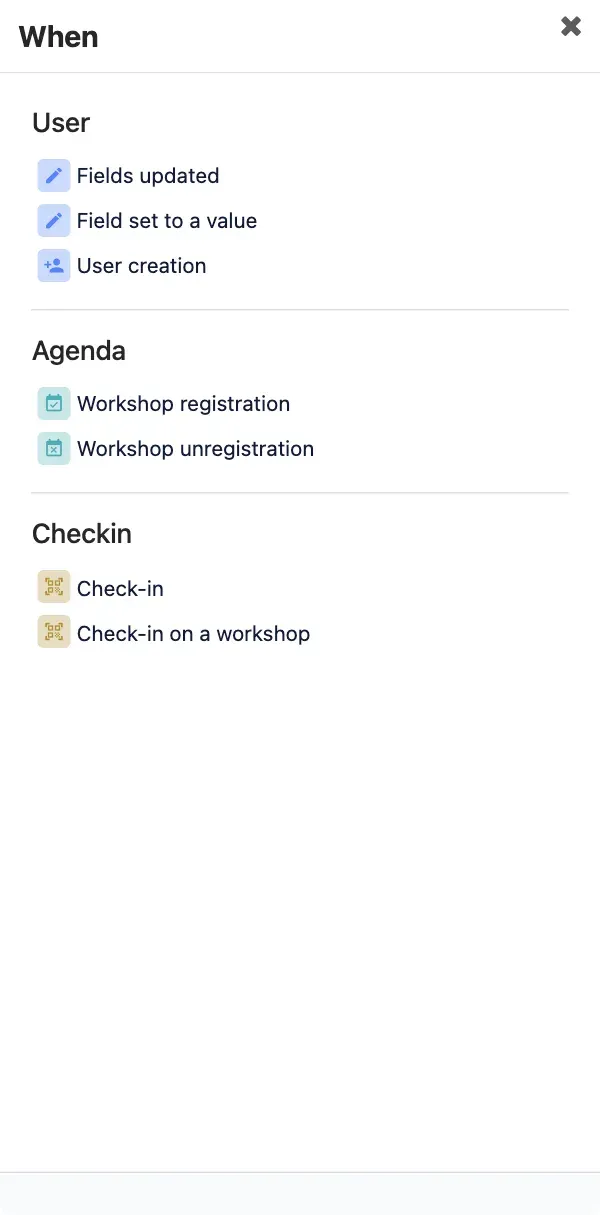
Section titled “Triggers”| Category | Triggers | Occurs when… |
|---|---|---|
| User | User creation | a person is added to the collection. |
| User | Fields updated | one of the fields chosen is edited. |
| User | Field set to a value | A field takes on a specific value (for example, Status = Won’t come). |
| Calendar | Workshop registration / Workshop unregistration | someone registers for a workshop or unregisters. |
| Checkin | Check-in / Check-in on a workshop | a person is scanned at a checkpoint or a workshop. |
You can add multiple triggers: the automation runs as soon as any one of them occurs.
The Check-in and Check-in on a workshop triggers are based on check-in scans (see Organizing Check-In). Workshop triggers are based on program registrations (see Building the Event Program).
Actions
Section titled “Actions”- Update field: sets a value for a field in the record.
- Send a mail to a participant / Send a SMS to a participant: sends an email or SMS template to the person in question.
- Send a mail to an organizer: sends a custom message (To, Subject, Text) to one or more email addresses on your team.
- Send a SMS to an organizer: sends a SMS to one or more phone numbers.
SMS actions require the SMS module.
To handle two audiences differently, add an Else branch: each condition has its own actions.
Customize the message with variables
Section titled “Customize the message with variables”In the body of an email or text message to an organizer, you can include information about the person who triggered the automation.
- Locate the internal name of the column you want to show (for example,
firstName) in Update columns. - Write it in the text as
{user.nom_interne}.
Example: “Participant {user.firstName} {user.lastName} has edited their participation status.”
Example: Notify the team of a cancellation
Section titled “Example: Notify the team of a cancellation”- When: Field set to a value, Status field, value Won’t come.
- Condition: For everyone.
- Execute this action: Send a mail to an organizer, to
accueil@exemple.fr, with the subject line “Withdrawal” and the body text “{user.firstName}{user.lastName}won’t be attending.”
Frequently Asked Questions
Section titled “Frequently Asked Questions”My automation isn’t triggering. What should I check?
Section titled “My automation isn’t triggering. What should I check?”Make sure it’s enabled in the list, and then check that the condition applies to the person in question.
Can I copy an automation?
Section titled “Can I copy an automation?”Yes, using the list duplication option. The automation quota also applies to copies.
See also
Section titled “See also”Was this page helpful?
Thanks for your feedback!
Can’t find your answer? Contact support
© AppCraft EventsAppCraft Events websiteLog inContact support