
Site and formArticle 17 of 30
Show questions based on the participant's profile
To show a question only to one profile (sales directors, exhibitors…), give it a condition that reads a column of your participant list, such as Job Title. For several questions at once, put them in a Fields group and apply the condition to the group. When the list doesn’t contain the data, a Hidden field sets or calculates it for you.
Before you begin
Section titled “Before you begin”The condition reads the participant’s record. This recipe therefore applies to people who are already in your list and who open their personal link (sent from the Mailing module). For a person who uses the public link, see Good to know.
Reserve a group of questions for a profile
Section titled “Reserve a group of questions for a profile”- In the Questions tab, click Add new field, search for “fields”, then click Fields.
- Give the group a label, then drag in the questions reserved for this profile.
- Click the group’s padlock. In the Condition window, choose the column used as the criterion (for example Job Title), the operator (CONTAINS… or IS EQUAL TO…), and the value, then click Validate.
- Click Save.
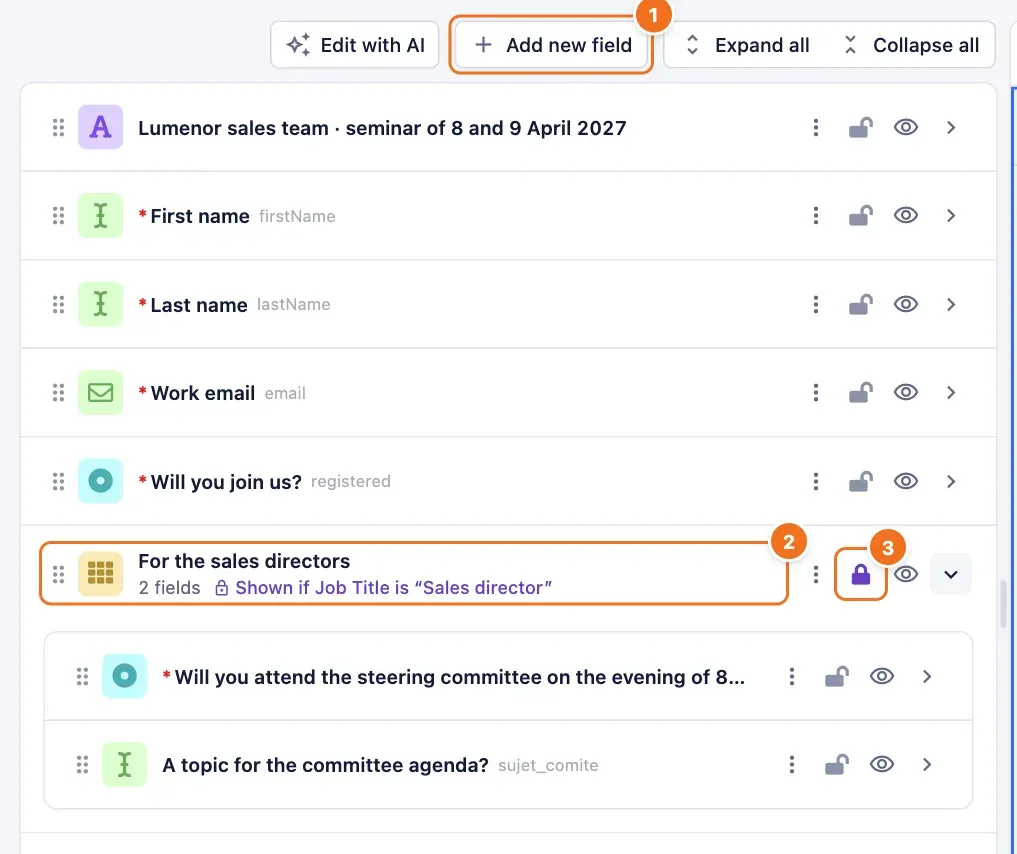
The rule appears under the group’s name, after the number of fields, as a sentence that follows the chosen operator. For example, with IS EQUAL TO…: “Shown if Job Title is “Sales director”“. With CONTAINS…: “Shown if Job Title contains “sales”“. The group’s label is only visible in the back office. For a single question, click its own padlock.
The Filter test, under the condition, shows how many people in your list match. To check how it looks, open the Preview tab and choose a participant in View as…. See Test a form using the preview.
Set a value with a hidden field
Section titled “Set a value with a hidden field”A Hidden field doesn’t appear in the form. It writes a value to the record of each person who submits the form, and other questions can read it in their condition.
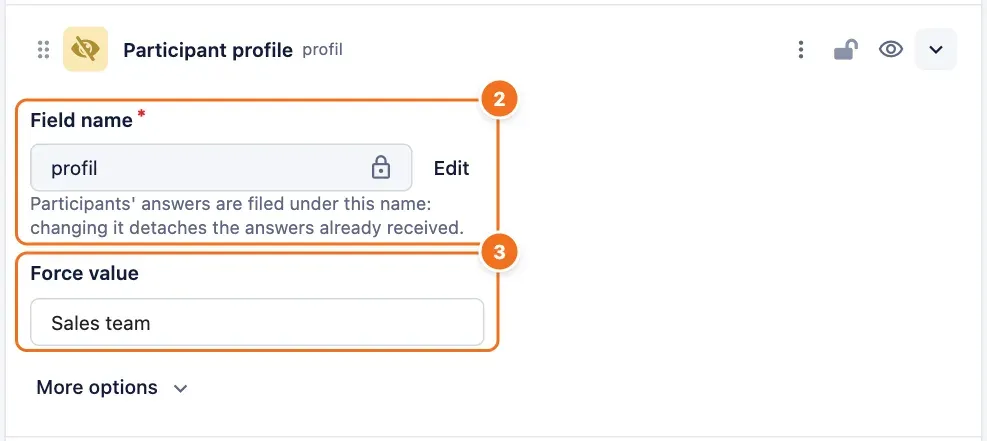
- Click Add new field, search for “hidden”, then click Hidden field.
- Open the field’s card if it’s collapsed. In Field name, enter the name under which the value is stored in the record (for example
profil). - In Force value, enter the value to set (for example “Sales team”). For a calculation, start with
=:=firstName + " " + lastName, or=nuit_8_avril === "oui" ? "Chambre à réserver" : "Sans chambre". The names to use are the small gray names to the right of each card’s title. If a card has no gray name, its title is already its name: use it as is. - Click Save. The field then appears in the list of criteria under the padlock of the other questions.
Good to know
Section titled “Good to know”- On the public link, the column is empty. A person who registers through the form’s public link has no record: for the condition, Job Title is empty. With CONTAINS… or IS EQUAL TO…, the group stays hidden; with IS NOT EQUAL TO…, DOES NOT CONTAIN…, or IS EMPTY, it’s shown instead. In that case, ask the question in the form, and base the group’s condition on the answer. A Hidden field with a fixed value only works if everyone using that form has the same profile (for example one form per profile), because it sets the same value for everyone.
- “Force value” overwrites. On every submission, the forced value replaces the one in the record, even if it was already filled in. A value left empty is ignored.
- A calculation that fails doesn’t warn you. An unreadable formula (missing parenthesis, unknown function) leaves the field empty, with no message. A misspelled question name or an empty answer doesn’t block anything either: the result may contain the word “undefined”, or the formula silently picks the other case of a “? :”. Test with a test registration, then open the participant’s record (or the list): the value only appears there if the field has a column. If it’s missing, add it with the “… fields from form” button in the Columns panel, then reopen the record. Remember to delete the test participant afterward.
- “IS EQUAL TO…” is case-sensitive, “CONTAINS…” is not. For a column typed by hand like Job Title, prefer CONTAINS….
- A hidden required field is no longer required. Its answer isn’t submitted either.
- Not all criteria are offered. The form’s questions appear under their gray name, not their label. A question of type Number, Date selector (or Date / time picker), Phone number, Slider, City, or File doesn’t appear, unless it’s also a column in your list.
- An answer that became hidden stays on the record when the participant edits their registration, as long as Erase the answers to the questions the participant no longer sees isn’t checked in the Screens tab. It’s checked by default on a form created with New form, duplicated, or cloned: that’s the case for the vast majority of forms in use. An older form may have it unchecked. Check it on yours in the Screens tab. See Customize the form screens.
If that’s not enough
Section titled “If that’s not enough”- A condition can’t read today’s date: the date operators (IS BEFORE…, IS AFTER…, IS BETWEEN…) compare a date-type column of your participant list to a fixed date that you enter. A form Date question isn’t offered as a criterion.
- To fill in an answer from a parameter in the link’s address, AppCraft makes this setting: ask your project manager.
See also
Section titled “See also”Was this page helpful?
Thanks for your feedback!
Can’t find your answer? Contact support
© AppCraft EventsAppCraft Events websiteLog inContact support