
Site and formArticle 15 of 30
Test the form with the preview
The Preview tab shows your form as your participants will see it, on desktop or mobile. It also simulates the form’s other screens: confirmation, form closed, full… This is the tab shown when you open a form. The other tabs show the same preview, smaller, to the right of their settings.
Test the form as a participant
Section titled “Test the form as a participant”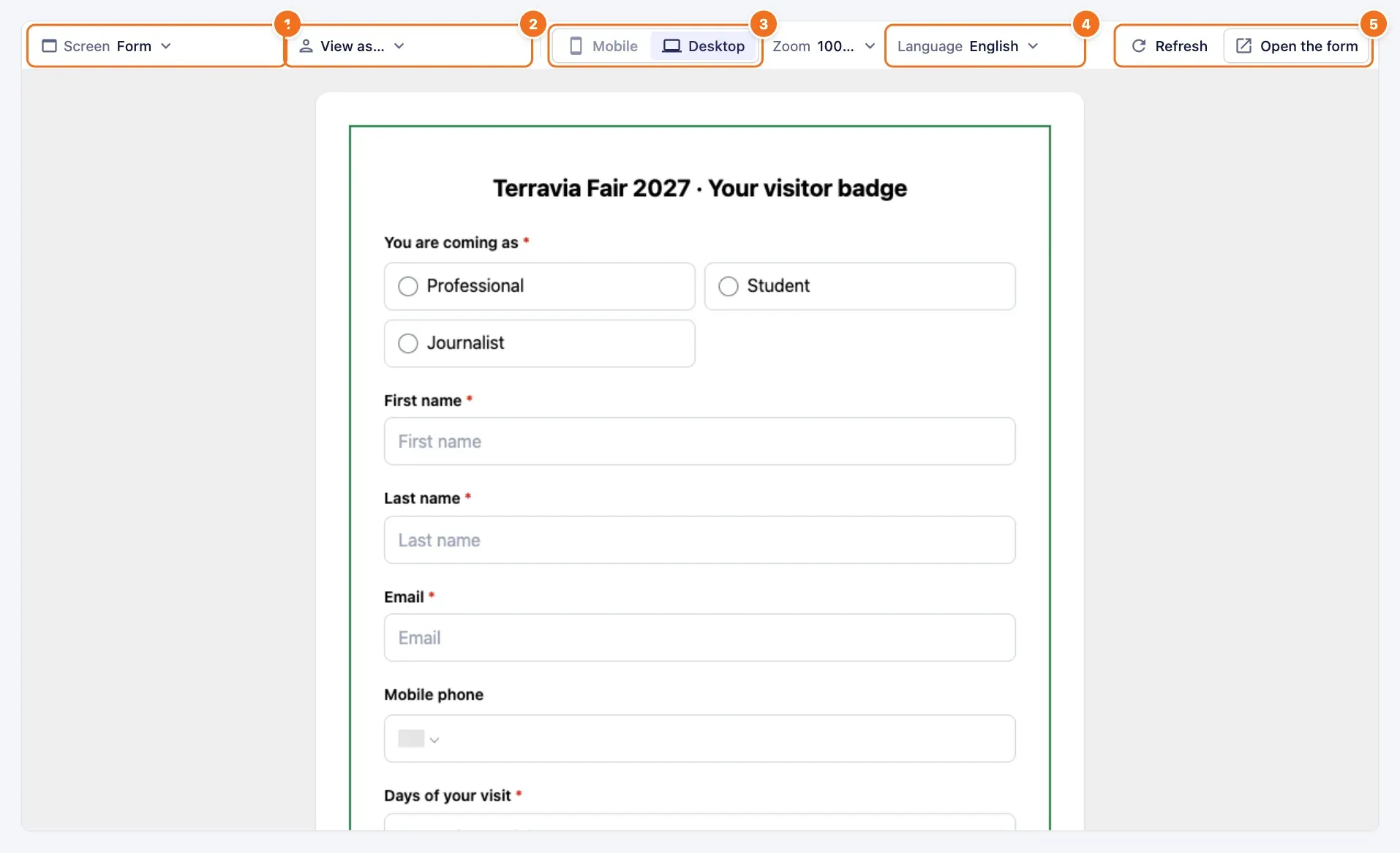
- In Screen, choose what you want to see: the real form, or one of the screens to simulate (see below).
- In View as…, choose a participant: the form reloads with their answers and conditions. No participant goes back to the blank form.
- Choose the device: Mobile or Desktop. Adjust the Zoom if needed.
- If the form exists in several languages, choose the Language shown.
- Refresh reloads the preview and clears what you typed in it. Open the form opens the saved version in a new tab, outside the back office.
The preview shows your changes as soon as you make them, even before you save. Open the form, on the other hand, shows the last saved version.
Simulate a screen
Section titled “Simulate a screen”The Screen menu offers two groups.
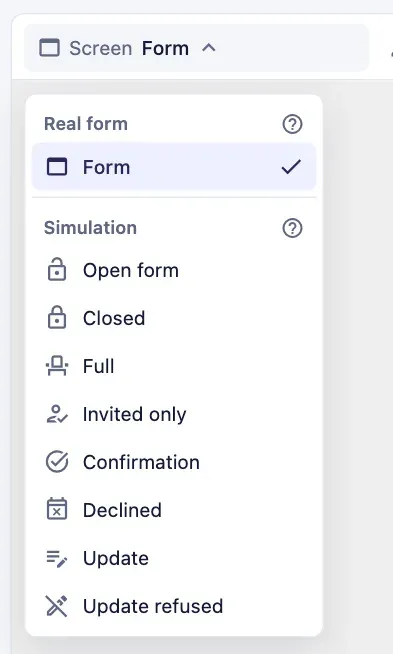
- Real form: the actual form. If you submit it from the preview, the registration is really saved and the automatic emails may be sent.
- Simulation: Open form, Closed, Full, Invited only, Confirmation, Declined, Update, Update refused. A banner reminds you that nothing you send from a simulation is saved. Back to the form leaves the simulation.
In the other tabs, the preview switches by itself to the screen of the card you are editing: the confirmation screen when you write the confirmation message, the “full” screen when you set the number of seats…
Frequently asked questions
Section titled “Frequently asked questions”Why doesn’t Open the form show my latest changes?
Section titled “Why doesn’t Open the form show my latest changes?”It shows the last saved version. Click Save at the top of the editor, then open the form again.
How do I test as a real participant without changing their answers?
Section titled “How do I test as a real participant without changing their answers?”Choose them in View as…, then a Simulation screen, for example Open form: nothing you send from a simulation is saved.
See also
Section titled “See also”Was this page helpful?
Thanks for your feedback!
Can’t find your answer? Contact support
© AppCraft EventsAppCraft Events websiteLog inContact support