
Site and formArticle 18 of 30
Restrict registration to the people you invited
Check Restrict the form to invited guests, then send each guest their personal link from the Mailing module. The form’s public link lets no one in: it shows the “not invited” message, even to your guests.
Before you begin
Section titled “Before you begin”- Your guests are in the Participants list. The form only recognizes people on this list. See Import or update participants.
- In Mailing, create an invitation email template with a Button block: no invitation template is provided by default. See Create and edit an email template.
Restrict the form to your guests
Section titled “Restrict the form to your guests”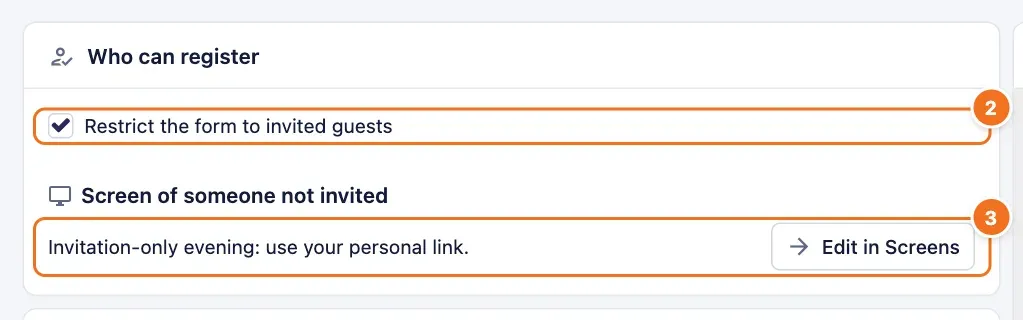
- Open your form, then the Settings tab.
- Under Who can register, check Restrict the form to invited guests.
- Under Screen of someone not invited, click Edit in Screens: the Screens tab opens on the If they are not invited card. Write the Message shown to someone not invited. If you leave it empty, the form shows “Inscriptions réservées aux invités” (“Limited to invited users” on a form in English).
- Click Save.
Send each guest their personal link
Section titled “Send each guest their personal link”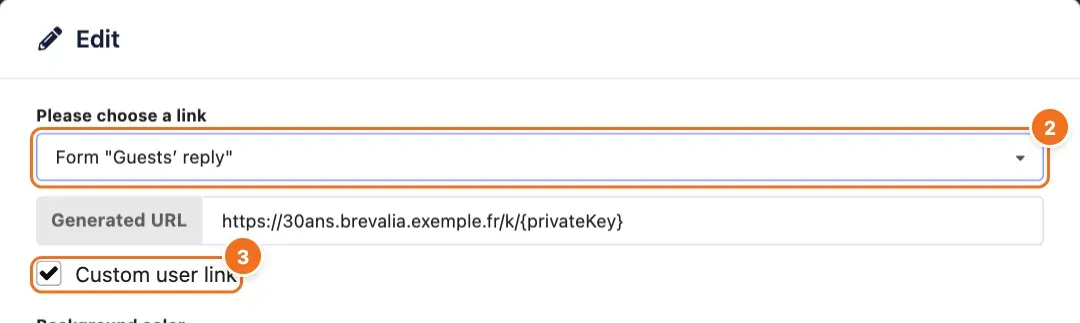
- In Mailing, open your email template, Mail content tab. Hover over the invitation button: a small icon bar appears on the right of the block. Click the gear.
- Under Please choose a link, choose your form.
- Make sure Custom user link is checked. The Generated URL then ends with
/k/{privateKey}: each guest receives a link that carries their own key. - Click Apply (or Add if you just created the button), then Save.
Good to know
Section titled “Good to know”- The public link lets no one in. On the form’s address without
/k/…, your guests see the same “not invited” message as everyone else. They are not redirected: always put the personal link in your emails. - A wrong or outdated personal link shows a different message, in English: “You don’t have access to this registration form”. It appears when the key is unknown: the link was cut off in the email, or the person was removed from the Participants list. You can’t edit this message. If a guest writes to you, open their record in the Participants list: if they aren’t there, the link won’t work. Otherwise, compare the end of the link in their email with their personal key: the link must end with
/k/followed by that key. To show the key in the list, see Special Columns. A record filed in a collection other than the form’s also triggers this message. - Exceptions follow the personal link, not the form’s dates. The opening and closing dates apply to everyone, with or without a personal link. An exception based on a condition (for example, “Always open for” the VIP category), with any dates of its own, only recognizes the person on their personal link. On the public link, no one is identified: a condition about the person is never met. Be careful with “Everyone” exceptions and negative conditions (for example, “category is not VIP”): they also apply on the public link. See Make an exception.
- The link is personal. A person who passes it on gives access to their own record, with the answers already saved.
- Linking is for forms open to everyone, not this one. The Link to their invitation a guest who registers without their personal link box (Settings tab, Duplicates card) compares the email address entered with the one in your list. If a record with the Invited status has the same address, it is updated instead of creating a duplicate. With a different address, the person isn’t linked: they become a duplicate. The box is checked when a form is created, including when you duplicate a form or clone an event. A form created a long time ago may have it unchecked: check it in the Settings tab, Duplicates card.
If this isn’t enough
Section titled “If this isn’t enough”- You want guests to be able to register without their link too. Don’t check Restrict the form to invited guests: the form is no longer restricted to your guests, and anyone with the address can register (within your opening dates and the maximum number of registrants). Keep Link to their invitation… checked, and still send the personal link. A person who registers with the address from your list is linked to their record.
- You want to change the message for a wrong link. AppCraft makes this change: ask your project manager.
See also
Section titled “See also”Was this page helpful?
Thanks for your feedback!
Can’t find your answer? Contact support
© AppCraft EventsAppCraft Events websiteLog inContact support