
ParticipantsArticle 12 of 12
Track the source of registrations with UTM links
A UTM parameter is added to the end of a link to track where your registered participants come from: LinkedIn, an email campaign, a partner, etc. AppCraft Events saves these parameters in the participant database.
Example: https://www.exemple.fr/inscription?utm_source=linkedin&utm_medium=social&utm_campaign=lancement
What does each setting mean?
Section titled “What does each setting mean?”| Columns | Role | Example |
|---|---|---|
utm_source |
The exact source | LinkedIn, newsletter |
utm_medium |
Channel | social, email, display |
utm_campaign |
The campaign | launch, day-7 follow-up |
utm_term |
The keyword | Lyon Convention |
utm_content |
Content Variation | top button, banner |
How do you add UTM columns to the database?
Section titled “How do you add UTM columns to the database?”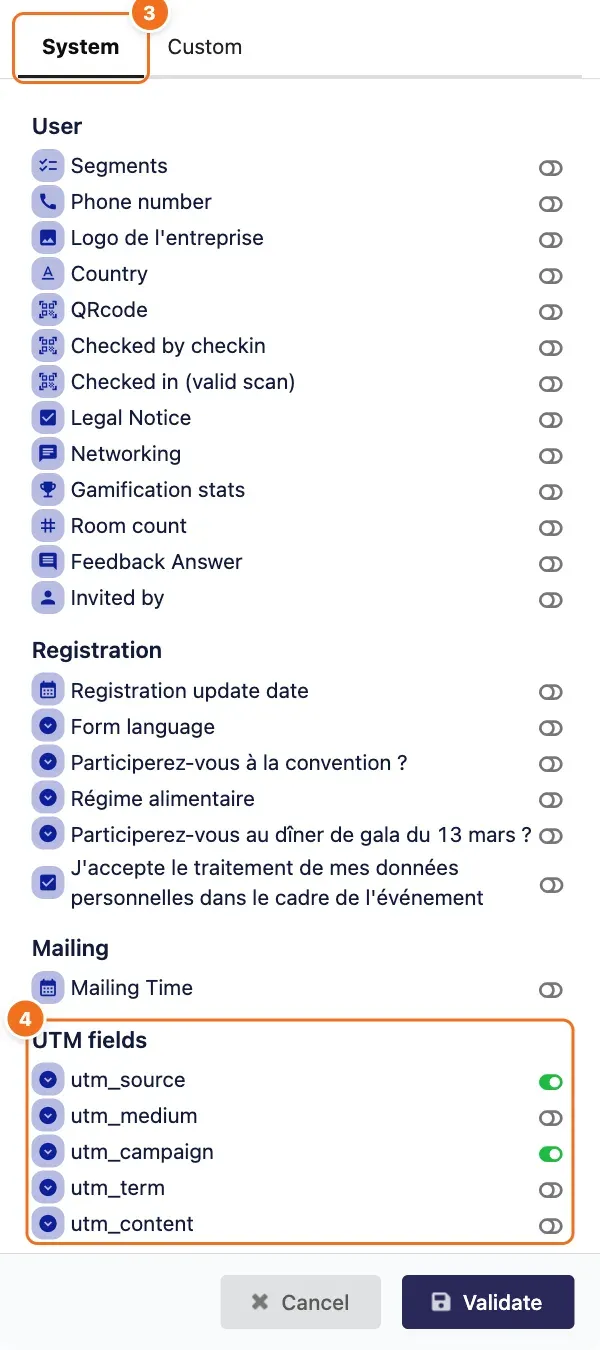
- In the Participants database, click More actions, then Update columns.
- Click Add.
- In the System tab, locate the UTM fields category.
- Select the columns to add, then validate.
See also
Section titled “See also”Was this page helpful?
Thanks for your feedback!
Can’t find your answer? Contact support
© AppCraft EventsAppCraft Events websiteLog inContact support