
Site and formArticle 19 of 30
Let your guests reply "I'm coming" or "I'm not coming"
Add the Registration field to the form: the person answers Coming or Not coming, two answers you can rename “I’m coming” and “I’m not coming”. In an email, a personal link ending in ?registered=YES or ?registered=NO opens the form with the answer already chosen. The person only has to confirm.
Ask the question in the form
Section titled “Ask the question in the form”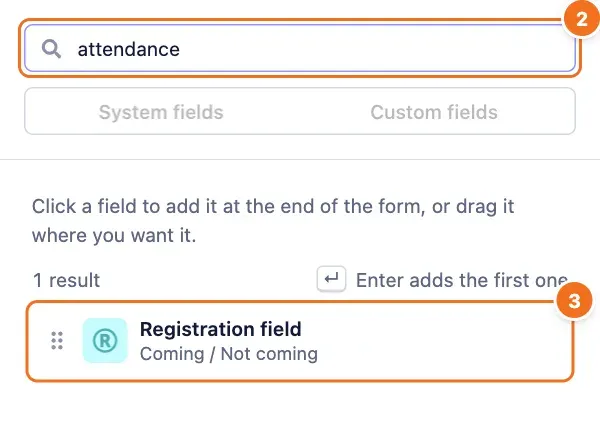
- In the Questions tab, click Add new field.
- Search for “attendance”.
- Click Registration field.
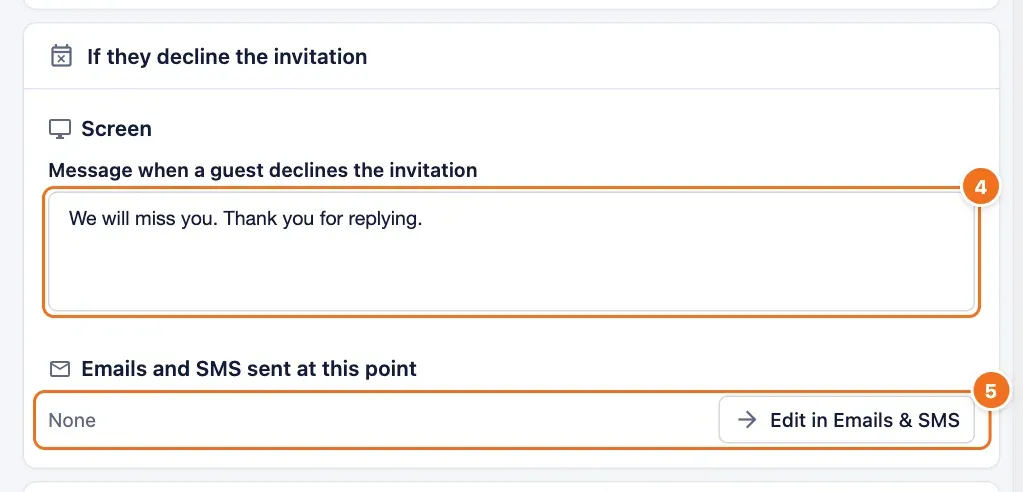
- In the Screens tab, If they decline the invitation card, write the Message when a guest declines the invitation.
- Under Emails and SMS sent at this point, click Edit in Emails & SMS, then choose the email When a guest declines the invitation.
Then click Save.
Put both answers in an email
Section titled “Put both answers in an email”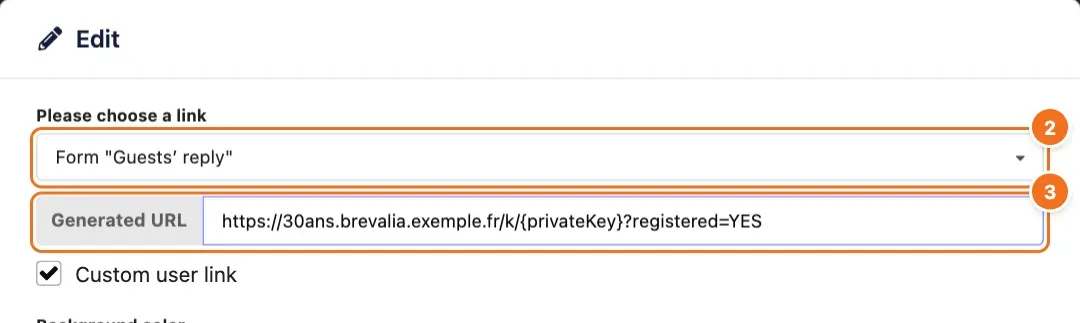
- In Mailing, open your email template, Mail content tab. Add two buttons: “I’m coming” and “I’m not coming”. For each one, hover over the button: a small icon bar appears on the right of the block. Click the gear.
- Under Please choose a link, choose your form. Make sure Custom user link is checked.
- In Generated URL, add
?registered=YESat the end for “I’m coming”, or?registered=NOfor “I’m not coming”. The address becomeshttps://…/k/{privateKey}?registered=YES. WriteYESandNOin capital letters. - Click Apply (or Add if you just created the button), then Save at the top of the screen.
With an external emailing tool, build the address yourself: the form’s address, /k/, the person’s personal key, then ?registered=YES or ?registered=NO. To show this key in the participants list, see Special Columns.
Good to know
Section titled “Good to know”- There is no “Cancel” button. A person who declines answers “Not coming”: their status becomes Won’t come, never Canceled. Their spot is freed, because the maximum only counts people with the Registered status. If they had chosen workshops, those are removed.
- The email link doesn’t answer for the person. It opens the form with the chosen answer. Nothing is saved until they click the submit button.
- Two answers, two emails. “I’m coming” sends the Registration confirmation (or, if moderation is on, the Registration awaiting moderation email); “I’m not coming” sends the email chosen in When a guest declines the invitation. If left on Don’t send an email, nothing is sent: the form doesn’t fall back to the confirmation.
- The person can change their mind through their personal link, as long as changes are allowed. In “Form” mode (the default), the link reopens the form directly. With “Summary with edit button” or “Update button”, they click the button first. With “Summary only” or “Form’s update unauthorized”, they can’t change anything. For them to do it from the confirmation page, write the Text of the button to change one’s registration (If they come back to change their registration card): if it’s empty, there is no button. If they switch back to “I’m coming”, their status goes back to Registered, or To moderate if moderation is on (unless the person meets the “Automatically validate if” condition or “Do not moderate guests” applies: they are then directly Registered). On a form with payment, they go to Pending until they pay.
- The “Form’s update unauthorized” mode also blocks this change, like a closed form. The person then sees the message for a refused change or a closed form, and their answer stays as it was. If the maximum number is reached, a person who goes from “I’m not coming” to “I’m coming” gets the “full” message (the one in the “Message shown when full or closed” field): their answer isn’t saved and they stay Won’t come. With moderation on, this check doesn’t apply: they go to To moderate, even if the form is full, and the spot is decided at validation.
- Companions don’t follow, unless AppCraft sets it up. When the guest goes to Won’t come, their companions keep their status. If you want them to go to Won’t come along with the guest, ask your project manager for this setting. After an answer changes, check them in the Participants list. See Register companions with a guest.
- On a form restricted to invited guests, the link must be personal. With the public address, even followed by
?registered=YES, the person sees the “not invited” message. See Restrict registration to the people you invited.
If this isn’t enough
Section titled “If this isn’t enough”- You want to pre-fill other answers through the link, such as the menu: only the attendance answer can be pre-filled. AppCraft makes this change: ask your project manager.
- You want one click to be enough to save the answer. This doesn’t exist: the person always confirms in the form. Keep it short by showing the other questions only to those who are coming. See Show an element conditionally.
See also
Section titled “See also”Was this page helpful?
Thanks for your feedback!
Can’t find your answer? Contact support
© AppCraft EventsAppCraft Events websiteLog inContact support