
InteractionArticle 11 of 17
Manually award badges
Badges are automatically unlocked when participants complete the required actions. You can also award them yourself from the back office, for example, to reward an on-site action: participation in an in-person workshop, winning a game, or visiting a booth.
Before you begin
Section titled “Before you begin”- Badges must exist and be published. See Create Gamification Badges.
- The Gamification stats column in the participant list shows the number of badges each participant has earned.
Assign a badge to multiple participants
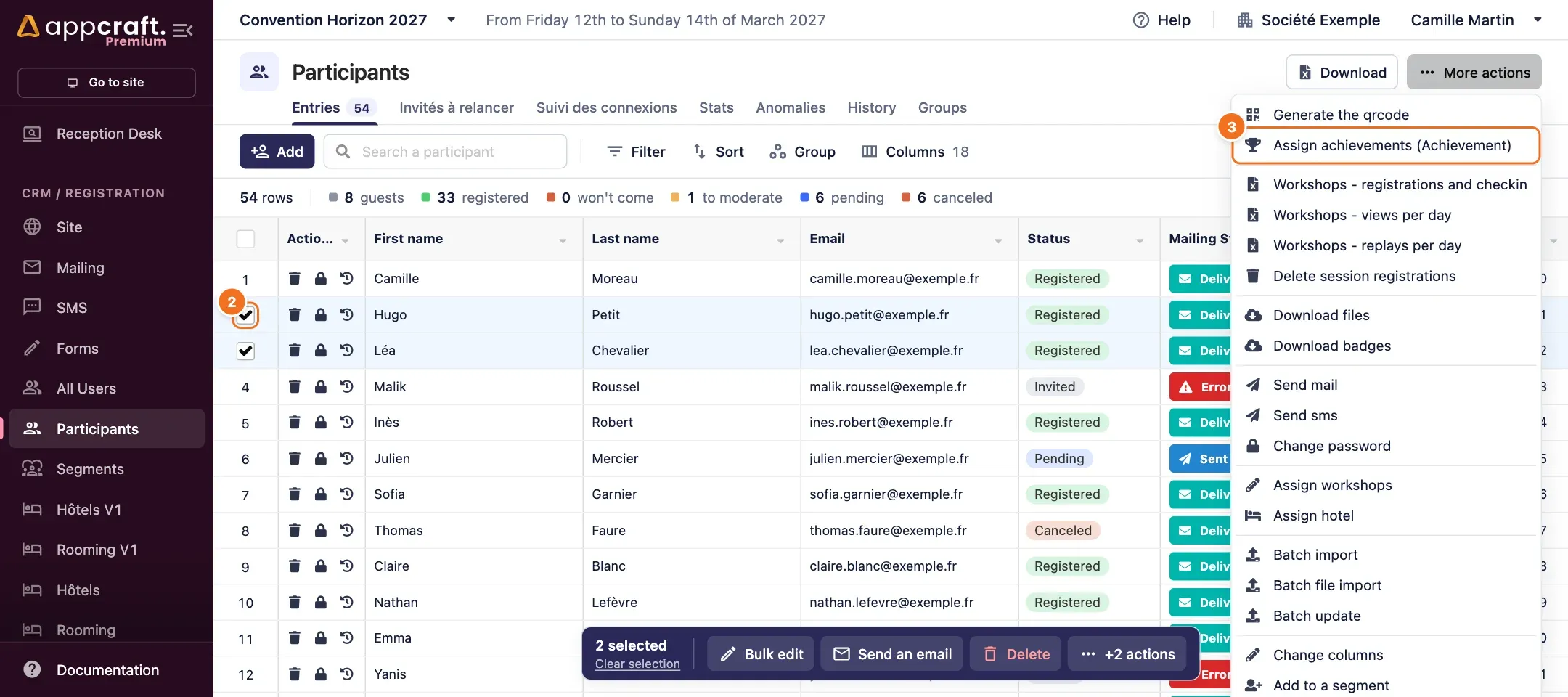
Section titled “Assign a badge to multiple participants”- In the menu, open the list of participants (CRM / Registration section).
- Check the boxes next to the relevant participants.
- Open the More actions menu in the top right, then click Assign Badges (Achievements).
- In the window, select one or more badges. The category names, which are grayed out, serve as references.
- Click Save, then confirm by clicking Assign.
Assigned badges count toward the ranking, just like automaticly unlocked badges.
Remove a badge
Section titled “Remove a badge”A badge can be revoked from the Gamification module:
- in the Achievement tab, click the Unlock badge button, then click the trash can icon in the participant’s row;
- or in the Stats tab, under the Recently Unlocked Badges table, using the trash can icon in the row.
See also
Section titled “See also”Was this page helpful?
Thanks for your feedback!
Can’t find your answer? Contact support
© AppCraft EventsAppCraft Events websiteLog inContact support