
Site and formArticle 21 of 30
Register companions with a guest
Add the Companions field: each companion declared becomes a full participant, with their own record in the Participants list, linked to the person who registers them. They count toward the spots. The To each registered companion email is only sent if you have chosen a template for it; without a template, registration sends them nothing. The form’s other emails (resent confirmation, update) can reach them like any participant, if they have an address.
Before you begin
Section titled “Before you begin”The Companions field requires the Companions module. If it isn’t enabled on your event, the field doesn’t appear in the Add new field list, and no message explains why. Ask your project manager to enable it.
Add the Companions field
Section titled “Add the Companions field”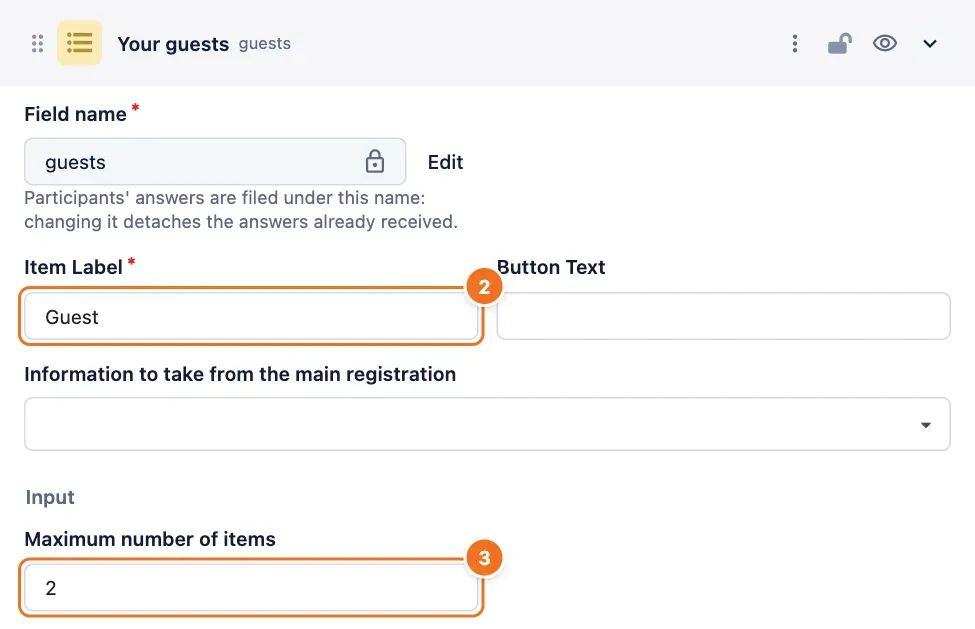
- In the Questions tab, click Add new field, search for “companions”, then click Companions.
- Open the field’s card. In Item Label, write what a companion is called in your form, for example “Companion”.
- Click More options, then in Maximum number of items, limit the number of companions per person. The form refuses a submission with more.
- Click Save.
Choose the companion’s email and duplicates
Section titled “Choose the companion’s email and duplicates”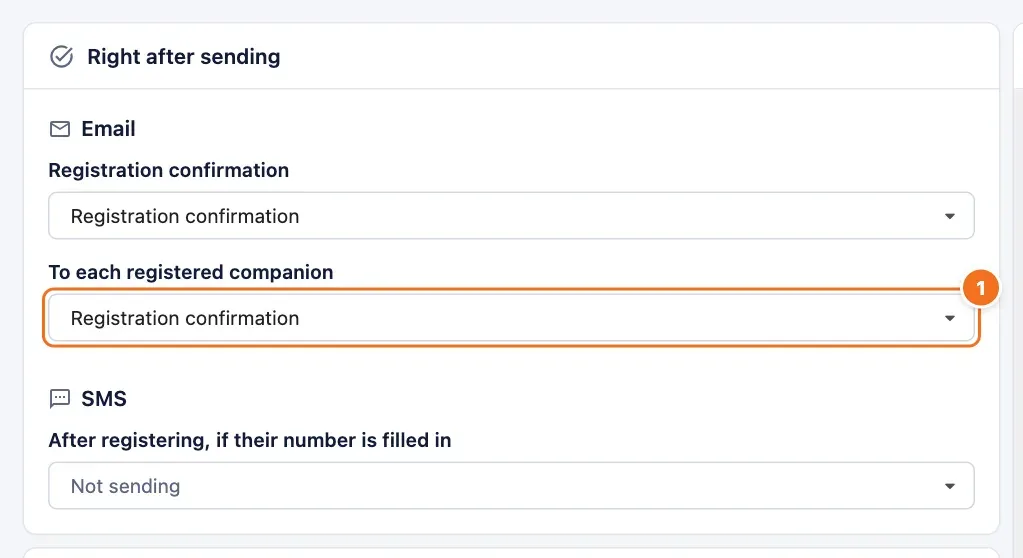
- In the Emails & SMS tab, Right after sending card, choose the email template in To each registered companion.
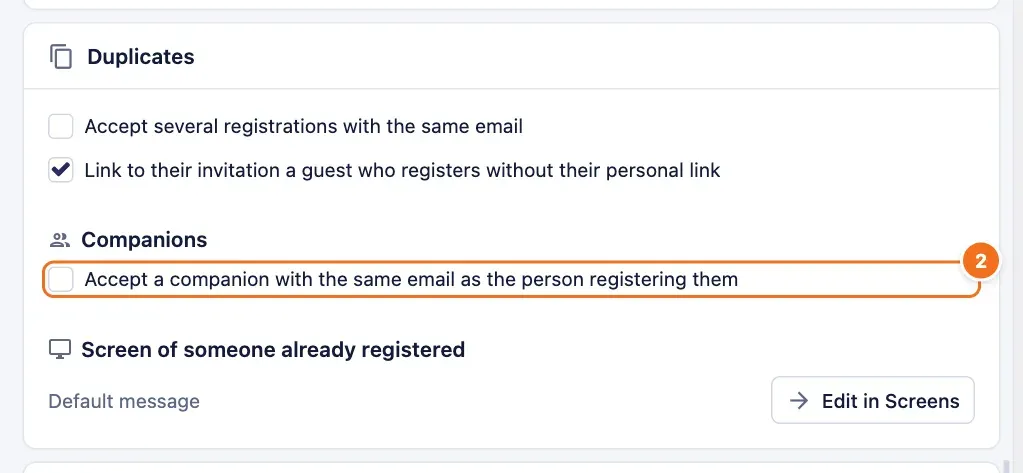
- In the Settings tab, Duplicates card, Companions group, uncheck Accept a companion with the same email as the person registering them to refuse duplicates. To write the message, click Edit in Screens: in the If they are already registered card, Companions group (visible when the form has companions), the field is Message shown when a companion is already registered. It is only used if companion duplicates are refused in Settings.
Then click Save.
Good to know
Section titled “Good to know”- A companion is a full participant. Their record appears in Participants. To see who registered them, add the Invited by column (Columns button, system fields): it shows the name of the person who registers them. They count toward the Maximum number of registrants: a registration of three people is refused if only two spots are left.
- Their status doesn’t always follow the guest’s. When created, the companion is Registered. They take the guest’s status only if it is Pending, To moderate, or In progress. After that, when you change the guest’s status in Participants (validate, refuse), their companions’ status doesn’t follow: check it in Participants. With the Orders module, it’s different: when you validate or cancel the guest’s order, their companions take the same status, unless Do not tie a companion’s status to the one of the person registering them is checked.
- The status can become independent. With the Orders module, the Do not tie a companion’s status to the one of the person registering them box (Orders and payment card in the Settings tab) gives new companions the field’s default status, Registered, whatever the guest’s status.
- The companion only receives an email under three conditions. They have an email address, a template is chosen in To each registered companion, and they are a new companion. One the guest adds by editing their registration receives their email; those already registered don’t receive it a second time.
- To write to the companion on the guest’s behalf, type
{parent.firstName}(first name) or{parent.lastName}(last name) directly in the template text: the list that opens when you type { doesn’t suggest them. They are replaced when sent by the data of the person who registered the companion. - Duplicates are accepted until you uncheck the box. Once unchecked, the form refuses a companion whose address is already that of a participant, the guest, or another companion. A companion without an address isn’t checked.
- Using the same address for the guest and their companion mixes up the emails. Each record receives its email in the same inbox, with its own personal link: someone may open the other person’s record.
- Removing a companion from the form removes them from the list. If the guest removes a companion by editing their registration, the companion’s record is removed from the Participants list.
- If the guest replies “I’m not coming”, their companions don’t go to Won’t come, unless AppCraft sets it up (see below). See Let your guests reply “I’m coming” or “I’m not coming”.
If this isn’t enough
Section titled “If this isn’t enough”- You want companions to go to Won’t come when the guest declines. AppCraft makes this change: ask your project manager.
- You want to copy a piece of the guest’s information into the companion’s record, such as their company. Open the field’s card and choose it in Information to take from the main registration.
- You want a free-form list, without participant records. On the Premium plan, add the List item field, open its card and, in Where to save the items, choose In the answer only, without creating a participant: without this choice, each item becomes a participant. See Building the form: advanced fields.
See also
Section titled “See also”Was this page helpful?
Thanks for your feedback!
Can’t find your answer? Contact support
© AppCraft EventsAppCraft Events websiteLog inContact support