
ParticipantsArticle 11 of 12
Moderate registrations
With moderation, each registration stays pending until you accept or reject it from the back office. This is useful for an invitation-only event.
Before you begin
Section titled “Before you begin”Moderation is an option, sometimes at an extra cost depending on your plan. Contact your project manager to enable it.
Enable moderation on a form
Section titled “Enable moderation on a form”- In Forms, open your form, Settings tab.
- In Moderation of registrations, check Enable registration moderation.
- If needed, check Do not moderate guests, or define a condition in Automatically validate if.
- Click Save.
Accept or reject a registration
Section titled “Accept or reject a registration”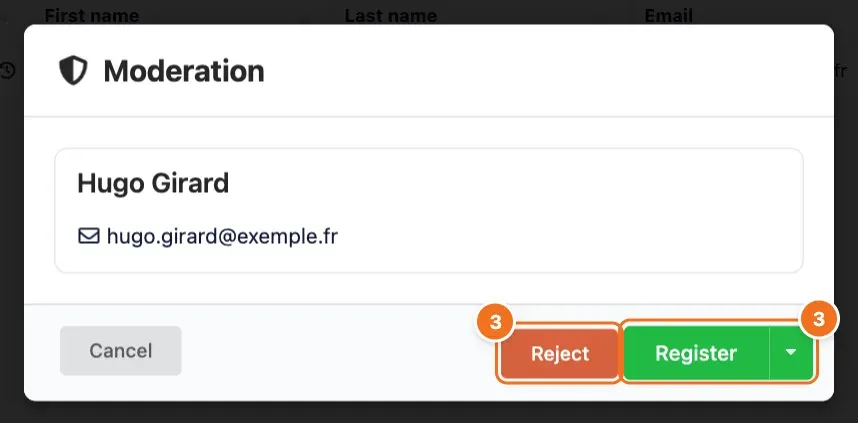
- In the Participants database, find the registrations with the To moderate status.
- Click the status: the moderation window opens.
- Click Register to accept, or Reject to decline.
Notify the participant by email
Section titled “Notify the participant by email”The participant can receive up to three emails:
- At registration: an email tells them their request is pending. Choose it in the form’s Emails & SMS tab, Right after sending card, Registration awaiting moderation row. If left empty, no email is sent.
- When you decide: an acceptance or rejection email. Schedule them in Mailing > Scheduled > Schedule sending, with the triggers On moderation validated and On moderation rejected. See Schedule sending of an email.
- On a change: once their request is accepted, if the participant changes their registration, they receive the After a change email from the If they come back to change their registration card, in the form’s Emails & SMS tab. As long as their request is To moderate, a change sends them the Registration awaiting moderation email from point 1 again.
See also
Section titled “See also”Was this page helpful?
Thanks for your feedback!
Can’t find your answer? Contact support
© AppCraft EventsAppCraft Events websiteLog inContact support