
Check-inArticle 4 of 5
Scan contacts with Leadgen
Leadgen allows exhibitors to collect contacts at their booths: their staff scan the QR code on visitors’ badges using the AppCraft Leadgen app and add a note or comment. You can track these contacts in the back office, by exhibitor, and export them.
Before you begin
Section titled “Before you begin”- The Leadgen module is located in the Checkin section of the menu. If you don’t see this menu, ask your project manager to enable it.
- Exhibitors and their collaborators must be set up in the back office. Each collaborator is assigned to a specific exhibitor: see Manage Exhibitors and Partners.
- Visitors need a badge with a QR code: see Create and Print Badges.
The module has three tabs: Dashboard, Scans, and Configuration.
Track contacts by exhibitor
Section titled “Track contacts by exhibitor”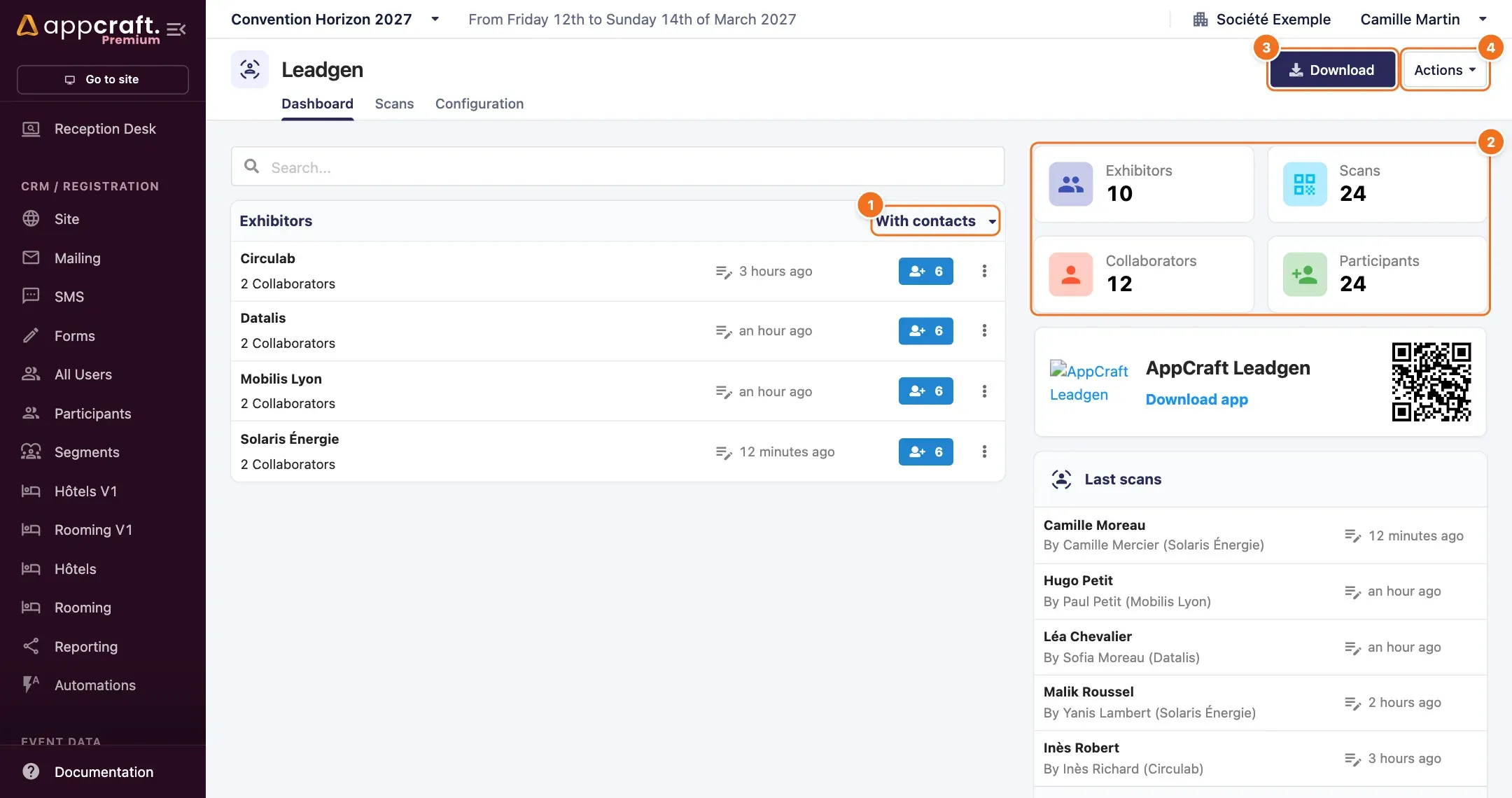
The Dashboard tab shows a list of exhibitors, showing for each one the number of collaborators, the time of the last scan, and the number of contacts.
- The menu at the top of the list filters exhibitors: All, With Contacts, or Without Contacts. Without Contacts highlights booths that are not yet using the app. The Search… field lets you find an exhibitor by name.
- On the right, the counters show the number of exhibitors, scans, collaborators, and scanned participants. The Latest Scans section displays the five most recent contacts collected, along with the collaborator who scanned them.
- Download exports all contacts to an Excel file.
- The Actions menu offers:
- Download contacts by exhibitor: one file per exhibitor, to be sent to each exhibitor after the show;
- Download exhibitor lists with PIN codes: a list of each exhibitor’s collaborators, including their email addresses and PIN codes;
- Delete all contacts.
Click on an exhibitor to open their contact list, which includes the scan date and the answers entered by their collaborators. The Export button in this window downloads only their contacts. The … menu on their row also offers the option to Download Contacts.
The AppCraft Leadgen block on the dashboard provides the link and QR code for downloading the app, which you can share with exhibitors.
View all scans
Section titled “View all scans”The Scans tab shows all contacts in a table: scan date, first name, last name, email, and job title of the visitor; the exhibitor and staff member who performed the scan; and any responses entered. You can search, filter, group, and choose columns within this tab.
- The Download option exports the checked rows, or the entire table if nothing is checked.
- The … menu offers options to Download Contacts by Exhibitor and Delete All Contacts.
Set up the app
Section titled “Set up the app”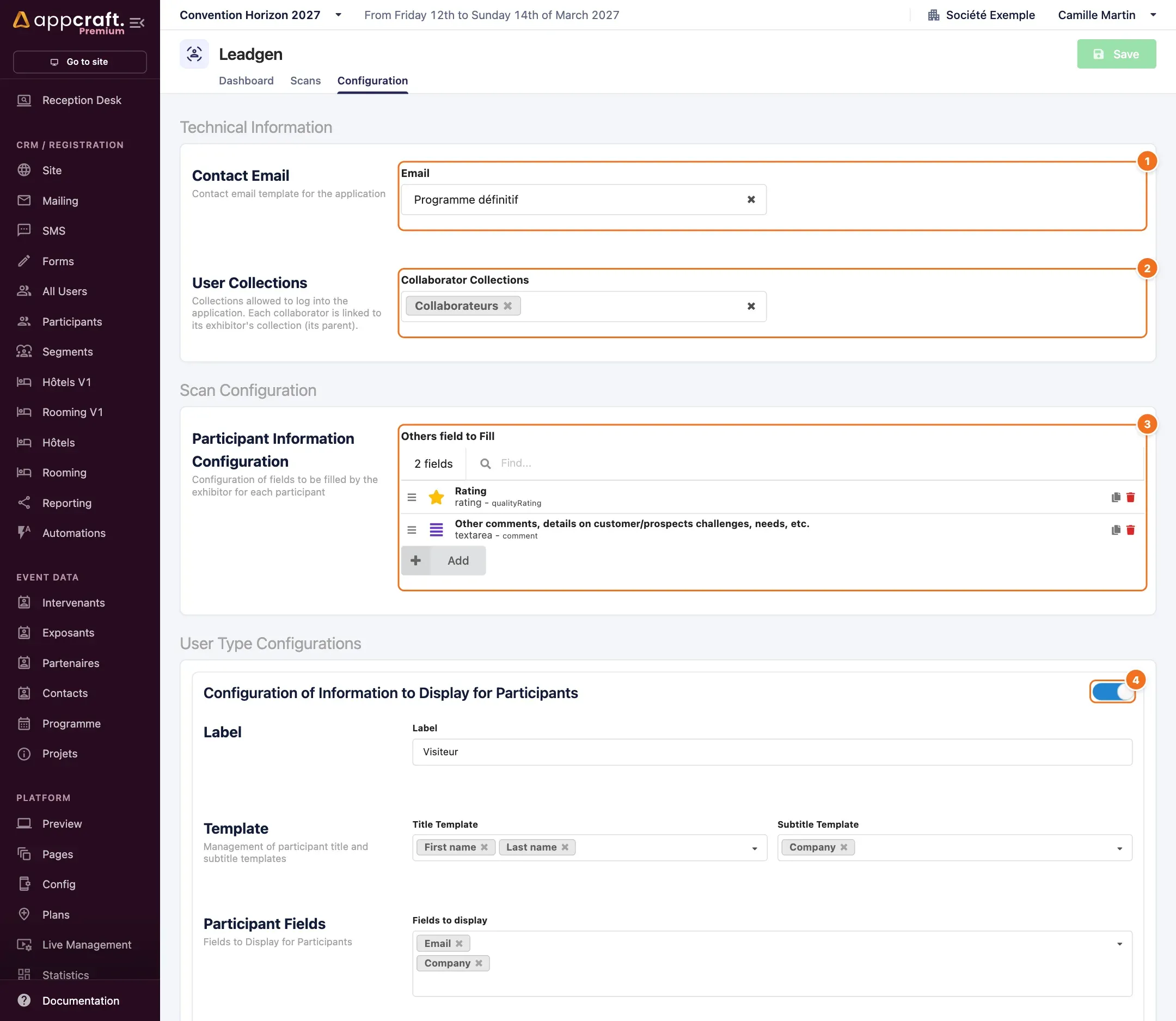
- Contact email: Choose the email template sent from the app to the scanned visitor—for example, to send them the exhibitor’s materials. The template is created in Mailing: see Create and Edit an Email Template.
- User Collections: Collections of collaborators allowed to log in to the app. Each collaborator is assigned to their exhibitor’s collection. You can choose multiple collections.
- Configure participant information to add: the questions the exhibitor fills out for each contact. By default, a rating and a free-form comment. Click Add to include other fields: level of interest, relevant product, follow-up action, etc.
- User type settings: Enable each collection that can be scanned, such as attendees. For each one, configure:
- the label shown in the app;
- the Title Template and Subtitle Template for each contact, for example, the name followed by the company name;
- Fields to show to exhibitors after the scan.
The Design section lets you set the app’s primary color, banner, and logo.
Click Save.
Frequently Asked Questions
Section titled “Frequently Asked Questions”How do collaborators log in to the app?
Section titled “How do collaborators log in to the app?”Including their email addresses and PIN codes. Export them via Actions > Download Exhibitors with PIN Codes, then provide each exhibitor with access information for their collaborators.
How is this different from check-in?
Section titled “How is this different from check-in?”Check-in tracks attendees’ attendance at the entrance or during a session for you. Leadgen collects contacts for exhibitors: a single visitor can be scanned at multiple booths. See Organizing Sign-In with Check-In.
See also
Section titled “See also”Was this page helpful?
Thanks for your feedback!
Can’t find your answer? Contact support
© AppCraft EventsAppCraft Events websiteLog inContact support