
CommunicationArticle 8 of 13
Send an email or text message to participants
From the participant list, you can send an email or text message template to a select group of people without using the Mailing module. This is useful for a targeted follow-up or a one-time message.
Before you begin
Section titled “Before you begin”- The template to be sent must exist in Mailing (or SMS for a text message).
- Sending text messages requires the SMS module to be enabled for your event.
Select recipients
Section titled “Select recipients”- Open the collection—for example, Participants.
- Check the boxes next to the people you want to contact. To select all, check the box in the top Left corner of the table.
A selection bar appears at the bottom of the table, showing the number of people selected.
Send an email
Section titled “Send an email”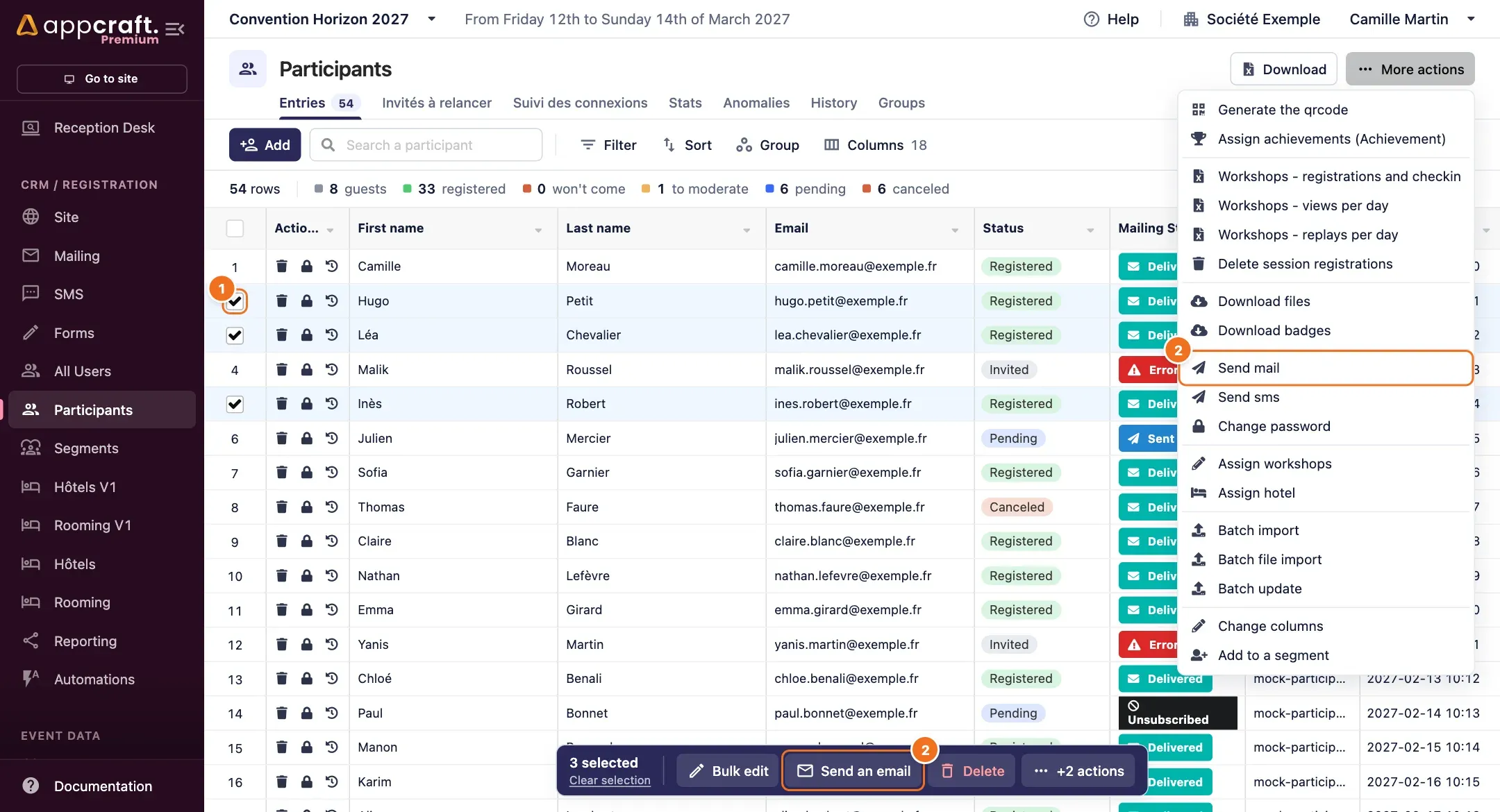
- Check the recipients.
- Click Send an email in the selection bar. You can also find Send an email in the More actions menu.
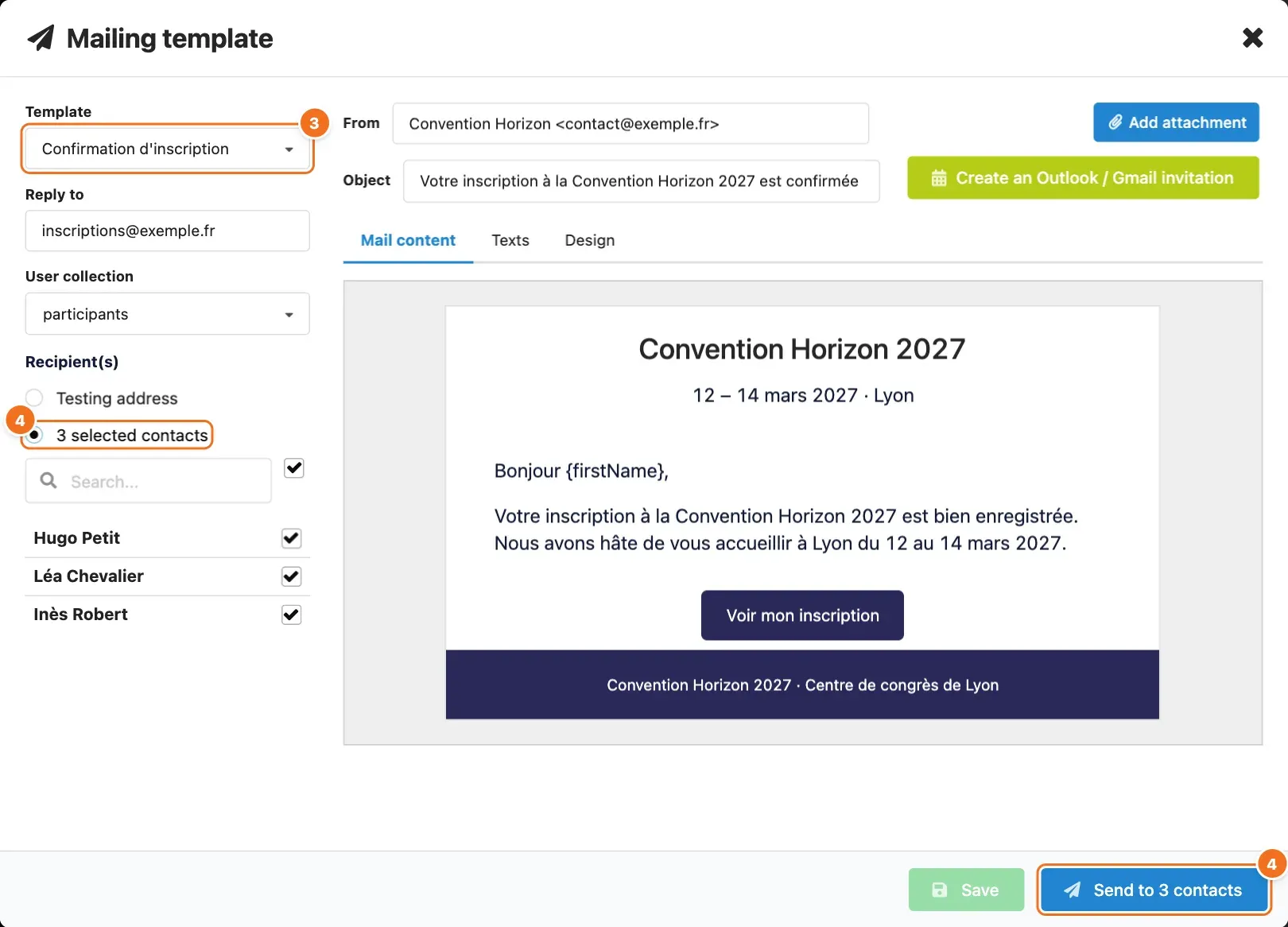
- In the Mailing template window, choose the template from the Template list.
- Make sure N selected contacts is checked under Recipient(s), then click Send to N contacts.
Send SMS Recap
Section titled “Send SMS Recap”- Check the recipients.
- Open the More actions menu, then click Send sms.
- In the Send SMS Recap window, choose the template from the Template list.
- Check the recipients, then click Send to N contacts and confirm.
Send activation mail
Section titled “Send activation mail”The activation email allows a participant to create a password to access the platform. It is sent one by one using the Send Activation Mail icon in the Actions column.
If the icon isn’t visible, add it to the Actions on user column (see Customize Participant Columns).
Frequently Asked Questions
Section titled “Frequently Asked Questions”Where can I track sent messages?
Section titled “Where can I track sent messages?”In the Mailing module, or in a Mailing Status column added to your participant list.
The “Send SMS” button is grayed out. Why?
Section titled “The “Send SMS” button is grayed out. Why?”None of the rows are checked. Sending actions require at least one participant to be selected.
See also
Section titled “See also”Was this page helpful?
Thanks for your feedback!
Can’t find your answer? Contact support
© AppCraft EventsAppCraft Events websiteLog inContact support