
CommunicationArticle 13 of 13
Frequently Asked Questions About SMS
This page answers the most common questions about the SMS module: tracking your messages and testing an SMS before a campaign.
Where can I view my SMS statistics?
Section titled “Where can I view my SMS statistics?”Open SMS in the menu, under the Templates tab. At the top of the page, a summary block shows:
- SMS sent ;
- Used credits ;
- Scheduled.
The dropdown menu in the block lets you switch from viewing all templates (All) to viewing a single template. In the right-hand column, Shortly scheduled and Recently sent show upcoming and recent messages.
For detailed information on each individual message, open the Messages tab. The status of each SMS is shown there: Delivered, Failed, Missing number, etc.
How can I send myself a test text message?
Section titled “How can I send myself a test text message?”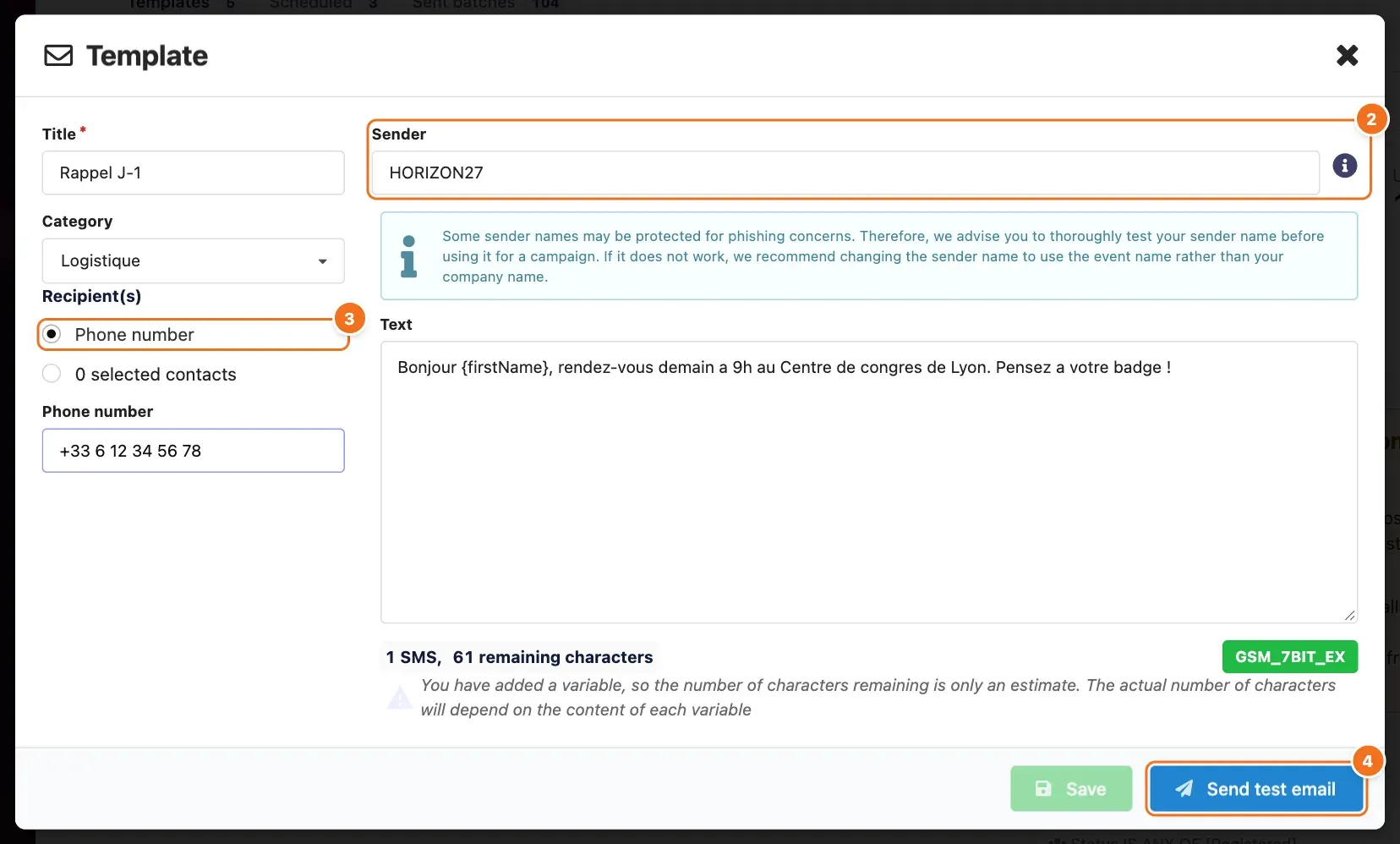
- In SMS > Templates, click Create a new template, or open an existing template.
- Enter the title, sender, and message text, then click Save.
- Under Recipient(s), check the Phone number box. Your number is pre-filled; edit it if necessary.
- Click on Send test email.
How much does an SMS cost?
Section titled “How much does an SMS cost?”In France, a short SMS (fewer than 160 characters) costs 1 credit, and a long SMS costs 2 credits. When sending to other countries, the cost of a long SMS varies. A summary of rates is shown in the Templates tab, and the number of remaining characters is shown below the SMS text.
My sender name isn’t showing up—why?
Section titled “My sender name isn’t showing up—why?”The sender name must be between 3 and 11 characters long, start with a letter, and not contain a phone number. Some company names are protected by carriers: test your sender name with a test message before the campaign, and use the event’s name if you encounter any issues.
See also
Section titled “See also”Was this page helpful?
Thanks for your feedback!
Can’t find your answer? Contact support
© AppCraft EventsAppCraft Events websiteLog inContact support