
Site and formArticle 24 of 30
Automatically approve some profiles and moderate the others
With moderation, a registration waits for your decision. The Automatically validate if condition accepts trusted profiles right away, for example your company’s email addresses. The others stay To moderate: a waiting email is sent to them when they register, then an automatic send from the Mailing module notifies them of your decision. For the basics of moderation, see Moderate registrations.
Before you begin
Section titled “Before you begin”- The Moderation module must be enabled on your event. Without it, the Moderation of registrations card doesn’t appear in the Settings tab, and the On moderation validated and On moderation rejected sends are missing from the Mailing module. If you don’t see this card, ask your project manager to enable it.
- Prepare three email templates in Mailing: waiting, acceptance, and refusal. See Create and edit an email template.
Automatically approve certain profiles
Section titled “Automatically approve certain profiles”- Open the form, Settings tab.
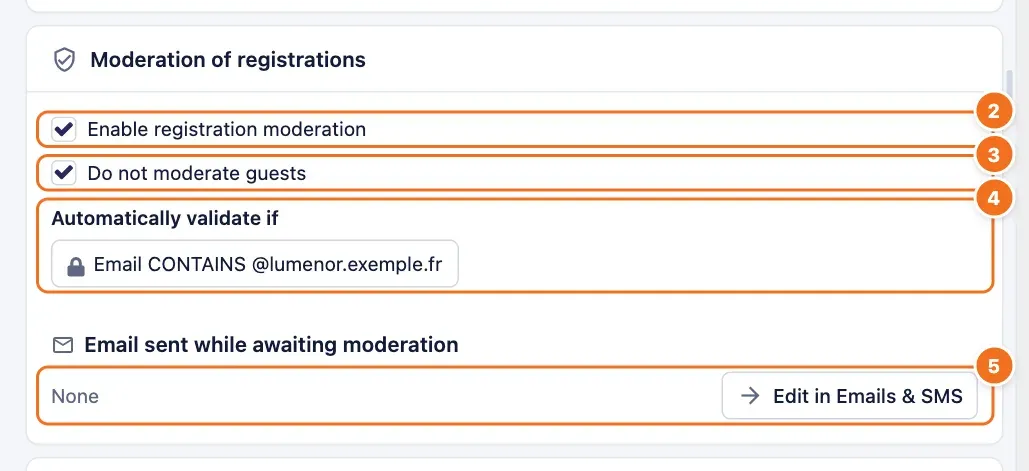
- In the Moderation of registrations card, check Enable registration moderation.
- Check Do not moderate guests if people already in your list with the Invited status should be accepted without waiting.
- In Automatically validate if, click the condition (Moderate everyone until one is defined). Choose the criterion (for example Email), the CONTAINS… operator, and the value (for example
@lumenor.exemple.fr), then click Validate. The condition is saved only with the form’s Save button, which you click at the end (step 5). - Click Edit in Emails & SMS. In the Right after sending card, choose a template in Registration awaiting moderation, then click Save.
Notify the participant of your decision
Section titled “Notify the participant of your decision”You make your decision in the Participants database: click the To moderate status, then Register or Reject. The form sends nothing at that point. So schedule a send for each decision.
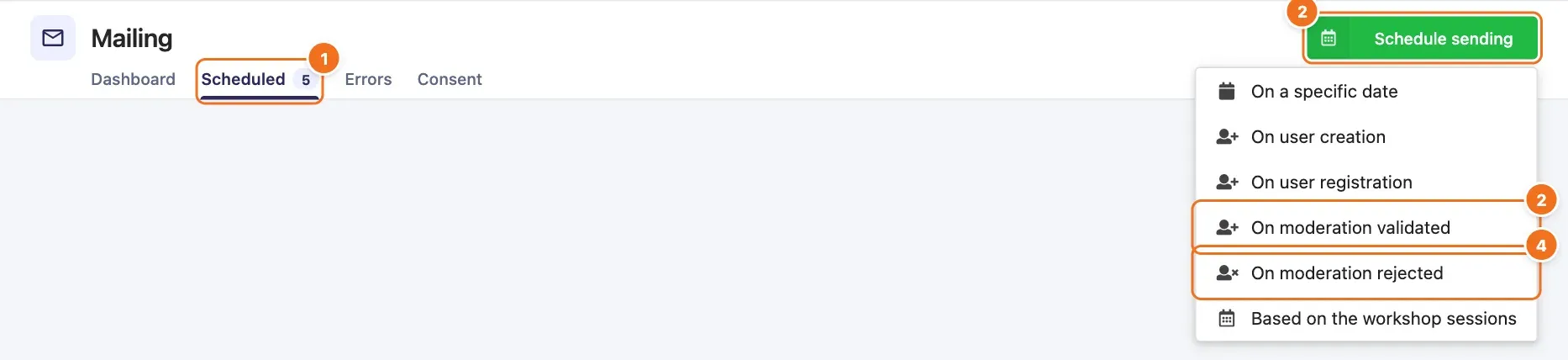
- In the Mailing module, open the Scheduled tab.
- Click Schedule sending, then On moderation validated.
- Enter a Title, choose the acceptance Template, then click Create. The fields in the window are described in Schedule sending of an email.
- Repeat with On moderation rejected and the refusal template.
Good to know
Section titled “Good to know”- A profile approved automatically doesn’t get the decision email. It is never To moderate: it receives the usual registration confirmation, but neither the waiting email nor the On moderation validated send, since it never went through To moderate. The On moderation rejected send goes out only if you set the person to Rejected yourself.
- An empty waiting email means no email. If Registration awaiting moderation stays on Don’t send an email, the person receives nothing when they register: the form doesn’t fall back to the confirmation. No SMS is sent while the registration is waiting.
- Without an automatic send, the decision stays silent. Neither the registration confirmation nor a refusal email goes out when you click Register or Reject.
- The decision sends follow the status change. On moderation validated goes out when a person moves from To moderate or from Rejected to Registered. On moderation rejected goes out when they move from To moderate or from Registered to Rejected. The send’s Condition field lets you send a different template to a different profile.
- The condition reads the submitted answers and, for a person recognized as a guest, their record. On the personal link, the record is always read; on the public link, only for a guest recognized by their email address. Submitted answers take precedence over the record.
- Do not moderate guests recognizes a person who submits their registration from their personal link, as long as they still have the Invited status. If the form has tabs with Save the answers at each tab, the person moves to In progress as soon as the first tab is validated: they are no longer recognized as a guest and will be moderated, unless the Automatically validate if condition approves them. On the public link, they are recognized only if they enter the email address of their invitation and Link to their invitation a guest who registers without their personal link is checked, as it is by default. Otherwise, they are moderated, unless the Automatically validate if condition accepts them right away. If Link to their invitation a guest who registers without their personal link is unchecked and Accept several registrations with the same email is also unchecked, a guest who enters the email address of their invitation gets an “already registered” error instead of being moderated.
- Some answers are never moderated. “I’m not coming” gives the Won’t come status directly. A registration that is already accepted isn’t moderated again. A pending request that the participant edits sends the waiting email again.
- Moderation can’t be combined with payment. In order mode, if the cart contains a product, the status changes to Pending (payment) before any moderation.
- A pending request doesn’t count toward the maximum. The Maximum number of registrants counts only people with the Registered status. See Open, close, and limit registrations.
If that’s not enough
Section titled “If that’s not enough”- There is no waiting list: a registration to moderate isn’t queued based on the number of seats. To close when it’s full, set the Maximum number of registrants.
- To approve automatically based on data that neither the form nor your list contains, add a question or a hidden field, then also add it as a column of your participant list: the Automatically validate if condition only offers the list’s columns, not the form’s questions. See Show questions based on the participant’s profile.
See also
Section titled “See also”Was this page helpful?
Thanks for your feedback!
Can’t find your answer? Contact support
© AppCraft EventsAppCraft Events websiteLog inContact support